I am having the same experience. Video games work but not much beyond that. Even running running nvidia-smi returns nothing.
I haven’t had any luck with Linux guests either.
Leaving this here. Someone on one of my videos left this script in the comments and it looks to possibly get NVidia GeForce Experience to work by possibly spoofing the card’s ID. Credit to ElectricBlue81

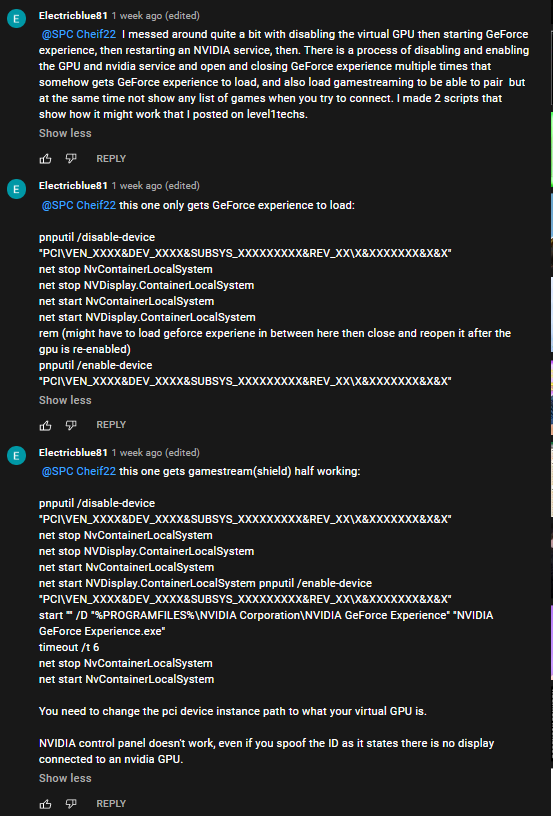
Scripts from photo:
Script 1 - Gets GeForce to load:
pnputil /disable-device "PCI\VEN_XXXX&DEV_XXXX&SUBSYS_XXXXXXXXX&REV_XX\X&XXXXXXX&X&X"
net stop NvContainerLocalSystem
net stop NVDisplay.ContainerLocalSystem
net start NvContainerLocalSystem
net start NVDisplay.ContainerLocalSystem
rem (might have to load geforce experiene in between here then close and reopen it after the gpu is re-enabled)
pnputil /enable-device "PCI\VEN_XXXX&DEV_XXXX&SUBSYS_XXXXXXXXX&REV_XX\X&XXXXXXX&X&X"
Script 2 - Gets game streaming and sheild streaming semi working:
pnputil /disable-device "PCI\VEN_XXXX&DEV_XXXX&SUBSYS_XXXXXXXXX&REV_XX\X&XXXXXXX&X&X"
net stop NvContainerLocalSystem
net stop NVDisplay.ContainerLocalSystem
net start NvContainerLocalSystem
net start NVDisplay.ContainerLocalSystem pnputil /enable-device "PCI\VEN_XXXX&DEV_XXXX&SUBSYS_XXXXXXXXX&REV_XX\X&XXXXXXX&X&X"
start "" /D "%PROGRAMFILES%\NVIDIA Corporation\NVIDIA GeForce Experience" "NVIDIA GeForce Experience.exe"
timeout /t 6
net stop NvContainerLocalSystem
net start NvContainerLocalSystem
Hopes this helps anyone looking on information regarding GeForce Experiance.
3 Likes
I’ve been trying this for about a week now, but I get stuck at creating the VM. When I try to boot it for the first time, all I get in the VM window is a black screen. No cursor, no nothing. Just no output whatsoever.
The thing is I’m running Hyper V inside a Win 10 VM running on proxmox, so I thought nested virtualization just didn’t work on this old AMD (FX-6350). But it does, except only for Gen 1 Hyper V VMs. I can create one of those, install Windows and everything works. But nothing with a Gen 2. I’m stumped.
Have been testing this now with Lenovo Thinkstation P620 with Geforce 3080.
Windows 10 Hyper-V host:
Win10 does work ok
Server 2016 does not
Server 2019 does not
Server 2019 Hyper-V host:
I am getting only gpu partition insufficient system resource errors so nothing does not work. GPU itself is working ok with host. Pretty much feeling that server 2019 does not support this.
Not sure would Server 2016 host work any better.
Server 2016/2019 machines would be nice to get to work because then I could use GPU-P on RDSH and RDSV and not whole GPU for one vmachine. Windows 10 Hyper-V does not support RDSV because I cannot run RDSV role on Windows10.
Now this is somehow useless because cannot run multisession Win10 without licensing issues and Server2019 does not support GPU-P. Damn Microsoft and their Azure plans.
I think I will next test Pci-e card with 3 quadro 3000m mxm cards and AMD Firepro S7100X mxm card. I think I need to jump to HP BL460G9 server and Citrix Xenserver on it and forget Hyper-V and GPU-P.
1 Like
I remember sitting in on a Microsoft meeting at a college and I asked the question about multi-session on Windows 10. It can be done, but by registry hacks.
Though it goes against Microsoft’s license terms of service and such and they didn’t plan to release the feature to non-Azure users. Not technically impossible to accomplish but will get you in trouble in the commercial world.
If its for a business, I think Xenserver might do better for your application. I don’t know if Server 2019 will support the function unless its a later date it gets better support.
Just found this community, and tried out this guide to partition my RTX 3090, with good success at 1080p resolution using Parsec. Great stuff, the performance is super impressive.
I’ve been struggling to get this to work on 4k though, as the HyperV monitor seems limited to 1080p, as well as the Amyuni USB Monitor driver which also seems limited to 1080p.
Nobody seems to mention 4k in this discussion, is this something doable with Parsec (or anything else that isn’t the sluggish RDP)?
The linked YouTube video OP posted mentions using a Headless DisplayPort dongle per VM, would that help overcome the 1080p limitation?
I’ve browsed some of these dongles online, but the DisplayPort ones seem limited to 17Hz on 4k for some reason… though there are a few HDMI dongles that seem to do 4k@60Hz.
Also, would these dongles work when the GPU is partitioned, and how does one configure them in the VM? AFAIK, these dongles are usually used in conjunction with GPU passthrough, where a GPU is fully dedicated to a single VM - which isn’t the case here.
Sorry if the questions are too simplistic, it’s my first time attempting to share a GPU with a VM in this manner.
An advice on getting 4k working with GPU-P would be great.
My dongles dont Work that way. It is like you suggest, If you passtrough the whole Card and use a HDMI 4k 60hz dongle you can use that Card headless with parsec.
But partitioned you would need a USB GPU or a real Low Power GPU passtrough for any Video Output and use your partitioned GPU as “Compute” Power. Like i did a few posts obove. Then its totally doable i would suggest.
I did a quick Amazon Research and best USB external Videocard i could find does 4k30hz, so your best bet is an low Power GPU passed trough to your Windows VM and your 3090 partitioned for Compute.
Passing trough a whole GPU is an adventure on its own. Passing trough a USB device is a Matter of a few clicks with an USB over IP Program.
I never tryed that but an IGPU with 4k/60hz Output would make an Second GPU obsolete.
Awesome to hear that the 3090 crowd is getting in on this!
So in terms of the Headless dongles, I don’t know the reason behind them. IT was the only way I could get NVENC support working for Rainway. When I use the USB Monitor driver, it eliminated the need for the dongles.
I think the card or VM just needed something to think a physical monitor was there as the USB driver basically emulates one. Since its a VGA driver, I don’t believe over 1080P is possible. I can just set to show the hyperV viewer as the display and NVENC works. If you needed two monitors then leave the other one up but mouse support will be wonky on the viewer.
If using the parsec Warp virtual monitor driver, sky the limit on resolution that is supported by parsec. But I had issues with doing this on multiple VMs at once with the parsec virtual monitor driver.
In terms of 4K support. I haven’t yet found it. I feel there is a registry hack but no clue at the present moment as the one page I found has a 404 on it.
I have a system with 2 quadro p4000’s. No Matter what i seem to try it will only allocate VM’s to the second GPU. If i remove the second GPU it assigns from the first again. No matter how many machines i start it doesn’t start using the second card. Any idea’s. I dream of a rig with 4 GPU’s.
Thanks
You can add Server 2022 does not. Getting the same error. You can add registry keys to get the VM startet but it has no GPU attached. Very disappointing.
I found a session from the 2019 E2EVC Virtualization Conference, where the speaker goes into a bit of history of GPU-P and handful of benchmarks. This doesn’t really move the technical/how-to conversation forward much but it is interesting.
youtube(dot)com/watch?v=Zmuejk14Rd8
1 Like
Sheseh Microsoft,
You would think that this would be put into Windows Server OS. It’s on Microsoft for not including this feature at this point. If it is there, not really functional yet.
Windows 10 based hypervisor OS server I guess would be how this operates for now. But would be a bit more reasonable to see this be on HyperV server OS at least.
are you able to see the GPU in task manager? I have the same set up and i managed to install… GPU is showing up correctly in device manager as well. However not in task manger. ALso i’m getting 180FPS in unigine!!!
I’m having some issues with Code 43. I’ve installed the latest GeForce drivers but I don’t have a nv_dispi.inf_amd64 folder in C:\Windows\System32\DriverStore\FileRepository\ of the host. I’m running a mobile 3070, not sure if the driver is called something else on laptops. Any help would be appreciated.
Here’s a solution for you.
Edition Windows 11 Pro
Version 21H2
Installed on 2021-09-14
OS build 22000.160
Experience Windows Feature Experience Pack 1000.22000.160.0
Windows 11 Beta preview has newer PowerShell commands that allow you to select the gpu you want to use for each vm. Start by knowing your gpu instance path: Device Manager → Display Adapters → ‘Your GPU’ → Details → Device Instance Path (under property)
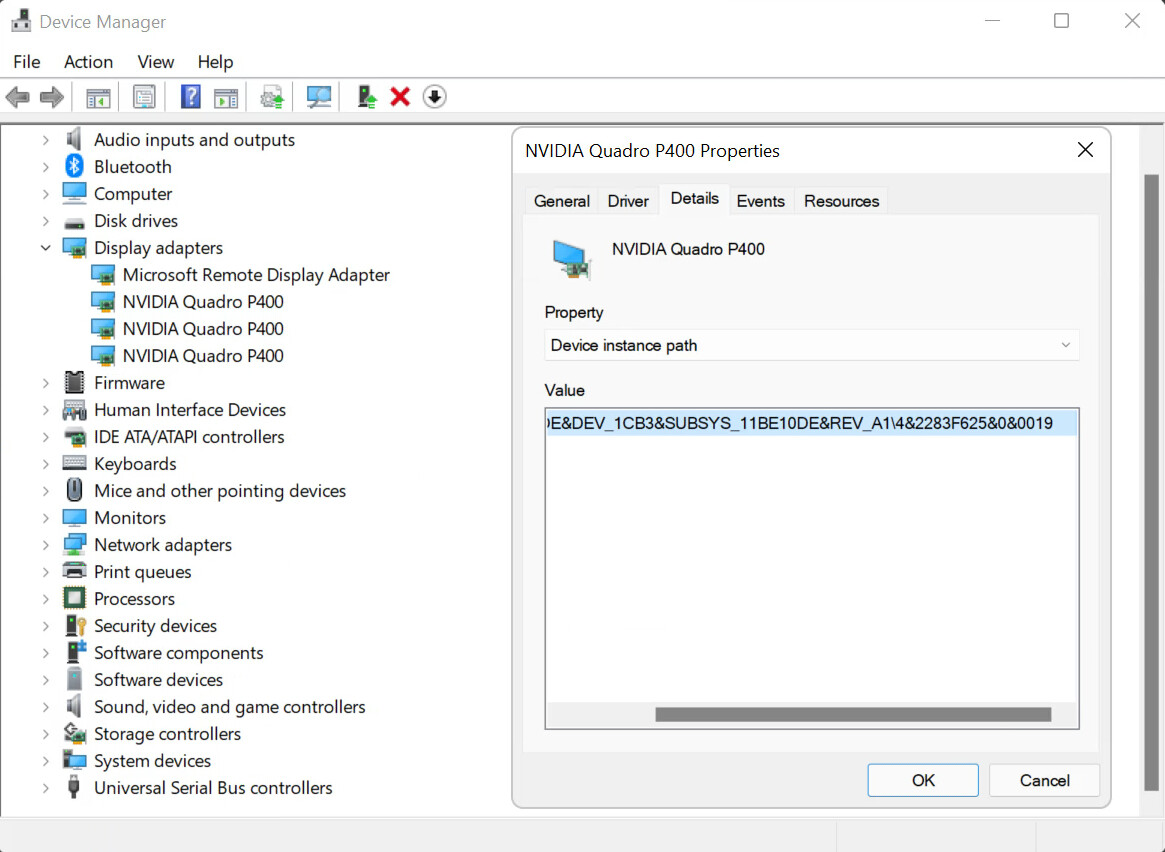
Then run ‘Get-VMHostPartitionableGpu’ (‘Get-VMPartitionableGpu’ is deprecated) in PowerShell and match the instance path that corresponds to the gpu you want to utilize. The instance path to use in the next step is across from the identifier “Name” on the top row.


When you’ve prepped your vm and you’re ready to add your partition adapter, you will add ‘-InstancePath $instancepath’ to the command or paste the instance path into the “Instance Path” field in the GUI.

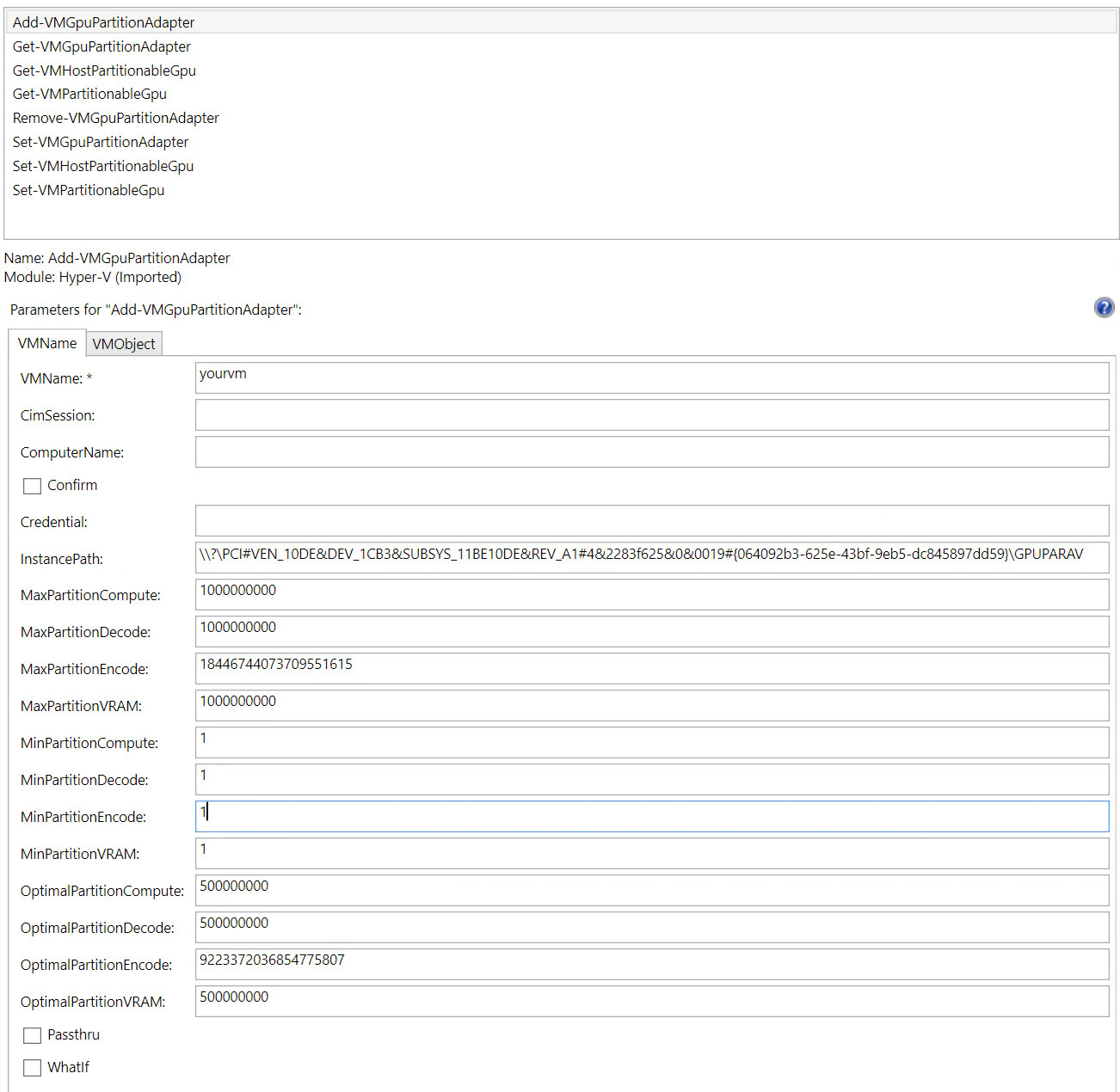
You can confirm with “Get-VMGpuPartitionAdapter -VMName $vm”
So far I’ve had success. It has survived reboot and, as you can see, the vms are using the gpus I’ve assigned them.
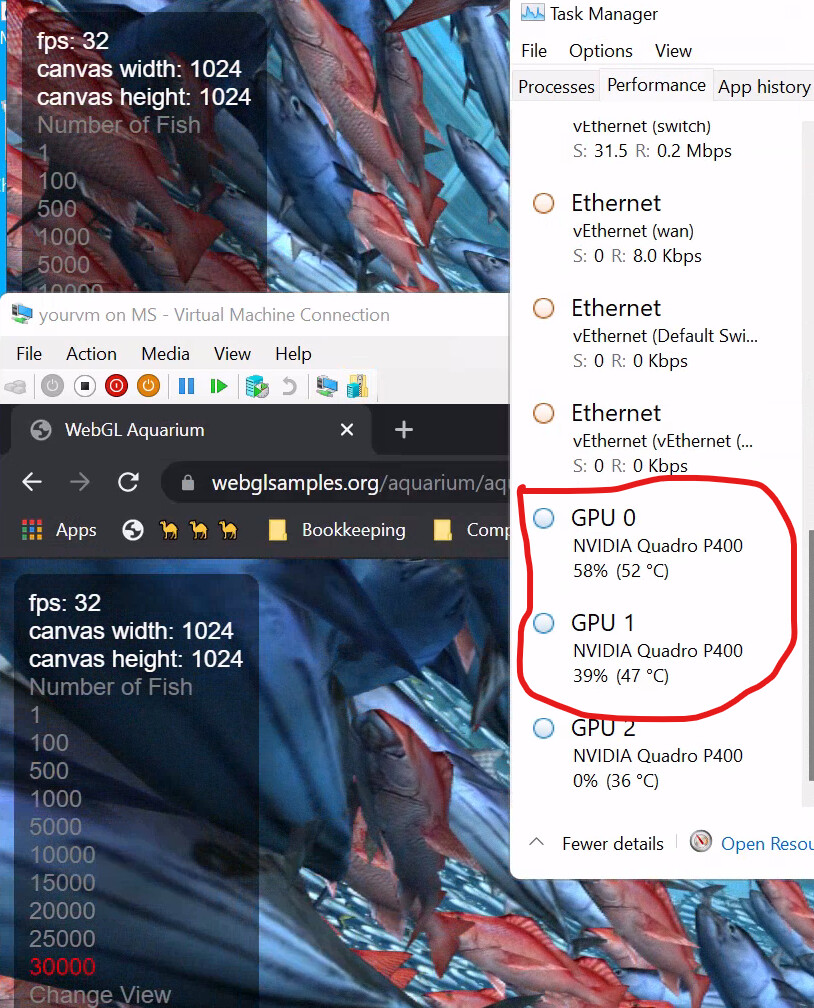
1 Like
Hey,
Was this command also in Windows 10? I thought I saw this when looking at the command “Add-VMAssignableDevice” when looking for “instancePath”.
Looking at this, it makes it looks like it just assigns the entire card rather than partition it.
Sucks that it isn’t in Windows 10 at the moment or if it will ever come to it.
Good spot! I may leave a note in the guide if it lets me.
I couldn’t get ‘-InstancePath’ to work for me in W10 while adding the partition adapter. The option doesn’t exist in the latest preview for 21H2 as well. I have a few machines running W11, so that’s how I came about this.
I think you’re right that “Add-VMAssignableDevice” is just for DDA. I’m not sure if there is anything else you use that command for. I also tested DDA on this W11 build and it is still locked out.
Well crap LOL. i guess windows 11 is giving us the reason to upgrade a virtual host for this very wanted essential feature.
nothing against windows 11, just kind of weird why its there and not on windows 10 yet.
WHY MICROSOFT.
Ive followed the steps and the gpu shows up in device manager and uingen superposition but not in task manager. And how does the memory get assigned to the VM is their a way to set a limit on how much memory a VM will get allocated. BTW my gpu is a 1070ti
I know what you are referring to. I never gotten any luck with the VM showing the GPU in Taskmanager. If it’s in device manager, that is good enough in this case. You would need to check your host to see if encoding or 3d rendering is going on in Taskmanager. If your looking at the Dedicated memory field in advanced monitor settings, I think it just pulls the information from the card regardless if it was partitioned or not.
For VRAM assignment. use the vaules as a percentage of VRAM
MinPartitionVRAM : 0
MaxPartitionVRAM : 1000000000
OptimalPartitionVRAM : 1000000000
Use the 1000000000 as a value 100% and divide that to a value you want. In the Optimal field, just -1 the overall total you want to use.
Hope this helps