
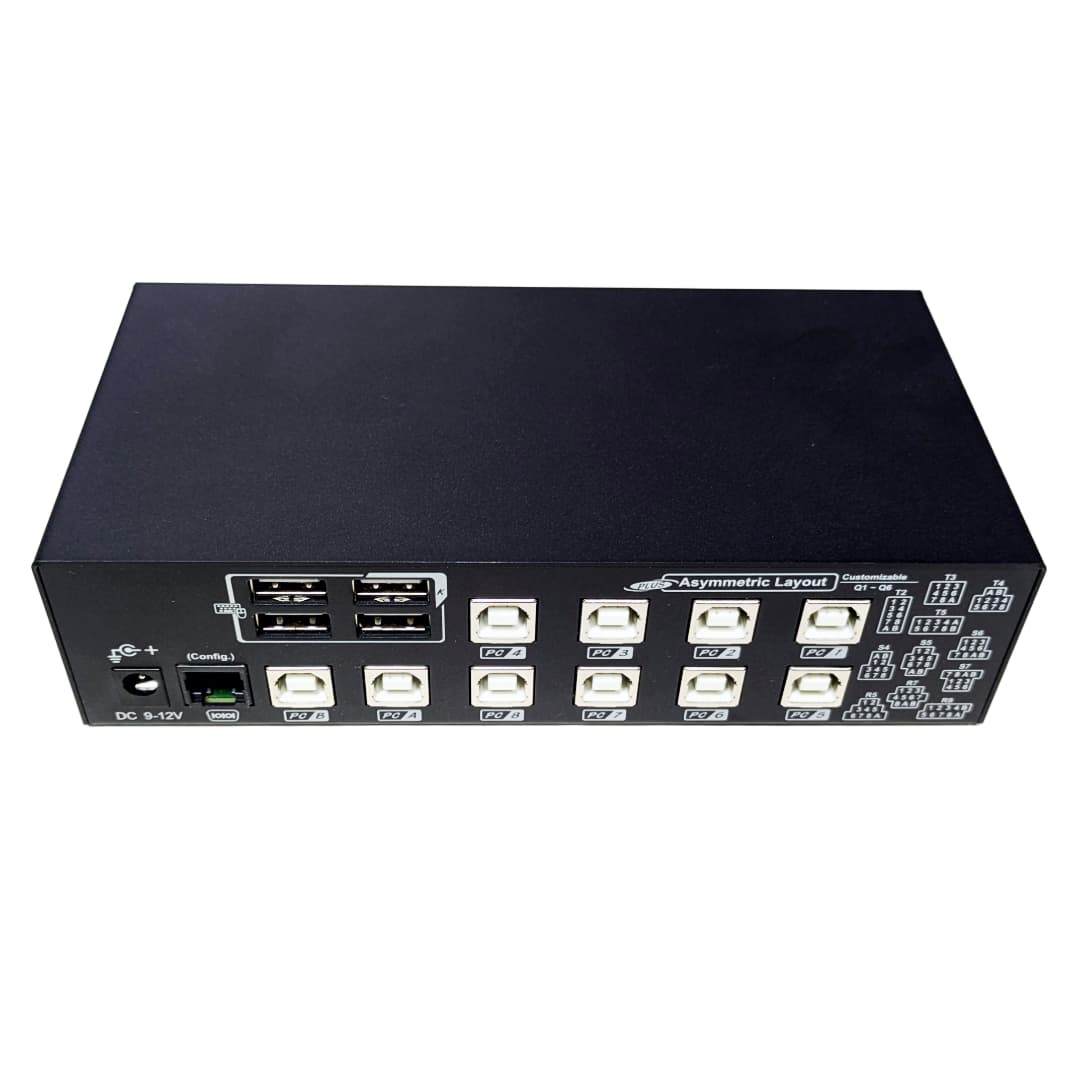
This is our USB 2.0 KM. Rather than demanding performance of 5 or 10 gigabit, this KM fills a niche at a more reasonable price point.
Highlights & Features
-
Connectivity - The USW-KM2000 lets you use one keyboard and mouse to control up to 10 computers that are connected via USB-B 2.0.
-
Diverse Use-cases - You can easily switch between computers by pressing a button, using keyboard shortcuts, or enabling mouse roaming.
-
Mouse Roaming - You can move your mouse across the edge of one screen to jump to the next computer. No need to press anything to switch.
-
Absolute Coordinate - It uses smart tech to figure out the screen setup and gives you different layout options to make mouse movement seamless.
-
Multiple Configurations - Comes with 4 switching styles and 17 ready-made screen layouts to help you build your own multi-screen workspace.
-
Four main modes:
-
Switch Mode - To control one computer at a time. Switching inputs with buttons or hotkeys.
-
Mouse Roaming Mode - To hover from screen to screen with your mouse, instantly switching USBs connected to that computer.
-
Broadcast Mode - To work with multiple computers at once. Good for systems that will be staying in place after broadcast is entered.
-
Always Broadcast Mode - To work with multiple computers at once that will be changed. “always braodcast” mode is constantly searching for an input from your USBs to sync. Hotkeys are disabled in this mode.
-
Standard Switch Operation
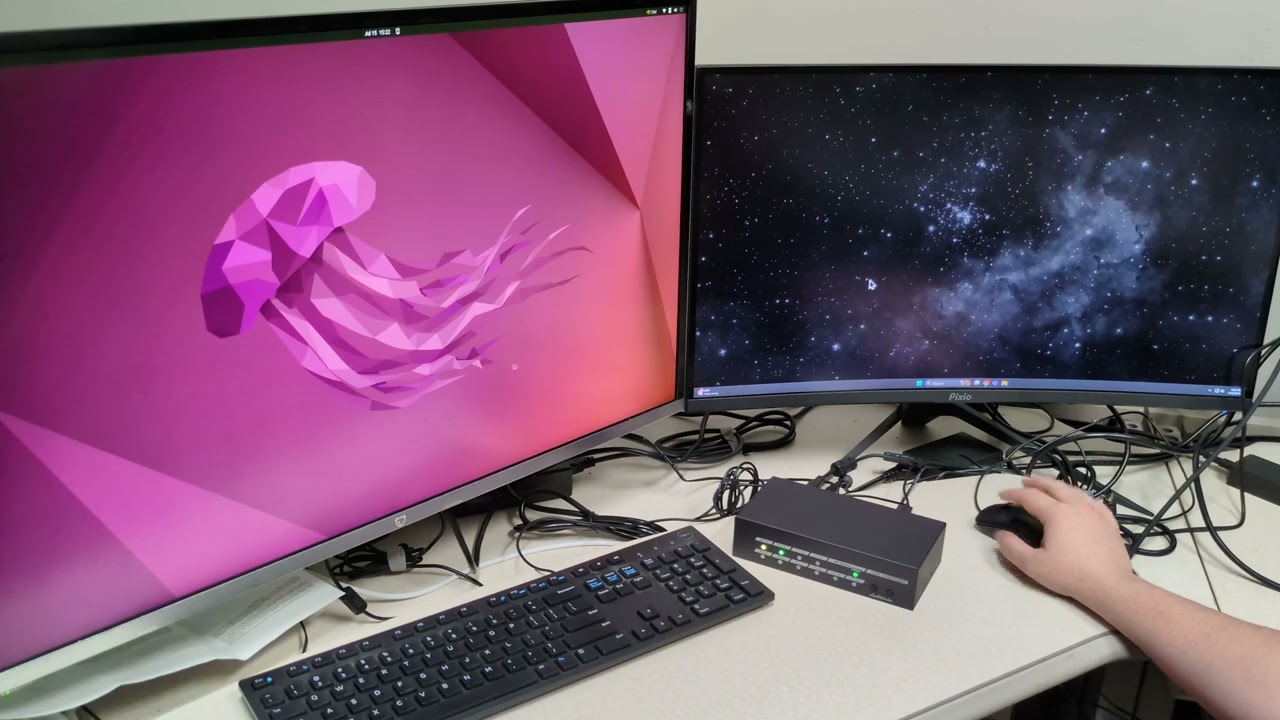
Mouse Roaming / Aspect Ratio Tweaking
Always Broadcast Mode
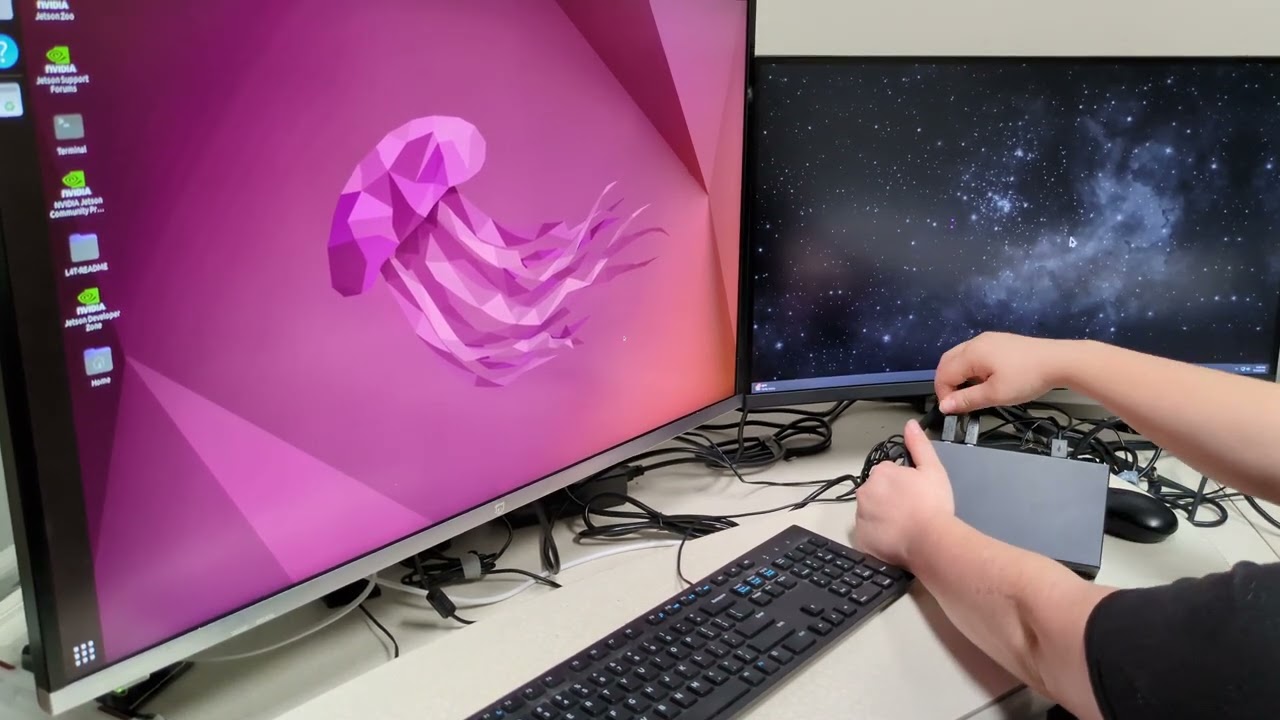
FAQ
Can I use multi monitor setups per input?
No*
*There is an old driver to help with this, but you will probably experience a mouse ratio issue. Feel free to try by downloading the driver:
https://highseclabs.com/wp-content/uploads/2022/12/KMMultiDisplayDriver.zip
Does the mouse have to be in the HID ports to mouse roam?
Yes
Can I mix and match resolutions with the KM?
No, different resolutions will have a “relative” mouse coordinate (probably won’t match up), so this KM is best used with monitors that are the same size.
My mouse is acting strangely when in mouse roam mode?
Solution:
What is the difference between Broadcast and Always Broadcast modes?
“Always Broadcast” mode will continuously check for USB ports and reconnect when a computer is plugged into them. If you use the regular “Broadcast” mode, every time you unplug a PC, it will not reconnect to the new one plugged in after.
My mouse DPI changes when I use mouse roaming?
todo
