So I thought I was the only one going insane with this MOBO. I have built many and I do mean MANY PC’s from little one’s tha5 just want something to get on the net with, to monster PC’s that can heat the living room as it is comsuming so much raw power it can power a light saber lol. My PC alone I built myself cost my over $5K. My wife is with thw MOBO and the RAM issue has been a nightmare for sure. The light comes on and when it does, it does not like being restarted and the DRAM white light hangs and won’t turn off. So with that said, the PC becomes bi-polar and does what it wants at that point. If her PC needs a restart, we just shut it down, then turn it back on. We have went thru 3 sets of 64gb of RAM. The first set we did not know was not on the list, the 2nd set was but wasn’t. Why I said it like that because some sites have it, and others don’t. The 3rd set which we have now is G.Skill Flare X5 but that is where she don’t like restarting off this set. We are gonna try the set I read about from OP’s list and hopefully we get some peace from this hell of a machine.
I’ve updated to BIOS F35 a few days ago.
Since this PoS board does not remember any settings (even if loaded from a file), I had to re-configure it once again.
Some of the options moved about a little bit - will post screenshots during the weekend, hopefully.
Regarding RAM: I also had the DRAM diode going red during boot, but decided it was a false alarm. Apparently, in my case, I was right - after sorting out PCIE/PROM21 settings - no more red DRAM diode.
Apparently I now have to upgrade to F36 because of this: SMM memory corruption vulnerability in SMM module on Gigabyte device (SMRAM write)
Meanwhile, F35 has just disappeared from BIOS dl page.
Thank you Gigabyte for providing accurate changelogs, info on vulnerabilities, and for not hiding Your failures in plain sight!
Huge thanks to you EfPe ! Your settings definitively and finally stabilized the boot process of my GigaByte X670 Gaming AX Motherboard (so not exactly the Aorus Elite).
I tried everything before, but always ended again on a “stuck” boot" after a few days, in a totally random manner. As the thread titile says, this was a real nightmare… I lost days on this, and will most likely avoid Gigabyte mother boards for futures setups.
But anyway, it’s been 2 weeks now and not a single failing boot. What a relief  !
!
Not sure which individual setting solves the problem, it’s probably a combination of several ones !
Huge thanks again !
Thanks! Good to hear that all this info is useful to someone.
As for the reasons for this mess - I mostly blame the double-chipset-centipede thing, but cannot provide any proof.
@EfPe
Hello,
First thanks for your well detailed post
I have small ask : how should I configure it stable but still have my LAN and WIFI module working on the last F38 BIOS version ?
F38? There is no F38, the newest is F37e - which I wont use, because it has a letter on it (beta/alfa/who knows)
Will try to update to F36 and update screenshots.
Wifi: I do not know, and I won’t test it, since I do not use it.
Eth: should work just fine, however, this 2.5G realtek has problems with eth stability - especially under linux.
.
I’ve been having headaches with this MB on Linux, Eth after wake up on sleep just stop working, in my case I have 2 nvme’s in M2A_CPU and M2B_CPU, and a lot of times boot part mounting process fails, should I use M2A_CPU and M2C_SB?
Sorry, I forgot, hopefully will get to it during the weekend - just to much stuff at work, “high season” for us.
Hello!
Try to apply the BIOS setting outlined in earlier post. I will try to find some time during the weekend to update screenshots - much has changed in recent bios versions.
M2A and M2B should be fine.
In my experience, one should avoid the section marked in red for anything important:
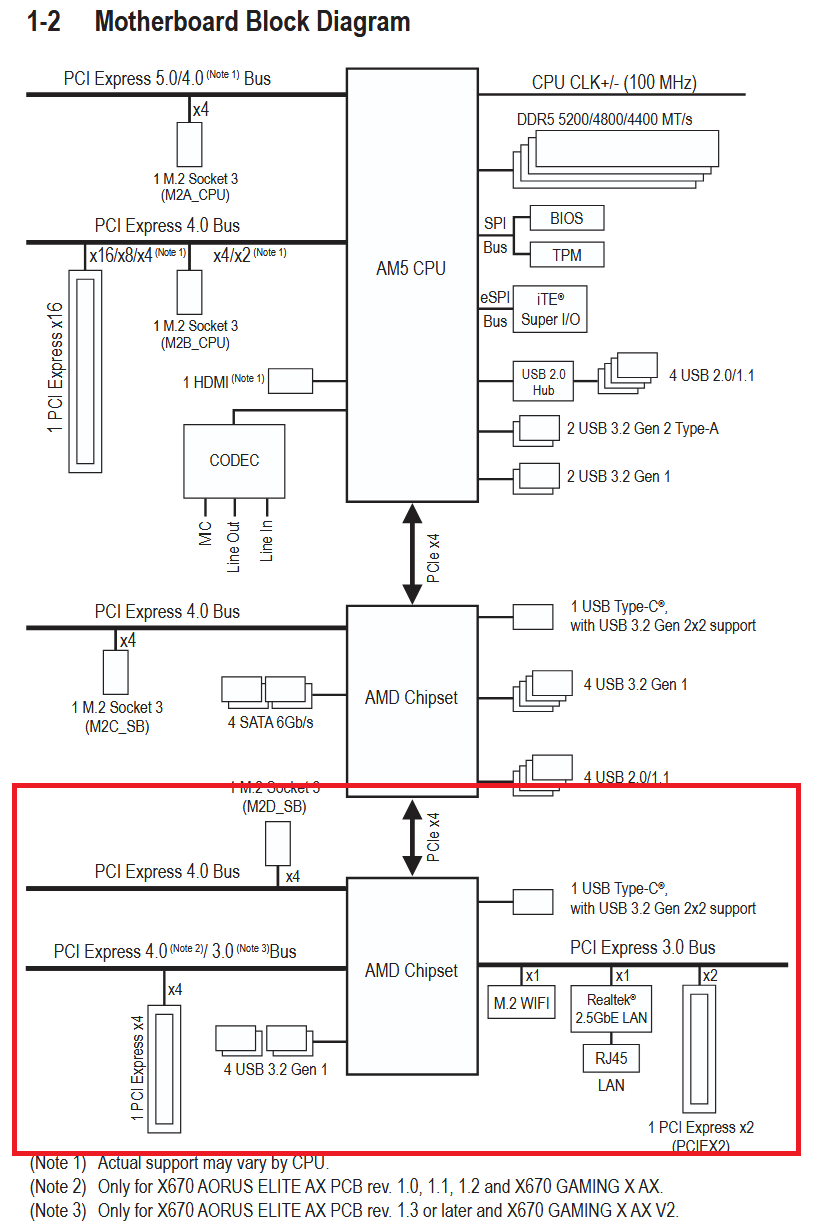
MB manual with this diagram: https://download.gigabyte.com/FileList/Manual/mb_manual_x670-aorus-elite-ax-v2_1304_e.pdf?v=14179f73b4e68ae8184c4ff9ed9d9845&page=7
I actually created an account just to join this conversation.
I have experienced extremely similar behavior but on rev1.1.
For months I noticed boot startup to be slow, and in booting my operating system it froze for about a minute complaining about some usb ports not responding correctly.
I have my wifi disabled by default on my operating system, so it took me quite some time to figure out it was related to that.
The problem was that the wifi chipset never actually shut down, and therefore never released the usb interface it is connected to causing all that you describe and more.
After realizing it was the wifi, another round of weeks went by with me looking for solutions, and found it on ubuntu forums: cant post links due to new user
(I use Arch BTW xD)
The “fix” was, as insane as it sounds, to remove power from the mobo for about 10 mins, and suddenly everyting booted at lighning speed. The wifi released the usb interface and everything started working normally again. No more “slow af before the aorus image shows”, and my os booted in 20s.
So now for a few weeks I have started to experience another issue, my lan dropps without leaving any traces (that I can find) in logs, only the first startup after the computer being shutdown during the night. I have to reboot only a few minutes after “first daily startup” and after that, the lan works as intended again for the rest of the day.
I made a forum post on arch linux forums here: again, cant post links, but search for " Network stops working after system being turned off for a few hours" in Kernel & Hardware section of the forum if interested in following the progress of this issue, and I got asked to disable wifi in UEFI. But mark my surprise when realizing I CAN NOT do that. Even if disabled in the UEFI, it does not actually get disabled and I can access it through my operating system.
I have created a ticket at gigabyte support portal, but I don’t have high hopes of them actually returning with any useful information due to past experiences with their “support”…
Wanted to chime in to see if THIS actually is the issue causing all your problems aswell. If reverting to default, does removing power to the system solve your boot speed?
(I know you have it “solved” by downgrading, but this information could possibly be useful for you if you continue to bughunt these issues)
Thank you for all the details! I very much appreciate your insight.
I will test this solution. Perhaps wifi is the root of the problem - especially since as a consequence of my settings wifi does not work.
Just to be clear about your fix - I should:
- use default UEFI/BIOS settings (apart from any boot / cpu / ram timings / etc settings)
- disconnect all power for at least 10 min
- everything should work fine
is this correct?
EDIT: About ethernet - I have also experienced this (connection disappearing after few minutes) under qubes os, remediated it by connecting external USB eth adapter (this specific one: https://proline.pl/adapter-usb-a-31-gen-1-to-ethernet-101001000-unitek-u1309a-p6715495#specification)
However, qubes os defeated me in terms of audio… so I have no recent info re built-in eth issues.
10 mins worked for me, but safest is to just unplug it during the night but otherwise, yeah.
But I don’t have everything default, I mostly meant it as a question, if disconnecting the power solves the issue of slow boot.
For me this presented itself as kernel errors during boot, it claimed one usb interface did not respond. If you still use linux (or have a live version usb you can boot into) journalctl -p3 should show it in the logs. After I removed power, this issue disappeared and other issues as well, like the uefi process slow before showing image etc.
Another user came into the arch thread claiming similar problems. Not on elite version but gaming version of this board and he also could not disable wifi in uefi.
Can you disable wifi in uefi and it actually gets removed? (if on linux, rfkill list should no longer show the wifi interface)
I do know that the Gigabyte X670 Aorus Elite can be iffy with memory tweaking and overclocking.
So maybe it could be something related to that.
idk which kind of memory kits you guys use?
I think OP said he used memory on the list for supported memory, and so do I.
If all four memory banks are used I have read there can be problems using expo, but for only two modules like I have, it is very unlikely to be a memory issue.
In my case the memory is: g-skill F5-6000J3238F16Gx2-TZ5NR - CL32-38-38-96 1.35V
It worked, but sadly exactly once.
Every subsequent boot is once again slow and unreliable… It takes 5 minutes to show logo.

EDIT: also, this is after upgrade to bios f36.
That sux.
Can you disable wifi or is it still present in your os if you disable it?
Edit
Are you running linux?
What is the output of sudo journalctl -b0 -p3 on a “slow” boot? (can be done from a live environment like booted from a usb stick)
After many lengthy reboots I managed to re-introduce my prev settings.
Overnight disconnect helped with first boot, so I immediately went into BIOS and set everything up like before.
Now it reliably boots every time. This is now once more a “deterministic state machine” 
I am currently not running linux (tried to get into qubes, but audio setup defeated me).
It was not possible get windows to even start booting, so I doubt I’d be able to boot into linux.
WiFi is currently not present in windows device manager […]
WFi is present in windows, but it does not work (no networks found, can disable it, but cannot switch back on again).
However, it does not sit on USB, it sits on PCIe:
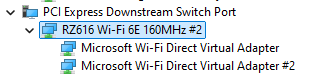
Maybe later I’ll boot into linux try to find which port it sits on, and disable that port in bios…
My willingness to experiment further is very low.
However, @Bedna Thanks for this new avenue of reasoning. There is definitely something up with WiFi and some kind of “state” being preserved in some piece of hardware.
Though, seems like “it depends” on ones circumstances / specific devices / MB rev / planetary alignment at the moment of MB etching.
As I said, you don’t need to have linux installed, you can use a live environment, like booting with a usb stick. No need to install anything, I just need to see the log when booting and I would immediately see if we have the same issue since the solution to THAT issue is to force the chipset to power down, the wifi chipset is not releasing the usb interface and removing power “fixes” that.
I have no idea how to read windows logs like that.
Also no need to change any settings, you should be able to have any settings, the important part is seeing what happens with the usb interface at boot time.
My bet is that downgrading is a correlation rather than a causation (ie not a “fix” in this regard).
Yes, that was the issue for me too that got fixed by forcing a shutdown on the wifi chipset, sometimes it was present, sometimes it just failed but the wifi never worked in any situation.
And the fix worked for you ONCE, so the question was in THAT situation, were you able to have wifi disabled in uefi and it did not appear in the os.
But since it failed again after a reboot, it’s hard to find out.
It would not surprise me one bit if the reason is that windows by default actually never shuts down but rather hibernates even if you select “shut down”, you have to manually configure windows to do a complete shutdown in settings for that to happen. It’s called fast startup.
https://www.elevenforum.com/t/turn-on-or-off-fast-startup-in-windows-11.1212
It is connected to an internal usb interface, windows probably don’t show those in the device manager (and neither does linux in “normal” gui interfaces). It is not the same interface as you use when you connect something via usb to the computer.
pcie is probably just the lane it uses.
I can post links now, so these were the ubuntu links I referenced to in my first post, they contain a bit of information about this.
No, but you having a rev 1.0 mobo and me 1.1 might… Also, you running windows with fast start.
Ok, if you prefer to run your system in a downgraded configuration rather than try to find the cause, I am not going to argue.
But most things you describe sounds exactly like the issue I previously had…
@Bedna
I’m having the same issue with the Wifi driver continuiously reinstalling. The LAN is connecting but it will deconnect and reconnect at times. What was your fix?