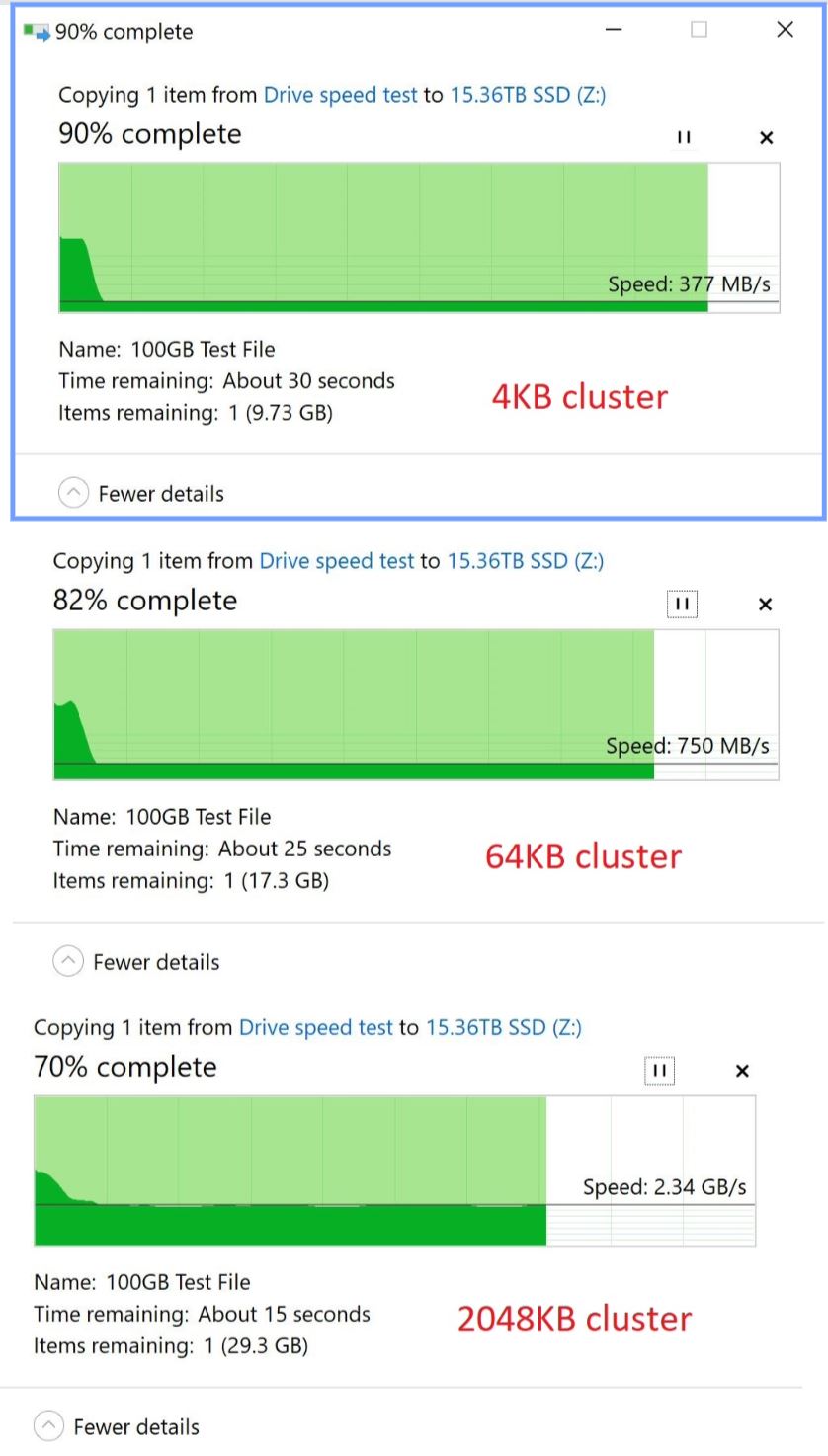
I recently bought a used 15.36TB Intel D5-P5316 QLC U.2/NVMe SSD for storing RAW photos, videos and some backups on my Windows 10 desktop. After formatting the drive with the default cluster size / Allocation unit size of 4KB I noticed the file transfer speed was pretty bad at around 377MB/s on writes and close to hard drive speeds. On the data sheet the specs are in 64KB cluster sizes not the normal 4KB, so I reformatted the drive with a 64KB cluster size. After reformatting the drive to 64KB clusters the drive gets about 750MB/s writes on large files. I also tested the 2048KB cluster size and it increased the write speed even more. I’m going to keep the drive at 64KB cluster size but I’m not sure if this will cause any issues with the SSD or software problems. I’m aware that QLC drives pretty much hit a wall for write speed after the pSLC cache is used up. (4-5GB on this 15.36TB SSD???) I cant find much information on SSD cluster size online that is helpful, so I figured I would ask here.
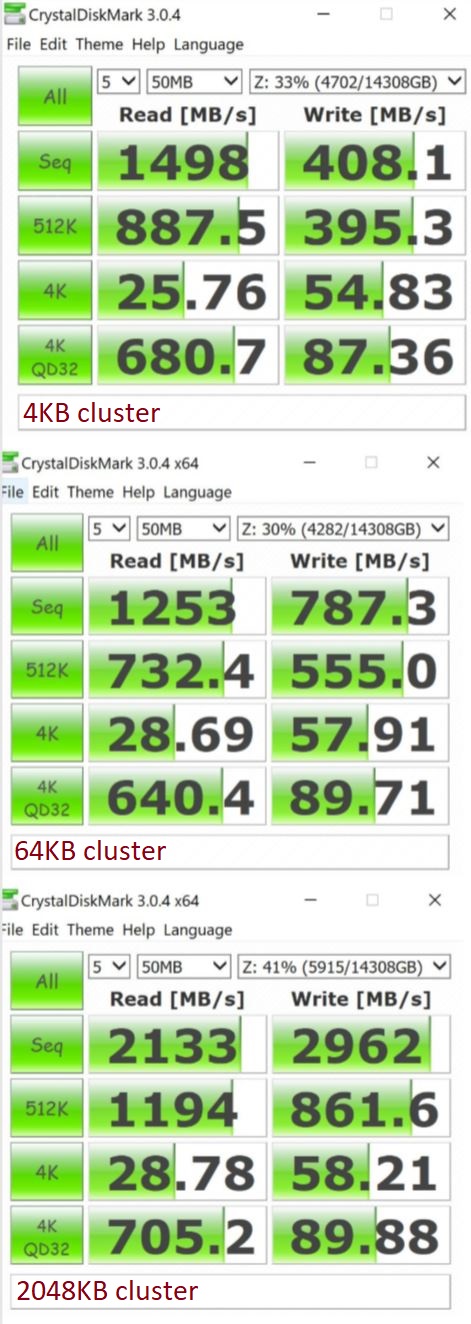

I don’t see that D5-P5316 pSLC is specified or tested anywhere else. But if Solidigm was only to match just Samsung’s uncompetitively small pSLC sizes in consumer drives it’d be 1.5 TB. So either something’s wrong or it’s a pretty epic fail even for a read optimized drive.
Can you please explain to me what you mean with you formatted the cluster size. Do you mean you adjusted the filesystem or did you change the block size of the NVME?
I do not know how to do it on Windows but on Linux you need to tell the firmware of the drive to reformat it (deleting all data in the process).
On Linux you can check it with the following command …
nvme id-ns -H /dev/nvme0n1 | grep "Relative Performance"
I reached out to Intel support ( now Solidigm ) and this was their reply.
"Your question about the buffer size is excellent, and it really touches on the main difference between your server SSD and the drives used in consumer PCs.
1. Why Is the Buffer Size Small (4-5 GB)?
You are observing a buffer of 4-5 GB instead of 50-100 GB, and I can confirm that this is perfectly normal for this specific drive.
- It’s an Enterprise SSD: Your D5-P5316 unit is engineered primarily for servers and data centers (enterprise use). This environment has very different requirements than a home PC.
- Priority: Read Speed and Stability: In the enterprise world, the goal is to keep reads extremely fast and the drive stable under constant, heavy load. It is not optimized for the huge, sequential file copies typical of consumer tasks.
- Fixed and Precise Buffer: Instead of a giant, dynamic buffer (like the one you see on consumer 4 TB drives), yours has a fixed, small, and precise buffer (the 4-5 GB you observe). This is specifically designed to handle the quick, random write bursts common in a server environment.
2. How Do I Know It’s Working?
- Observe the Speed Profile: The buffer is working correctly if your copy speed starts very high (the “turbo” phase) and then sharply drops to a lower, sustained speed.
- The Drop is the Key: That speed drop simply indicates that the 4-5 GB buffer has been completely filled and the drive has transitioned to writing directly at its QLC base speed.
In summary, the 4-5 GB you are seeing is likely a fixed, optimized cache size that the manufacturer determined is best for server workloads, rather than the massive dynamic cache found in consumer SSDs."
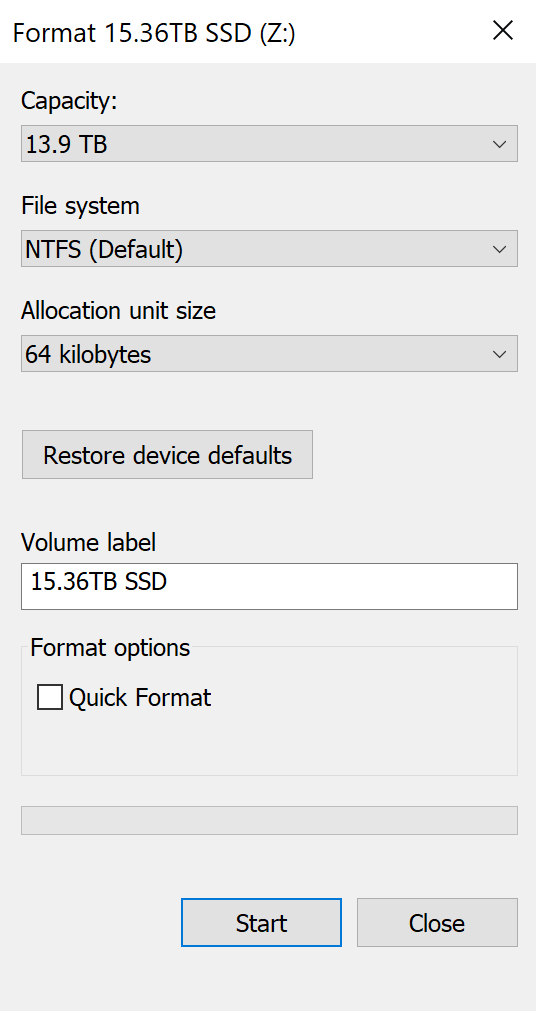
I think that only changes the allocation of the filesystem not the sector size of the SSD.
The reason why I mention it is SSDs can have different performance characteristics based on how the firmware shows the sectors the the operating system.
Modern SSDs usually work with 4k or 8k sectors internally. For compatibility reasons many show 512b sectors to the operating system (this is the 512e feature mentioned often). I got a new SSD recently and even in 2025 512e was the default setting for the firmware of my drive. I did get a slight performance gain by telling the firmware of the drive, to reformat the drive to native 4k sectors.
On Linux you would do it like this:
- Check the available settings the firmware provides with:
nvme id-ns -H /dev/nvme0n1 | grep "Relative Performance" - Then reformat the drive with the LBAF setting you want (from the previous command) by running:
nvme format --lbaf=1 /dev/nvme0n1to set the first (1) LBAF setting.
You could do that by booting from a Linux Live Iso of your choosing. I tried to search online to find a solution for Windows but all the threads and answers I find about it are wrong. They all say you just need to reformat (like you did) and that the NVME can’t be changed but that is factually wrong, because you definitely can tell the SSD’s firmware if it uses 512e or 4Kn sectors.
The following is the example output from my current SSD …
LBA Format  0 : Metadata Size: 0   bytes - Data Size: 512 bytes - Relative Performance: 0x2 Good
LBA Format  1 : Metadata Size: 0   bytes - Data Size: 4096 bytes - Relative Performance: 0x1 Better (in use)
As you can see even the firmware itself reports the performance characteristic of the 4Kn setting to be slightly better.
It’s just an idea that maybe this way you could get a bit more performance out of the drive, but I am not that knowledgeable on Windows to be honest. Other then that the performance of QLC drives is usually way lower then with other drives.
I had experience with a consumer QLC drives and it was quick to read but had a sustained write (for more then a couple sequential Gigabytes) of as low as 60-80MB/s.
I’m not familiar with Linux, the closest thing I have used is PowerShell inside of windows. From what you said you got a slight performance gain from going from 512e to 4K, how much of an improvement did you get?
Unfortunately I went with a cheaper used QLC SSD because it was about $100-$150 less then used TLC drives. I have a 7.68TB WD DC SN200 with TLC and it writes around 1GB/s for the same 100GB test file with 4KB clusters.
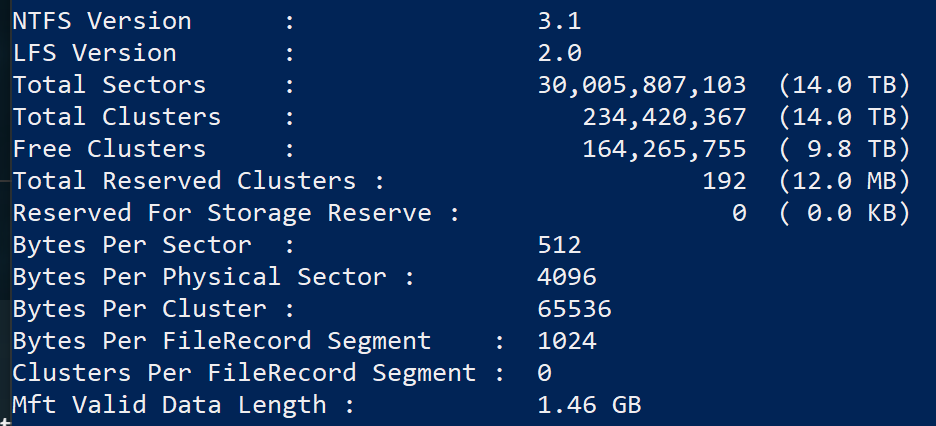
I am not 100% sure how to interpret this result. Physical Sector probably means the drive is native 4k sectors, but the bytes per sector with 512 kinda suggest to me that the filesystem works with 512e.
I am not 100% sure on this sorry. That you could maybe squeeze a little more performance out of the drive is a guess because it worked for mine. My drive did about 6000MB read sequential and does about 6200 after. The random read and write got a tad better as well. But don’t expect big performance jumps.
Reads like a ChatGPT hallucination. ¯\_(ツ)_/¯
Correct. I also have this series of SSDs. nvme id-ns gives the preferred write granularity as 64 KiB as well:
NVME Identify Namespace 1:
nsze    : 0xdf8f952b0
ncap    : 0xdf8f952b0
nuse    : 0xdf8f952b0
nsfeat  : 0x10
  [4:4] : 0x1	NPWG, NPWA, NPDG, NPDA, and NOWS are Supported
  [3:3] : 0	NGUID and EUI64 fields if non-zero, Reused
  [2:2] : 0	Deallocated or Unwritten Logical Block error Not Supported
  [1:1] : 0	Namespace uses AWUN, AWUPF, and ACWU
  [0:0] : 0	Thin Provisioning Not Supported

nlbaf   : 1
flbas   : 0
  [6:5] : 0	Most significant 2 bits of Current LBA Format Selected
  [4:4] : 0	Metadata Transferred in Separate Contiguous Buffer
  [3:0] : 0	Least significant 4 bits of Current LBA Format Selected

mc      : 0
  [1:1] : 0	Metadata Pointer Not Supported
  [0:0] : 0	Metadata as Part of Extended Data LBA Not Supported

dpc     : 0
  [4:4] : 0	Protection Information Transferred as Last Bytes of Metadata Not Supported
  [3:3] : 0	Protection Information Transferred as First Bytes of Metadata Not Supported
  [2:2] : 0	Protection Information Type 3 Not Supported
  [1:1] : 0	Protection Information Type 2 Not Supported
  [0:0] : 0	Protection Information Type 1 Not Supported

dps     : 0
  [3:3] : 0	Protection Information is Transferred as Last Bytes of Metadata
  [2:0] : 0	Protection Information Disabled

nmic    : 0
  [0:0] : 0	Namespace Multipath Not Capable

rescap  : 0
  [7:7] : 0	Ignore Existing Key - Used as defined in revision 1.2.1 or earlier
  [6:6] : 0	Exclusive Access - All Registrants Not Supported
  [5:5] : 0	Write Exclusive - All Registrants Not Supported
  [4:4] : 0	Exclusive Access - Registrants Only Not Supported
  [3:3] : 0	Write Exclusive - Registrants Only Not Supported
  [2:2] : 0	Exclusive Access Not Supported
  [1:1] : 0	Write Exclusive Not Supported
  [0:0] : 0	Persist Through Power Loss Not Supported

fpi     : 0
  [7:7] : 0	Format Progress Indicator Not Supported

dlfeat  : 25
  [4:4] : 0x1	Guard Field of Deallocated Logical Blocks is set to CRC of The Value Read
  [3:3] : 0x1	Deallocate Bit in the Write Zeroes Command is Supported
  [2:0] : 0x1	Bytes Read From a Deallocated Logical Block and its Metadata are 0x00

nawun   : 0
nawupf  : 0
nacwu   : 0
nabsn   : 0
nabo    : 0
nabspf  : 0
noiob   : 256
nvmcap  : 30,725,971,992,576
npwg    : 127
npwa    : 127
npdg    : 127
npda    : 127
nows    : 127
The last five lines in the output above are key to determining what the SSD itself prefers:
- NPWG is the namespace preferred write granularity. The size is 64 KiB given by
(127 + 1) * 512. - NPWA is the namespace preferred write alignment.
- NPDG is the namespace preferred deallocation granularity.
- NPDA is the namespace preferred deallocation alignment.
- NOWS is the namespace optimal write size.
See:
That said… 144L QLC 3D NAND is probably the most miserable NAND ever put forth by Intel.
I noticed it reads like its just repeating the information I gave it and adding extra words in. Also took a few days for each response so it was not fully done by AI.
Thanks for the help with the 64KiB cluster size / granularity. Now my question is if this will cause any software issues with Windows 10 or software applications? So far I don’t see any issues.
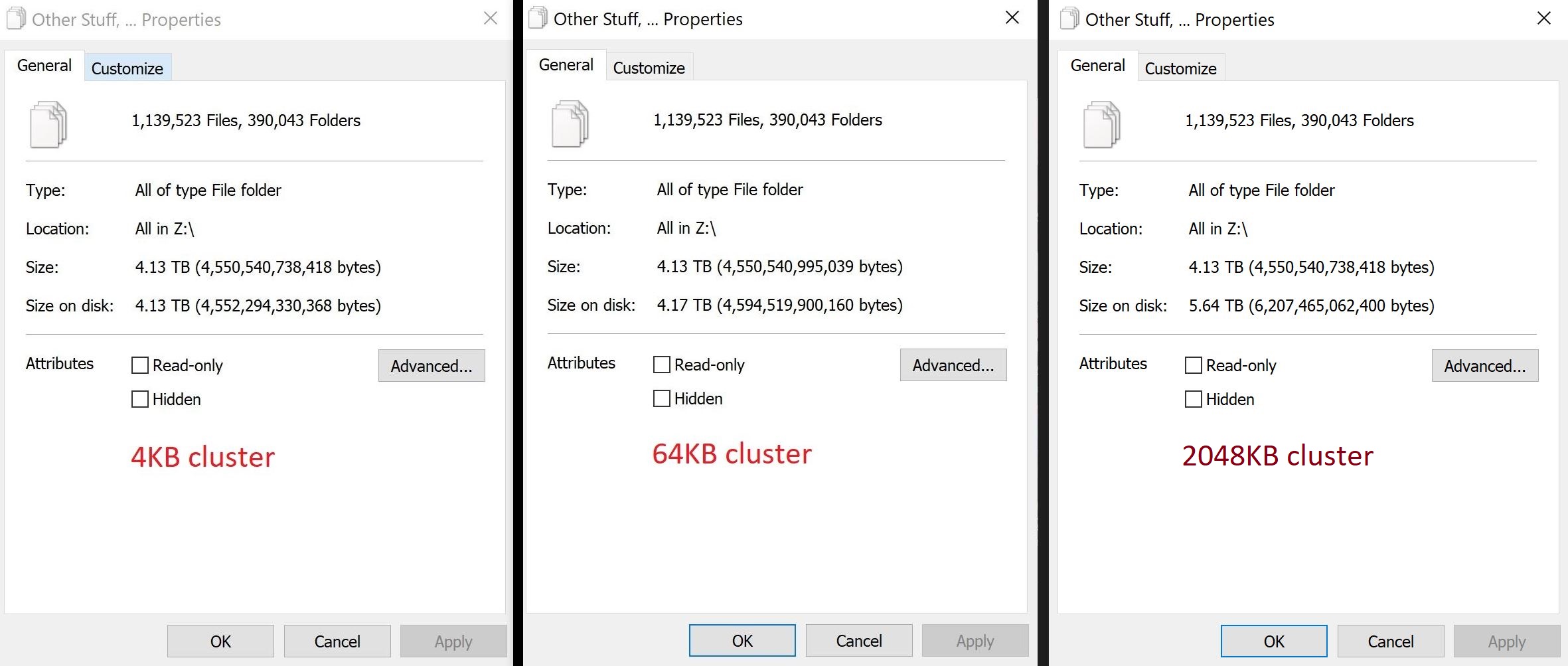
I have also heard people mention using larger then 4KiB sizes wastes space on the drive but there is very little difference between 4KiB and 64KiB sizes. The 2048KiB cluster option definitely wastes a lot of storage space but if your after fast write speeds on the cheap it looks like a good option. (About 29,001 of the files or 3.4TiB are from my dashcam, RAW photos and videos. The other 1 million files are from backups from Window and Steam.)
Perhaps this might be helpful:
Windows—shockingly—did not have native NVMe support until recently. And it’s still not enabled out of the box!
See if that helps?
In any case… Windows Explorer’s performance was never known to be stellar.
You might also have retarding environmental factors such as:
- Antivirus
- Virtualization-based security (VBS)
I’m pretty sure its on a 512 file system, I checked a different SSD and it says 4096 Bytes per sector. That’s not much of an improvement from 6GB/s to 6.2GB/s, I may leave that alone for now.
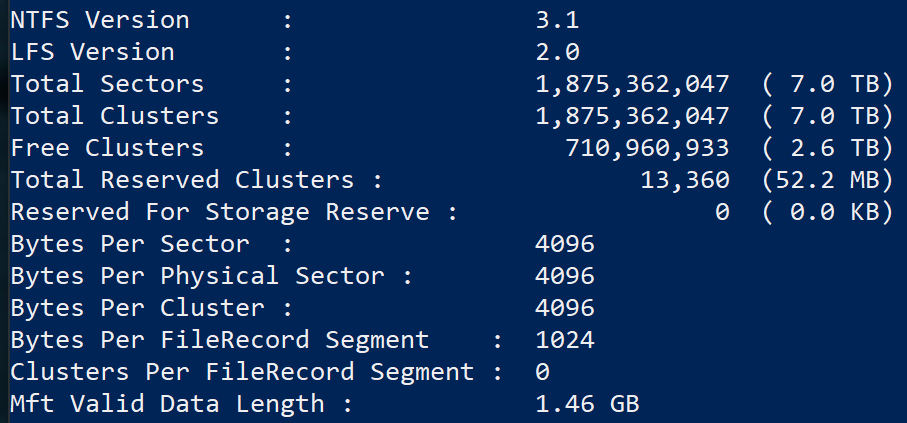
I did hear about the NVMe support last week but I’m running Windows 10, so I’m not sure that affects me. The datasheet says 399MB/s for random writes in 64KB blocks and its a QLC SSD so the IOPS are going to be pretty bad.
Refer to the trust levels link in Mistery’s pinned thread.
No worries it was just an idea.