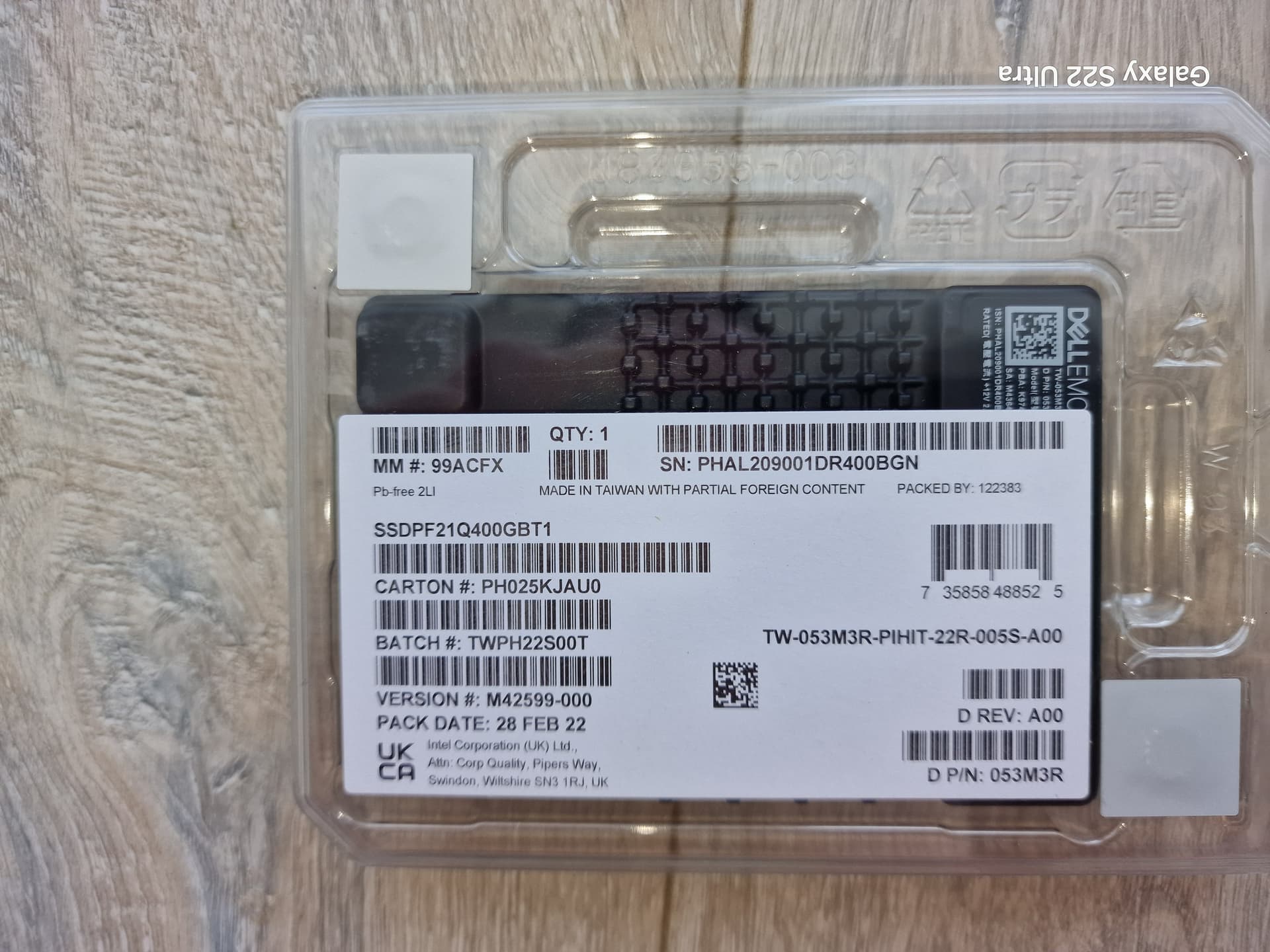
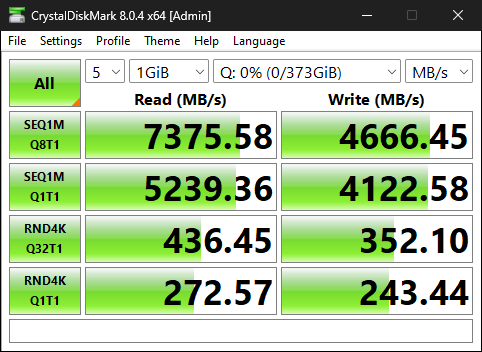
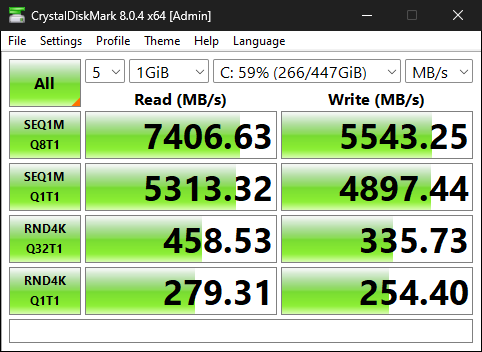
I’ve bought the Dell EMC - Intel Optane DC P5800X 400GB (rev. A00), (PN: 053M3R / Model: SSDPF21Q400GBT)
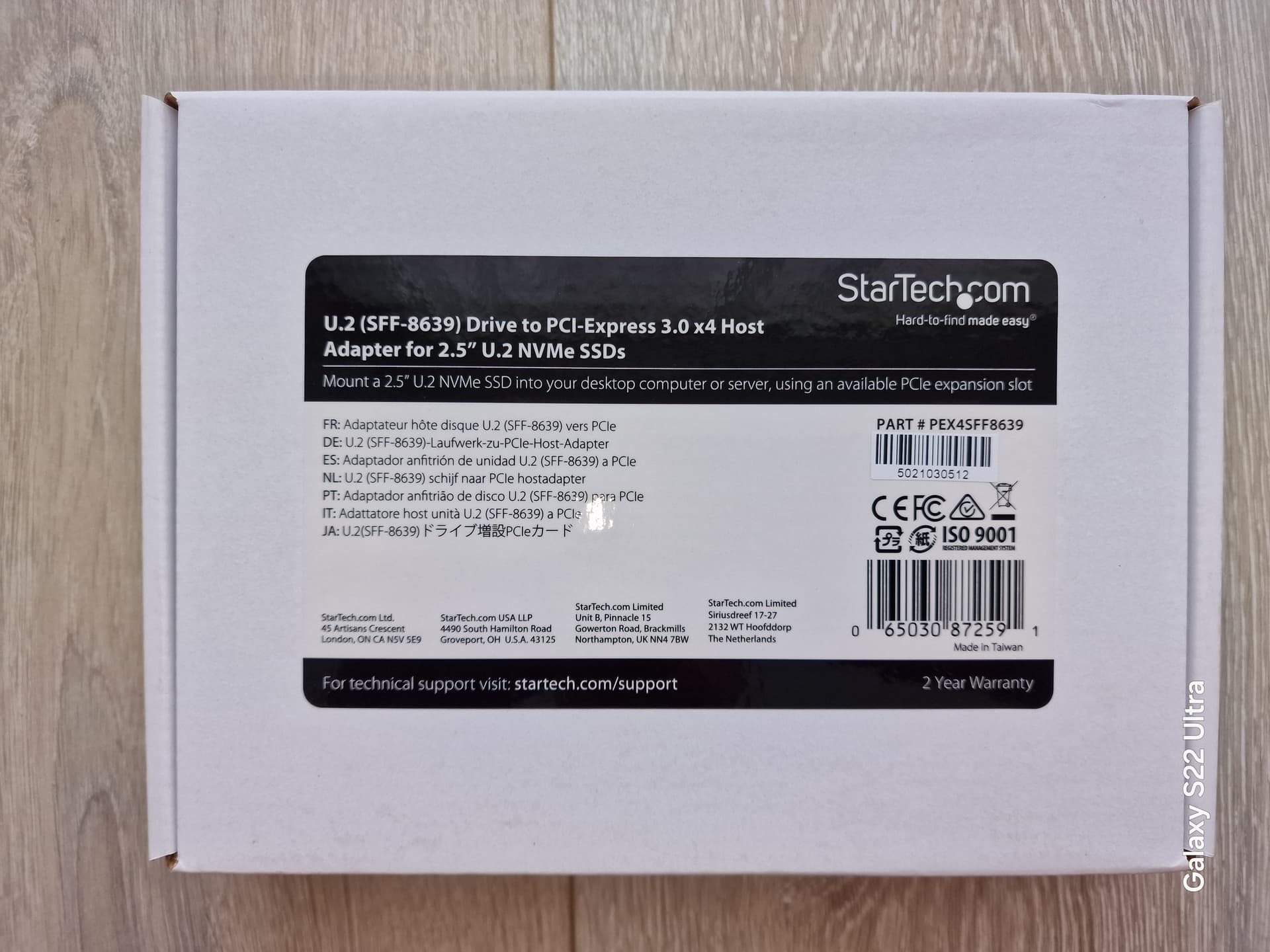
I am using the StarTech PEX4SFF8639 U.2 To PCIe Adapter Card with it, and I’ve put it in the PCIe x8 slot.
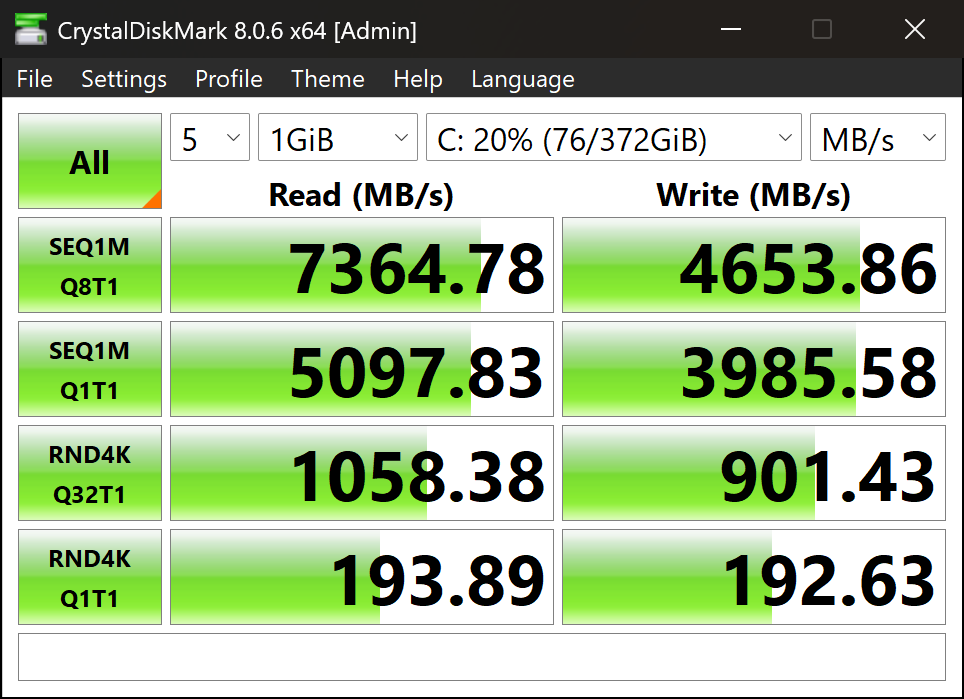
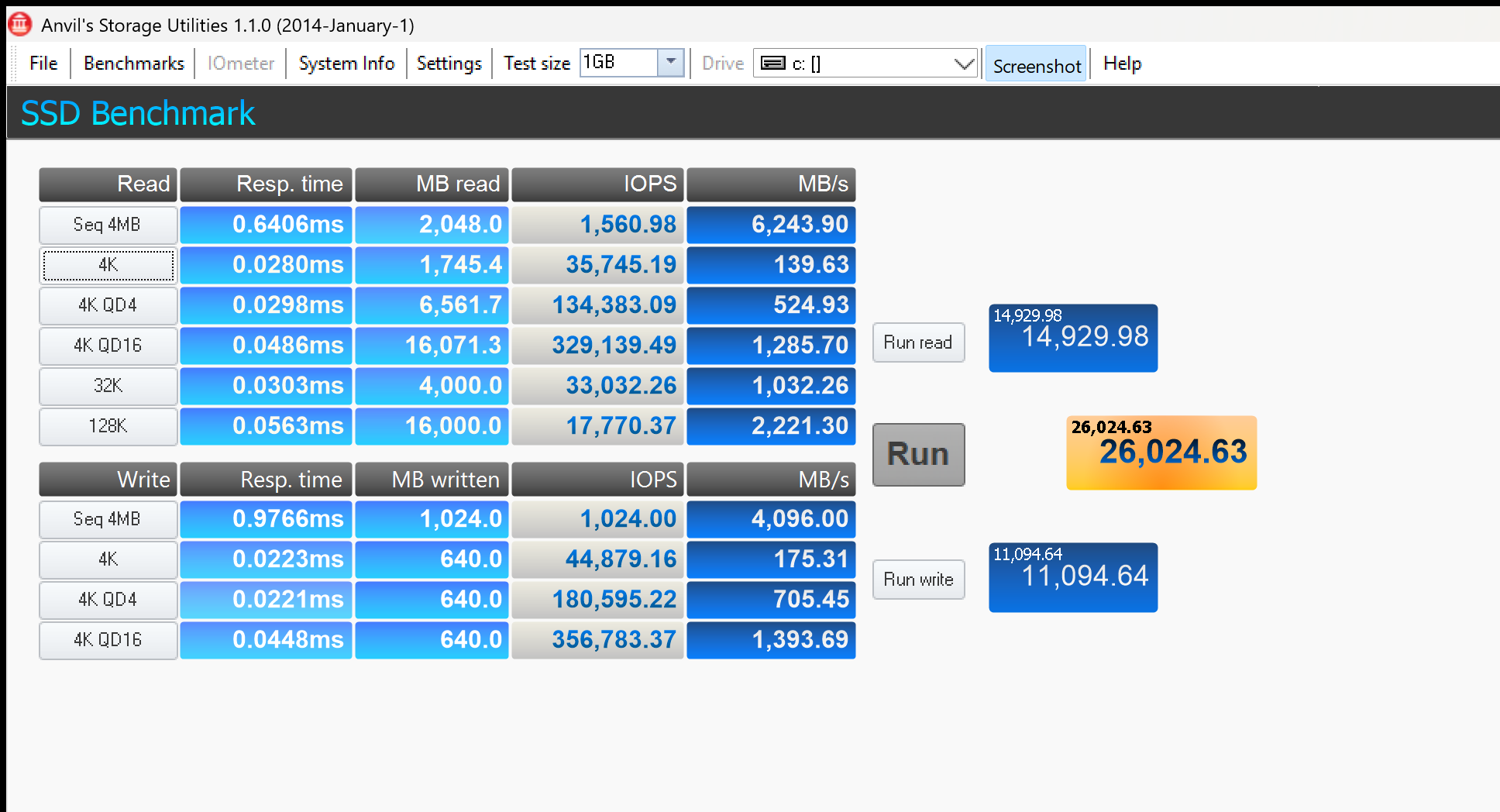
The drive is underperforming, compared to the numbers of others in benchmarks, especially in random transfers!
By mounting the drive in the PCIe x16 slot, the results are the same.
QUESTIONS:
Do I need to set something up in the BIOS to achieve better results?
Do I need to install a Firmware Update Tool, in order to install the firmware v2.0.0, A01 (from the link above)?
Did you work this out? I have the same drive and am also not sure if a firmware update is needed. However, I’m starting to think there is no newer firmware available for this revision - is that possible? I have no idea
My drive, like yours, is D REV A00 (not A01 or A02)
I found these firmwares from Dell, seeming to be the latest for A00, A01 and A02, respectively:
For 1, there’s no new firmware available is it’s a Dell OEM drive. For the second command, I get the generic error message you’re also seeing - probably because that version is already loaded:
Status : Firmware update failed.
I’m wondering what the deal is with this D REV A00 drives and why only the 1.0.0 firmware seems to be available, while others have a 2.x release (or, at least a 1.x release after 1.0.0)
It’s notable that the 1.0.0 D REV A00 firmware has a release date of 7 March, 2024, though (see the download page)
Also, what the … I just realized that 2.0.0 A01 is not actually a blob for use with intelmas -load, it’s actually an ELF file intended to run on the system:
Express-Flash-PCIe-SSD_Firmware_F63J5_LN64_2.0.0_A01.BIN: ELF 64-bit LSB pie executable, x86-64, version 1 (GNU/Linux), dynamically linked, interpreter /lib64/ld-linux-x86-64.so.2, for GNU/Linux 2.6.32, BuildID[sha1]=4408489bf41ec0576370c4576a737f2e5ed7d267, stripped
Running it on a DIY workstation build in Debian 12, I get errors about it failing to open the IPMI device (which makes sense, since I’m not running it in a Dell server …) but it seems to be working …
# ./Express-Flash-PCIe-SSD_Firmware_F63J5_LN64_2.0.0_A01.BIN
Can't open IPMI device
Collecting inventory...
.....Can't open IPMI device
..................Can't open IPMI device
...........
Running validation...
Can't open IPMI device
Can't open IPMI device
Update Package is valid for this system
Can't open IPMI device
Can't open IPMI device

Device: Dell Ent NVMe P5800x SED WI U.2 400GB

The version of this Update Package is greater than the currently installed version.
Software application name: NVMePCISSD Model Number: Dell Ent NVMe P5800x SED WI U.2 400GB
Package version: 2.0.0
Installed version: 1.0.0

Device: Dell Ent NVMe P5800x SED WI U.2 400GB

The version of this Update Package is greater than the currently installed version.
Software application name: NVMePCISSD Model Number: Dell Ent NVMe P5800x SED WI U.2 400GB
Package version: 2.0.0
Installed version: 1.0.0
Continue? Y/N
y
y entered; update was forced by user
Executing update...
WARNING: DO NOT STOP THIS PROCESS OR INSTALL OTHER PRODUCT WHILE UPDATE IS IN PROGRESS. THESE ACTIONS MAY CAUSE YOUR SYSTEM TO BECOME UNSTABLE!
...................

Device: Dell Ent NVMe P5800x SED WI U.2 400GB
	Application: NVMePCISSD Model Number: Dell Ent NVMe P5800x SED WI U.2 400GB
	Firmware update is successful.

Device: Dell Ent NVMe P5800x SED WI U.2 400GB
	Application: NVMePCISSD Model Number: Dell Ent NVMe P5800x SED WI U.2 400GB
	Firmware update is successful.
Can't open IPMI device
Can't open IPMI device
Would you like to reboot your system now?

Continue? Y/N
N
And, it appears to have worked (now showing firmware 2.0.0)
$ intelmas show -intelssd 1

- 1 Intel Optane SSD P5800X Series PHALxxxx -

Bootloader : LB3B0559
Capacity : 0.00 MB (512 bytes)
DevicePath : /dev/nvme1
DeviceStatus : Healthy
Firmware : 2.0.0
FirmwareUpdateAvailable : No known update for SSD. If an update is expected, please contact your SSD Vendor representative about firmware update for this drive.
Index : 1
ModelNumber : Dell Ent NVMe P5800x SED WI U.2 400GB
NamespaceId : 4294967295
PercentOverProvisioned : 100.00
ProductFamily : Intel Optane SSD P5800X Series
SMARTEnabled : True
SectorDataSize : 512
SerialNumber : PHALxxxx
By the way, if you use 7z (which understands ELF sections) you can actually unpack what appears to be the update blob:
36606828 1288 -rw-r--r-- 1 user user 1318912 Mar 11 12:45 ./payload/Intel_P5800X_2.0.0.bin
… though if the ELF update actually works, no need to worry about that I guess … I suggest just running the executable as I can confirm it works
Your lower performance could be in part due to the fact that you are using that PCIe adapter. Unless you are sticking it in your second 16x slot (and by doing so dropping your primary GPU slot down to 8x) you are likely inserting that card in a slot that comes off of the chipset.
Chipset lanes are often bandwidth constricted (as they all share the same 4x lanes to the CPU the chipset gets) and they also have higher latency. The latency impact can be particularly large on Optanes 4k random performance, as those are mostly attained through low latency.
You might get better performance by using one of the M.2 adapters in your primary m.2 slot with CPU lanes as discussed in this other thread:
Note: you’ll want to make sure you get specifically the ones people report as working in that thread though, as most typical passive m.2 to U.2 adapters won’t work.
Edit: I see now that your motherboard only as the two 16x slots, so you likely already have the drive on CPU lanes. So never mind the above.
Also, for some reason Optane drives just don’t perform as well on AMD systems as they do on Intel systems. Your performance is simply going to be lower on an AMD system than on an Intel system.
On the WinRAID forums (somehow associated with the L1 Tech forums, but I am not quite sure how?) there is a lot of talk regarding whether the Intel specific NVMe driver is the reason.
Some have tricked their systems into installing the Intel NVMe driver but it involves trusting some rando on a forum into accepting drivers that they have signed, which may or may not be the wisest thing to do, so I have never done it.
Also, one more thing. Per Wendell, Optane drives - if they have been powered down for a long time - go through an automated internal error check process of some kind during which performance is lower. So if you just bought the drive, and it has sat unused for some time, this (in addition to the Chipset lanes and AMD issue) might be contributing to the lower performance.
I have also caused my Optane drives to enter periods of slower operation by repeatedly hammering them with benchmarks. (I also discuss that in the thread already linked above)
In both cases, just leaving the drive alone and using it normally (not repeatedly hammering it with benchmark tests) for a while should cause the performance to return to normal.
On my Threadripper 3960x, direct connected to CPU lanes my Dell 400GB p5800x drive performs as follows:
For what it is worth, my drive does have the 2.0 firmware though, but I have never noticed an Optane drive show significant performance improvements from firmware updates, so I don’t know how relevant that is.
My intel branded (non-Dell) 800GB drive in the same system performs very similarly, with the only significant advantage seeming to be faster sequential writes:
In my case, the 4k random reads are likely lower than they otherwise would be because single threaded 4k random results are highly CPU dependent, and my 3960x no longer has particularly high single threaded performance when compared to the latest and greatest out there.
A CPU with higher per thread / single threaded performance (like your Ryzen 9 9950x) would likely do better here.
on amd threadripper with the bios and platform updates there is mostly not a performance delta now. aspm sleep and wake delays from amds aggressive power management could hurt optane top line numbers but mostly now and especially with platform updates for threadripper it isn’t really a thing anymore…
you can disable aspm via registry or boot line with the linux kernel and see if that has any impact. it would probably close any gap you’re seeing between intel xeon worksatation and amd threadripper.
the special Intel windows nvme driver isn’t a thing anymore since windows 11 24h2. this is also why Samsung abandoned their special sauce nvme driver too. though Linux still beats Windows for q1 benchmarks hands down fwiw.
ideally, though, optane is not connected via chipset pcie bridge. that’s extra latency, which we don’t want. so that’s solid advice. Sometimes you get “a little” pcie errors from riser/adapter cards. So now with optane I only use adapters or m.2 breakouts that have active redrivers/retimers.
SectorDataSize : 512
Optane can tell the host that its 512 native when its not. 4k native has less overhead/better latency. You can use the tools to set that – I think even nvme-cli lets you specify you prefer 4k sector sizes now?
I’ve seen the benchmark results of someone having the same drive as me, mounted on the same motherboard (ASRock X670E Taichi), with a Ryzen 7 7800X3D (which should be worse than my Ryzen 9 9950X), and using the same Adapter Card: StarTech PEX4SFF8639 (U.2 To PCIe 4.0 x4), and obtaining in CrystalDiskMark:
RND4K Q32T1: 4000+ read & write / RND4K Q1T1: 400+ read, 380+ write.
I would try to get the 2.0.0 firmware installed per the method posted above, and then let the drive just chill powered on for a week or two before testing again.
I wonder if you are just experiencing the “drive slowdown due to error check due to being powered off for too long” followed by a “drive slowdown due to too many write benchmark runs in a row” issue due to obsessively testing it.
(I don’t know how long it actually takes for the drive to clear itself of those slowdowns, but a week or two should be overkill to get you there)
I’m not a Windows user, but maybe if you’re more descriptive someone can offer a suggestion to make it work
However, an easier option, especially if you have basic fluency with Linux…
You can boot a Linux live CD and run the update that way, without needing to install Linux.
Debian 12 should work as my system is Debian 12 and it worked fine. See here for live CD downloads. You should be able to use a USB drive to boot also, just follow instructions on doing so
Once it boots (choose boot Live at the grub boot menu) you can run the firmware upgrader.
If you put the Redhat upgrade exe on a a USB drive and insert it into the booted live system, you should be able to do something like the commands below (the first command finds the path to the auto-mounted USB drive with the upgrade file - I think Debian auto-mounts USB media by default)
You’re going to find the location of the USB filesystem, copy the update executable to /tmp, set the execute bit, then run it
First, open a terminal (several ways to do this in the desktop GUI). Then:
mount | grep -E “/(mnt|media)”
cp /media/whateverusb/Express-Flash-PCIe-SSD_Firmware_F63J5_LN64_2.0.0_A01.BIN /tmp
cd /tmp
chmod 755 Express-Flash-PCIe-SSD_Firmware_F63J5_LN64_2.0.0_A01.BIN
./Express-Flash-PCIe-SSD_Firmware_F63J5_LN64_2.0.0_A01.BIN
I don’t recall if the live CD makes you a super user by default. You should use one of the following to become the superuser before running the above commands if the output of the command id is not root:
sudo -i
Or
su -
Then you can run the commands in the first part
Hope that’s helpful
Pro-Tip: you can tab complete the long filename in the terminal
I’m assuming you don’t know of a way to determine if a drive is in this state? I feel like it should be possible using some intelmas command…
I’ve glanced through the manual for intelmas but it’s pretty long and lacking meaningful descriptions of much of the extended functionality, unfortunately
I only know about the “slow after extended power off” condition via Wendell’s post here.
If he is still watching this thread, maybe he has more details?
As far as the temporary slowdown after repeated benchmark hammering (presumably due to some background garbage collection or something) I am only aware of due to my testing here, which I then confirmed was gone and back to normal again after waiting and testing again here.
(Though to be fair, the hammering issues mostly seemed to impact sequential read results for me, not the 4k random, but that might be because I am already CPU limited there so any loss in performance wouldn’t be noticeable)
I waited a month between my tests, simply because I was busy and forgot to retest. I imagine if you just leave it alone (or at least don’t hammer it with benchmarks) and powered on, recovery doesn’t take more than a few hours at most, but that is just a guess at this point.
Between those three posts, that’s about the extent of my knowledge.
Note that those tests were on my 800GB p5800x, so the effects of hammering the drive might be worse on the smaller version (not sure though, just a suspicion)