grouping librewolf windows by profile
I have multiple librewolf profiles to allow me to have separate browsing profiles for research and hobbies.

By default, wayland and kde’s window grouping will merge all librewolf windows together.
separating the profiles
If you want to see the config, it is here
I started by asking chatgpt how to add multiple librewolf profiles to launch specific profiles. It suggested I create a profile then apply these home manager configs.
The config worked in setting up new shortcuts from the start menu. After realizing the xdg configs, I decided it would be a good idea to consolidate all my xdg configs into a single place. You can find the file here
Once I got it all consolidated into the xdg file, I then wanted to fix the taskbar to also be separated. Chatgpt suggested I use xwayland, but I wanted to set it up for the long term
While checking the two options, I kept getting a bug where launching the individual profile would always start the choose profile
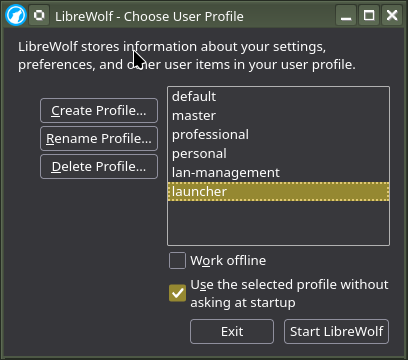
the solution chatgpt suggested was
This got it working
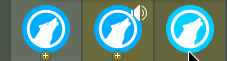
changing and recoloring the librewolf icons
I was hoping that the librewolf icons would be in a svg format as it is easier to swap colors out.
looking at the files in /nix/store/r1qc6s4mgapnbhzx10gi8g0rvw82g0m1-librewolf-143.0.3-1/share/icons/hicolor
tree /nix/store/r1qc6s4mgapnbhzx10gi8g0rvw82g0m1-librewolf-143.0.3-1/share/icons/hicolor

.
├── 128x128
│   └── apps
│       └── librewolf.png -> /nix/store/1yy909syv1dhb5y5v4zjg5kddw80l0m5-librewolf-unwrapped-143.0.3-1/lib/librewolf/browser/chrome/icons/default/default128.png
├── 16x16
│   └── apps
│       └── librewolf.png -> /nix/store/1yy909syv1dhb5y5v4zjg5kddw80l0m5-librewolf-unwrapped-143.0.3-1/lib/librewolf/browser/chrome/icons/default/default16.png
├── 32x32
│   └── apps
│       └── librewolf.png -> /nix/store/1yy909syv1dhb5y5v4zjg5kddw80l0m5-librewolf-unwrapped-143.0.3-1/lib/librewolf/browser/chrome/icons/default/default32.png
├── 48x48
│   └── apps
│       └── librewolf.png -> /nix/store/1yy909syv1dhb5y5v4zjg5kddw80l0m5-librewolf-unwrapped-143.0.3-1/lib/librewolf/browser/chrome/icons/default/default48.png
└── 64x64
    └── apps
        └── librewolf.png -> /nix/store/1yy909syv1dhb5y5v4zjg5kddw80l0m5-librewolf-unwrapped-143.0.3-1/lib/librewolf/browser/chrome/icons/default/default64.png
Unfortunately, it is only a png. I tried having chatgpt write code to recolor the icons. It would either leave a blue outline, miss the wolf icon, or miss the wolf and still have a blue icon

code it generated if you want it
{ config, lib, pkgs, ... }:

let
  # Your palette
  colorPersonal     = "#8d4953";
  colorProfessional = "#5b7b65";
  colorMaster       = "#0e0e0e";

  sizes = [ 16 32 48 64 128 256 512 ];
  candidateBlues = [ "#00acff" "#00a9e0" "#23a3dc" "#1ea0db" ];

  # Prefer SVG if present (sharper at big sizes); else choose the largest PNG available.
  svgPath = "${pkgs.librewolf}/share/icons/hicolor/scalable/apps/librewolf.svg";
  pngCandidates =
    map (sz: "${pkgs.librewolf}/share/icons/hicolor/${sz}/apps/librewolf.png")
      [ "512x512" "256x256" "128x128" "64x64" "48x48" "32x32" ];

  baseIsSvg = builtins.pathExists svgPath;
  basePng =
    let xs = builtins.filter (p: builtins.pathExists p) pngCandidates;
    in if xs == [] then
         throw "LibreWolf icon PNG not found under ${pkgs.librewolf}"
       else
         builtins.head xs;

  mkPngSet = name: hex:
    pkgs.runCommand "icons-${name}" {
      buildInputs = [ pkgs.imagemagick pkgs.librsvg pkgs.coreutils ];
    } ''
      set -eu
      outdir="$out/share/icons/hicolor"
      mkdir -p "$outdir"

      # Nix-escaped values
      HEX=${lib.escapeShellArg hex}

      render_base () {
        # $1 = target size (e.g. 128)
        # print path to a temp PNG at that size
        sz="$1"
        tmp="$(mktemp --suffix=.png)"
        if ${lib.boolToString baseIsSvg}; then
          ${pkgs.librsvg}/bin/rsvg-convert -w "$sz" -h "$sz" ${lib.escapeShellArg svgPath} -o "$tmp"
        else
          ${pkgs.imagemagick}/bin/convert ${basePng} -resize ''${sz}x''${sz} "$tmp"
        fi
        printf "%s\n" "$tmp"
      }

      recolor_into () {
        # $1 = inpng, $2 = outpng
        inpng="$1"; outpng="$2"
        # Work on RGB only; keep alpha untouched to avoid halos
        work="$(mktemp --suffix=.png)"
        cp "$inpng" "$work"

        # Slightly stricter fuzz to avoid re-coloring greys/whites unintentionally
        for BLUE in ${lib.concatStringsSep " " (map (b: "'${b}'") candidateBlues)}; do
          ${pkgs.imagemagick}/bin/convert "$work" \
            -alpha on -channel RGB -fuzz 20% -fill "$HEX" -opaque "$BLUE" +channel \
            "$work"
        done
        mv "$work" "$outpng"
      }

      for sz in ${lib.concatStringsSep " " (map toString sizes)}; do
        dir="$outdir/''${sz}x''${sz}/apps"
        mkdir -p "$dir"
        base_png="$(render_base "$sz")"
        recolor_into "$base_png" "$dir/librewolf-${name}.png"
      done
    '';

  pngPersonal     = mkPngSet "personal"     colorPersonal;
  pngProfessional = mkPngSet "professional" colorProfessional;
  pngMaster       = mkPngSet "master"       colorMaster;

  mkXdgPngFiles = name: drv:
    lib.listToAttrs (map (sz: {
      name  = "icons/hicolor/${toString sz}x${toString sz}/apps/librewolf-${name}.png";
      value = { source = "${drv}/share/icons/hicolor/${toString sz}x${toString sz}/apps/librewolf-${name}.png"; };
    }) sizes);

in {
  xdg.dataFile =
    mkXdgPngFiles "personal"      pngPersonal
    // mkXdgPngFiles "professional" pngProfessional
    // mkXdgPngFiles "master"        pngMaster;
}

code it generated if you want it
let
  # … your colors …
  candidateBlues = [
    # originals
    "#00acff" "#00a9e0" "#23a3dc" "#1ea0db"
    # common ring/halo variants (lighter/darker cyans)
    "#00b4ff" "#00bfff" "#00c0ff" "#00ccff" "#00d4ff" "#00e5ff" "#18ffff"
    "#26c6da" "#29b6f6" "#33b5e5" "#40c4ff" "#4dd0e1" "#80deea"
  ];

  mkPngSet = name: hex:
    pkgs.runCommand "icons-${name}" {
      buildInputs = [ pkgs.imagemagick pkgs.librsvg pkgs.coreutils ];
    } ''
      set -eu
      outdir="$out/share/icons/hicolor"
      mkdir -p "$outdir"

      HEX=${lib.escapeShellArg hex}

      # 1) Make a large master (do this once)
      master="$(mktemp --suffix=.png)"
      if ${lib.boolToString (builtins.pathExists svgPath)}; then
        ${pkgs.librsvg}/bin/rsvg-convert -w 1024 -h 1024 ${lib.escapeShellArg svgPath} -o "$master"
      else
        ${pkgs.imagemagick}/bin/convert ${basePng} -resize 1024x1024 "$master"
      fi

      # 2) Recolor ONCE at full res: broader fuzz to catch halo pixels; RGB only to preserve alpha
      work="$(mktemp --suffix=.png)"
      cp "$master" "$work"
      for BLUE in ${lib.concatStringsSep " " (map (b: "'${b}'") candidateBlues)}; do
        ${pkgs.imagemagick}/bin/convert "$work" \
          -alpha on -channel RGB -fuzz 40% -fill "$HEX" -opaque "$BLUE" +channel \
          "$work"
      done

      # Optional: clamp tiny remaining cyan halos by desaturating very-blue remnants a touch
      ${pkgs.imagemagick}/bin/convert "$work" \
        -alpha on -modulate 100,98,100 +alpha "$work"

      # 3) Downscale the recolored master to all sizes (no new blue is introduced)
      for sz in ${lib.concatStringsSep " " (map toString sizes)}; do
        dir="$outdir/''${sz}x''${sz}/apps"
        mkdir -p "$dir"
        ${pkgs.imagemagick}/bin/convert "$work" \
          -filter Lanczos -define filter:lobes=3 -resize ''${sz}x''${sz} \
          "$dir/librewolf-${name}.png"
      done
    '';

code it generated if you want it
mkPngSet = name: hex:
pkgs.runCommand “icons-${name}” { buildInputs = [ pkgs.imagemagick pkgs.coreutils ]; } ‘’
set -eu
outdir=“$out/share/icons/hicolor”
mkdir -p “$outdir”
  # 1) Make a single high-res recolor using a mask (preserves anti-aliasing)
  workdir="$(${pkgs.coreutils}/bin/mktemp -d)"
  master="$workdir/master.png"
  mask="$workdir/mask.png"
  tmp="$workdir/tmp.png"

  # Start from the best available base (your basePng), do NOT resize yet.
  ${pkgs.coreutils}/bin/cp ${basePng} "$master"

  # Build a mask that ORs all candidate blues together, with a small blur to soften edges.
  # Result: white where the cyan stroke is, black elsewhere.
  ${pkgs.imagemagick}/bin/convert -size "$(${pkgs.imagemagick}/bin/identify -format '%wx%h' "$master")" xc:black "$mask"
  for BLUE in ${lib.concatStringsSep " " (map (b: "'${b}'") candidateBlues)}; do
    ${pkgs.imagemagick}/bin/convert "$master" \
      -colorspace sRGB -fuzz 18% -fill white -opaque "$BLUE" \
      -alpha extract -threshold 50% "$tmp"
    ${pkgs.imagemagick}/bin/convert "$mask" "$tmp" -compose Lighten -composite "$mask"
  done
  # Feather the mask slightly to avoid crunchy edges.
  ${pkgs.imagemagick}/bin/convert "$mask" -morphology close disk:1 -blur 0x0.6 "$mask"

  # Create a solid color layer and copy the mask into its alpha, then composite over original.
  ${pkgs.imagemagick}/bin/convert "$master" -fill '${hex}' -colorize 100 "$tmp"
  ${pkgs.imagemagick}/bin/convert "$tmp" "$mask" -compose CopyOpacity -composite "$tmp"
  ${pkgs.imagemagick}/bin/convert "$master" "$tmp" -compose Over -composite "$workdir/recolored.png"

  # 2) Now generate all sizes from the recolored master (better resampling, consistent edges).
  for sz in ${lib.concatStringsSep " " (map toString sizes)}; do
    dir="$outdir/''${sz}x''${sz}/apps"
    ${pkgs.coreutils}/bin/mkdir -p "$dir"
    ${pkgs.imagemagick}/bin/convert "$workdir/recolored.png" \
      -filter Lanczos -define filter:lobes=3 \
      -resize ''${sz}x''${sz} \
      -unsharp 0x0.75+0.75+0.02 \
      "$dir/librewolf-${name}.png"
  done
'';
After getting nowhere with having chatgpt write code to recolor the png, I decided to have it write code to modify the librewolf svg from wikipedia
I used the dev tools to get the svg code and passed this prompt to chatgpt
I tested the code and it worked
I then added the librewolf icons to my user import
in