It looks like Newbie1 is using an RTX 3060 and Windows 11 Pro, which I am also using. The immediate difference between Newbie1 and myself is that they are using a laptop and I am running a desktop.
I partitioned the GPU to three Windows 11 VMs without issue. I have the “nv_dispi.inf_amd64” folder while using the 497.07 Nvidia “Game Ready Driver” (GRD). I also installed the drivers fresh on a new W11 Pro install. I’m curious what GPU, OS, and driver version you are using, and if you are using a laptop. There is probably some sense to be made out of this.
There are a few Chromebooks and tablets people are using here. Resolutions range from 1368x768 to 1080p. The 3060 benched ~95fps on all three VMs simultaneously, while streaming. using Unigine Heaven @ 1360x768-medium. The CPU is a 10900K with 5-threads/vm. The 12GB of VRAM should provide plenty of headroom. I have run some other tests I won’t mention here since they all look promising, and I’ll update again once I test some games. If anyone has a similar situation where they could take advantage of GPU-P, it might be worth it to keep an eye out for a 3060 12GB.
Update: I tested some games and was able to get good results. The most demanding thing I tested was the Shadow of the Tomb Raider benchmark. Non-demanding games can run and stream at 1080p on all three VMs simultaneously, and can achieve 60fps if the settings are optimally tweaked. The 12GB of VRAM is a big help as I easily topped 8GB many times while running at 1080p and at 1360x768. I also changed the threads per VM from 5 to 4 as I saw low CPU usage. The following two benchmarks’ results should be good indicators on what to expect for graphical performance. All VMs were benched simultaneously streaming to three different mobile devices using h.265 w/Parsec.
Final conclusion is that the 3060 12GB is a good choice when game streaming to multiple (in my case three) lower resolution mobile clients.
Update 2: I installed Sunshine on the VMs and it is working well enough with the Moonlight clients on the mobile devices. I am not certain what is entirely necessary at this time, but these are some things I discovered to get Sunshine to work for my setup.
I setup the Audio/Video section using the .exe files listed in that configuration page. I had to set “NVEnc Rate Control” to any ‘cbr’ option or else I could not receive video on Moonlight. After I ran an h.265 session I had to make sure the session was closed if I was to connect using h.264 or else I would not get video. I noticed a 0.25-0.50ms decoding time reduction if I used ‘cavlc’ instead of ‘cabac’ for the NVEnc Coder. I also could not get Sunshine to auto-start using Task Scheduler, but I may have noobed it. I start it manually using NoMachine or Parsec, changed the screen off time to never, and I can successfully reconnect. Sometimes it doesn’t connect the first time, but most of the time it does on the second time try.
Thank you for the feedback and kind words! Much appreciated.
I am still plodding along on my project. To which end, I gave up the ghost and installed Windows 11 to have more granular control over the exact GPU the VM uses. I have at least achieved this, and my secondary GPU specifically is being connected to the VM.
Regardless, of what I do and how thorough I am, I am still always faced with the dreaded “Code 43”. I cannot escape this error it seems.
I have no clue what could be wrong. I have the “nv_dispi.inf_amd64_xxxx” folder copied in “C:\Windows\System32\HostDriverStore\FileRepository” and any and all files listed in the “Driver Details” page copied to “C:\Windows\System32” and “C:\Windows\SysWOW64”.
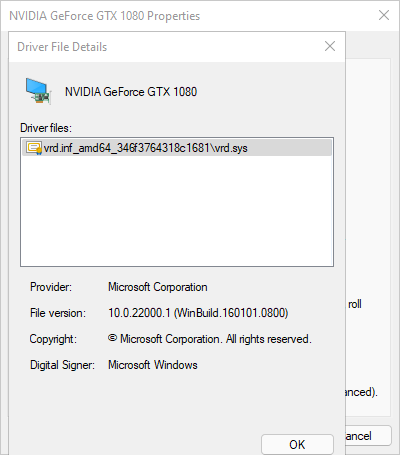
One thing of note is that despite this, the “Driver Details” page inside the VM displays only this:
So clearly, it’s not picking up the driver/dll’s. Updating the driver by selecting the “Have Disk” and then the “nvdisp.inf” inside the “nv_dispi.inf_amd64_xxxx” folder fails but does put the driver/dll’s in the “Driver Details” page, if temporarily and a little messed up. But this only lasts until you close out the page and return.
So I just don’t know what more I can do? Any help would be massively appreciated. This is the script I’m using, though sometimes I just run the commands directly and I have tried removing the partitioning section to just select the entire GPU, among many variations but still no dice.
The only reason I was reluctant to try that, is that it would mean setting up a whole new VM. As I already have two (Windows 10 and 11) with all my programs and everything set up, including Parsec, I was a bit reluctant. I will give it a go nonetheless and see if I can discover what makes that work (if it does) and not my setup.
On the FiveM thread here, I saw that the VRD in driver details is normal and just a proxy driver. It doesn’t mean anything and just passes it through to the host instead.
I also read, on a Reddit thread you commented on, that (besides the “nv_dispi.inf_amd64_xxxx” folder) copying the loose dll’s, over is not necessary anymore as it is done automatically. I have yet to see this myself though, but others mention only needing the “nvapi64.dll”.
Another thing mentioned, is to try Windows Sandbox with vGPU to see if it is a BIOS limit causing issues.
I’ll report back with any updates once I’ve tried all of these.
I have a question for you guys. Did you tried enabling nested visualization (Set-VMProcessor -VMName -ExposeVirtualizationExtensions $true) and enabling Hyper-V on VM with GPU Partitioned?
I wanted to play Valorant on that VM, it works but with BIG performance impact, with Hyper-V off i can’t launch this game in case of anti cheat but games works as on bare metal hardware. Any ideas for repairing it?
My VM spec, Windows 11 with GTX 1660 Ti, 8GB of ram (I have tested 16GB and no change) and 6 threads of Ryzen 5 3600 (also I have tested more but no change).
If you will be asking for what I want to run Valorant on VM I’m hurrying with the answer. I don’t trust Riot Games and their crappy always running anti cheat, performance on that VM is excellent but with nested visualization it’s practicly not playable with FPS from 0-40.
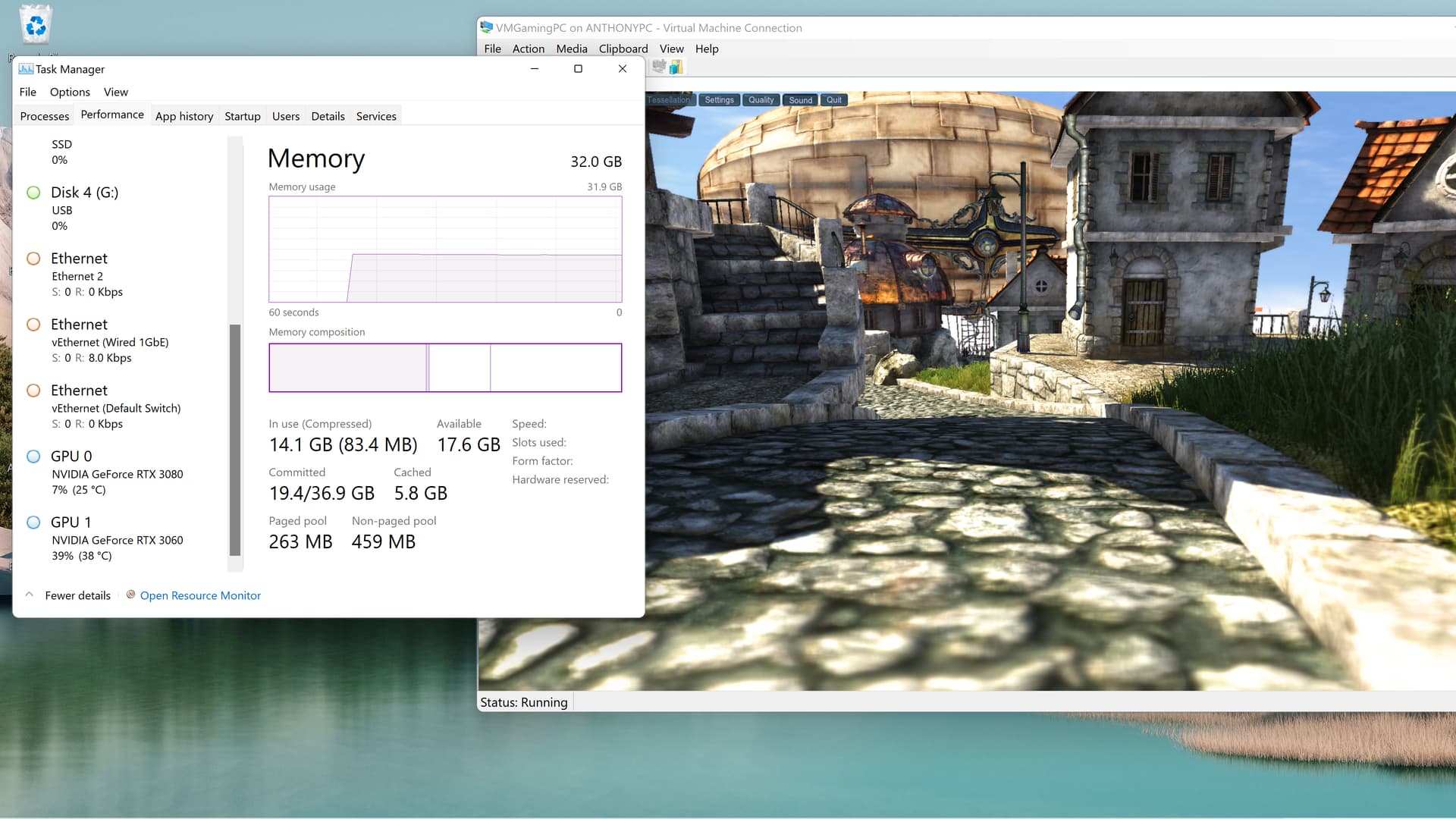
Ok so I have successfully used James Stringers script to create a VM on Windows 11. It is possible to have two graphics card in your PC for virtualization. The only requirement is a dummy dongle in the second graphics card. His guide is fairly self explanatory. PC Specs are listed below. I am able to have my main rig only utilizing my 3080 and my VM using the 3060 and its quite seamless. Temps are well within reason but I have my set up to always stay cool and only have a slight overclock on my 3080 since I like 4k gaming. I game in my living room, but want the option to game in my room. I haven’t tested it 100% on a potato PC(coming in the mail), but I have tested it on my wife’s PC. My Optiplex 9020MT finally game out either MOBO or PSU(according to the codes its given me). I have purchased a 9020 USFF and will connect it to my room tv to see how well it runs. I will update when its tested and any question on how to do it. I am more than willing to help. I will also attach screen shots of performance and the segregation of the video cards running.
AMD Ryzen 5950X(EVGA CLC 360 AIO), EVGA RTX 3080 XC3 Ultra(w/ hybrid AIO) & RTX 3060 XC Ultra, G.Skill Trident Z 32GB DDR4 RAM, Gigabyte Aurous Master X570 MOBO, 2x 1Tb Sandisk Ultra NVME, 1x 500Gb WD Black NVME(boot drive), 1x 1Tb Samsung QVO SSD, EVGA 1000 Watt PSU, Lian Li Lancool Mesh II, Monitor(TV) 75" Sony Bravia VH1 120hz
Obviously the GPUs aren’t being worked to hard since that is an old benchmark, but the idea is to show you that the concept works and is fully functional!
Colleagues, I’m asking for your advice. I’m considering the correct allocation of resources for the hypervisor (and their type) and virtual machines.
Introduction: Clevo P870DM-G laptop with QTJ1 mutant processor (engineering i9-10980hk on LGA1151), 64Gb RAM (128 in perspective), 2x2 Tb hdd, ssd 1tb + 2tb. In the first slot of the MXM is installed Quadro M4000M 4Gb, in the second - Tesla P6 (16Gb, a chip analog of GTX 1070/Quadro P5000). Optimus is not present. Tesla does not have any video outputs (Headless), and its use is only possible through virtualization. In past I used Oracle VirtualBox extensively on the Windows host. These were Windows XP, 7, Debian, Ubuntu VM, each for their own tasks. In my work I need both Linux and Windows (I do modeling and calculating in different environments). However, Virtualbox does not support GPU Passthrough and the speed of operation is poor.
What is this request:
Please advise me type of laptop hypervisor and resource allocation options to keep Windows 10 and Debian running on a permanent basis (+ several other VM from time to time). I need Tesla P6 GPU Passthrough in Windows 10+Debian and gpu partition between them.
How to organise access to data (I work with maps and they are really many), which file system to use etc.
The native Windows software for Clevo laptops is very specific, for optimizing CPU/GPU frequency, adjusting fan speed, lighting. How do I run it in VM and can I?
I have Oculus Rift S. Can I use Display port for it from VM?
So far, I have two options:
Windows way: Windows Server 2019 or Windows Server 2019 to Win2019Workstation or Windows 10 Pro or Windows 10 Enterprise ltsc + Hyper-V. The benefits of this solution are to run the entire Clevo software at the hypervisor level. Minus is also a - difficulty setting Tesla P6 GPU partioning between VM.
Linux way: use of ProxMox. Disadvantages of this approach: It is impossible to work all Windows Clevo software because ProxMox is based on Debian. On the other hand, the System 76, based on Clevo barebones, releases Linux laptops, and possibly some Clevo software for Linux must exist. Is anyone familiar with this? Is it possible to adjust CPU/GPU frequency, fan speed, lighting from inside Windows VM?
Two HDD I dedicate for data, and how to properly divide the space of two SSDs between the hypervisor and VM’s? Can I use virtual disks for VM’s or install VM on physical disks directly for quick operation?
Perhaps I am mistaken in my analysis of the situation, and I would be grateful for your clarifications and advice.
Thanks all for that!
AFAIK GPU-P is only working with a Windows 10/11 host and a Windows VM. To use one GPU for both Linux and Windows 10, you should look into ‘vgpu_unlock’. I’ve never set it up as I don’t have a compatible GPU, so I can’t be much help there. Techpowerup lists the Tesla P6 GPU as having a ‘GP104’ variant for its die, so not the same as the P40 (GP102). However, the ‘vgpu_unlock’ documentation says ‘Most Pascal cards’ next to the compatibility for the P40. As a fair warning, this method probably still has some jankiness to it, so this would be a YMMV approach.
If Proxmox supports ‘vgpu_unlock’, I would recommend this hypervisor if the laptop is used as server and not a workstation itself. I’ve successfully gained video access to a Windows VM with GPU-P and a USB monitor using RDP, NoMachine, Parsec, and Sunshine (using the Moonlight client). I don’t know how a partitioned GPU hosted on Linux behaves, but chances are you’ll have a 60fps option available to you via one of those methods.
If it is to be used as a worksation, then you can most likely use QEMU/KVM on a Debian based distro and use ‘Looking Glass’ to access the video from your Windows 10 VM.
If everything is compatible, you could run a scenario like this:
Host: Debian distro
Host GPU: Tesla P6
VM: Windows 10
VM GPU: Partitioned Tesla P6
VM Display: Looking Glass
I’ll PM some other information I have for you, but I think we should keep this thread focused on GPU-P and I don’t believe it is applicable to your situation. I’ve intentionally posted the previous information to redirect anyone else who wanted to use GPU-P for Linux.
Hello,
i have trouble starting my Asus RTX 3060. It gaves me (Code:43)
So my HOST PC is Windows 11, i follow the instructions, but my Virtual Machine is on windows 10, i did try everything and i cant start my 3060
Can someone help with advice ?
Please.
Hey, JayRyl,
i love to try this on Ubuntu 20:10, but the problem is i cannot get vgpu driver for my Asus RTX 3060, Can it work with normal gpu driver ?
Also i ask Asus support for linux driver they said there is none.
Maybe i can run normal Nvidia driver for RTX 3060 ?
I read that Proxmox will do the job but i am not sure about the driver.
will it work ?
Any help will be great.
Thank you in advanced.
From what I know, Ampere is not supported for ‘vgpu_unlock’. What we should do is go over the steps I take when I create a GPU-P VM and have you mirror them, then check the results. I’ll correspond with you via PM to try to get to the bottom of this. If we gain any new troubleshooting information, we’ll be sure to let the main thread know.
I also have the same problem. Running a AMD Ryzen 3900X with a 6900 gpu, all the steam games I have tested appear to work without issue.
However StarCraft 2 and D2R both crash to desktop the main menu comes up. Looking into the logs in the game directory not seeing anything out of the ordinary and applications logs don’t show any errors.
Was going to put it down to Blizzard putting something in place to stop game running in VM as had noticed there seems to be a community that do this to run D2 with bots… But then I saw others with Nvidia / Intel combo weren’t experiencing any issue from what I could see.
Did see D2R had a bug where AVX instructions weren’t supported (not sure if hyper-v exposes that to the vm) but can confirm that was patch resolved several months ago. Additionally I did try its work around to disable audio devices, but no dice.
Has anyone gotten Nvidia Control Panel to install and launch? If so, how? I also have an issue where an app is reporting only 1 GPU core on the 2080 Ti, instead of it’s 4 available, and wondering if there’s a fix for that?