I’m trying to tune Windows 11 Pro’s built-in Remote Desktop Protocol server (Remote Desktop Session Host) for best performance on my LAN, and had a couple of questions.
There are three components to GPU acceleration in Azure Virtual Desktop that work together to improve the user experience:
GPU-accelerated application rendering: Use the GPU to render graphics in a remote session.
GPU-accelerated remote frame encoding: The Remote Desktop Protocol encodes all graphics rendered for transmission to the local device. GPU-accelerated remote frame encoding uses the GPU to encode the rendered graphics frames to provide higher frame rates and better user experiences, although this feature may consume more network bandwidth and both session host and client resources. This benefits applications such as 3D modeling, CAD/CAM, or video playback and editing.
I’m not using an Azure instance, so I’m looking at the instructions for using Group Policy Editor:
Configure the following settings:
For GPU-accelerated application rendering, double-click the policy setting Use hardware graphics adapters for all Remote Desktop Services sessions to open it. Select Enabled, then select OK.
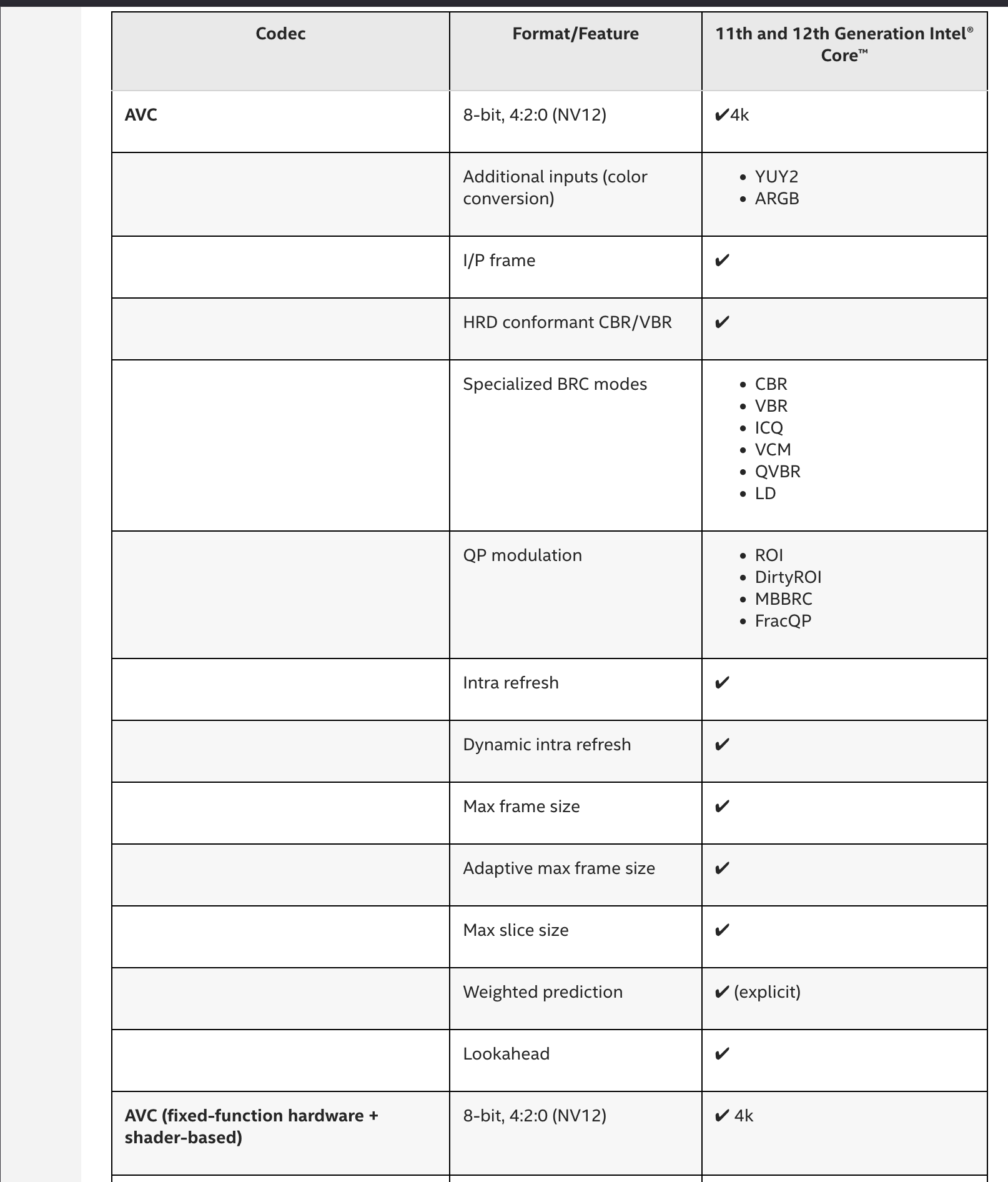
For GPU-accelerated remote frame encoding using H.264/AVC:
Double-click the policy setting Prioritize H.264/AVC 444 Graphics mode for Remote Desktop connections to open it. Select Enabled, then select OK.
Double-click the policy setting Configure H.264/AVC hardware encoding for Remote Desktop Connections to open it. Select Enabled, then select OK. If you’re using Windows Server 2016, you see an extra drop-down menu in the setting; set Prefer AVC Hardware Encoding to Always attempt.
I’m a bit confused about which of these to actually turn on, and why. I’m not yet deeply immersed in encoders and how the RDP protocol works, and some of the language here is confusing.
If anyone has any advice on when these settings should (or perhaps more importantly) should not be used, I’d really appreciate it.
My client machine is a Mac Studio M1 Max, if that matters.
Doesn’t matter if you’re a casual user or sys administration. You definitely want 4:4:4 colour encoding if you work in graphic designs, photo touching or video editing.
If H.264 4:4:4 hardware encode is available to you, personally I’ll use it for sure.
It’s a bit frustrating using Microsoft’s official Mac RDP client. I can’t see any details of what codec it’s connected with, what hardware acceleration is being applied, or anything else really useful.
I guess I’m still a bit confused. I enabled 60 FPS RDP, and it works well in my limited testing (The UFO test, YouTube, and WebGL aquarium), but I haven’t touched the Use hardware graphics adapters for all Remote Desktop Services, Prioritize H.264/AVC 444 Graphics mode for Remote Desktop connections, and Configure H.264/AVC hardware encoding for Remote Desktop Connections settings yet.
By default, they’re all disabled.
Microsoft’s descriptions were unfortunately not enough for my lizard brain: what happens when I turn each of them on?
Put another way:
What additional work does the GPU on the server do that the CPU on the server doesn’t have to?
What additional work does the GPU on the server do that my client computer doesn’t have to?
The graphics processor(s) in my Mac Studio (RDP client)'s M1 Max should be considerably more powerful than the UHD 770 iGPU on the server, but I suppose it’s possible that the Mac RDP client isn’t optimized enough to use that superior hardware? Or, maybe it’s always better to do as much of the processing server-side as possible?
Azure Virtual Desktop is a bit different because, because it can dynamically assign or remove GPUs if you don’t need them.
However, the GPO policies listed are for encoding (i.e. transmitting) the RDP session, and I would enable them regardless. It would be better to understand what is it that you’re trying to do with your RDP session (i.e. running CAD? Running a specific GPU-dependent program?)
With that being said, if you want to actually USE the iGPU for rendering, you are looking at what was RemoteFX (I’m not even sure what it is called at this point in time).
You’re looking at enabling the following GPOs:
Administrative Templates > Windows Components > Remote Desktop Services > Remote Desktop Session Host > Remote Session Environment > RemoteFX for Windows Server 2008 R2
Configure RemoteFX
Optimize visual experience when using RemoteFX
Screen capture rate (frames per second) [Note: Configure to taste / Highest?]
Screen Image Quality [Note: Configure to taste / Highest?]
Optimize visual experience for Remote Desktop Service Sessions
Visual experience [Note: Configure to taste / Rich multimedia?]
Is this “Windows App” for MacOS ? I didn’t find these settings.
“Microsoft Remote Desktop” for MacOS already deprecated.
You can enable all hardware encoding checkboxes.
Don’t check “444 Graphics mode” if colour accuracy isn’t critical for you. Once checked, I think it’ll resort of software H.264 encode/decode which cost a bit more CPU utilisation on both server side and client side.
Sorry. I should have clarified. I have Windows 11 Pro in a VM with a passed through iGPU. I’m trying to get the best possible GPU acceleration inside the VM for some light productivity/maybe even very light gaming.
I’m not doing CAD or 3D design work, but I needed 4K and sound for office work, and software rendering alone wasn’t cutting it.
Thanks, @teltersat . I admit, I’m a bit confused at this point. It sounds like these features increase GPU offloading/acceleration on the host, but that’s left me wondering what the GPU does by default.
It clearly has an impact. I get improved performance for graphics tasks and can see the GPU in use via `intel_gpu_top’ on my Proxmox host.
Thanks!
These settings are inside the Windows 11 Pro VM, in the Group Policy Manager’s settings for the Remote Session Host (RDP Service).
The Windows.app on the Mac is the client I’m using, but it really doesn’t have any configurable options worth mentioning. Even back when it was still Microsoft Remote Desktop, it lacked feature parity with the Windows RDP client.
Typically, it does nothing by default. RDP runs completely on the CPU. You have to configure it to use the iGPU or an actual GPU.
Also note that Windows may not access the iGPU if it’s running off a VM unless it the VM has been configured to use the resources of the host. Are you running Windows from a VM?
Yeah. I forced it to use the iGPU by removing an actual display out. (In Proxmox/QEMU, “Display” is set to “NONE.” The RDP host service is still there, and automatically uses the passed-through iGPU to do graphics work (I can see it inside the VM in Task Manager and also on the Proxmox host using intel_gpu_top).
Yes. I’m using a VM, configured to use the host CPU. Windows doesn’t realize it’s in a VM. In the VM, as far as it’s aware, it has an i7-12700T with an iGPU.
RDP session to do Microsoft Office things. Very demanding.
OTOH, I’m also using it as a testbed for Windows VM iGPU hardware acceleration with snapshots, so I can roll back anything that doesn’t work.
I’m going to set up a gaming VM at some point based on what I learn, for lightweight stuff like 8 bit emulation and modern games like Shredder’s Revenge.
I also use GPU acceleration in Linux VMs for software defined radio. The on-screen spectrum display and other created-on-the-fly graphics only work with live sound with a GPU to accelerate the visuals and do a lot of compute work.
As a point of reference on RDP performance:
I setup a fairly performant VM with an RTX A4000 passed though and used for frame encoding that I exclusively use via RDP and I tried playing xonotic (fast paced quake-like) on it and it didn’t have quite good enough latency to be playable.
I don’t think slower paced games would be a problem however.
I’m going to eventually set up a gaming-specific VM with a low latency solution. I was going to use Sunshine or Apollo, but I’ll take a look at Glass, as well. I love that we have multiple options.
I wanted to see how the RDP built into Windows 11 would do as a point of reference.