Why? Because why not? Ok, there are multiple reasons why NOT to use WSL as a full blown system - Performance and stability, to name a few. And while I have not tested this deployment to the fullest of its capabilities, it is serving me well so far. I can deploy both Linux and Windows containers within the “same host” saving storage and deployment.
With all of this said, I haven’t seen a guide that consolidates all of the hurdles you have to go through to get this running, and many of them will ask you to use a number of tools. I wanted to keep this guide as simple as possible, and with as little (minimum) set of tools required.
I am writing this because I have not seen a single guide that actually guides or consolidates this process neatly. Been reading lots of GitHub bug submissions and AI-generated bull pages that made me want to document this for that one other person that has the same needs as I do.
The gotchas of this process
-
You need a separate account
If you want to have WSL as a service - you need to have it running as a separate user account. You can’t really let SYSTEM have a go at starting your WSL instances. WSL will straight up refuse to run:
-
WSL instances are tied to a user account
Each user have their own independent instances of WSL - this makes sense as WSL seems designed as a user-level tool to tinker with Linux, not a server software that is supposed to run independently.
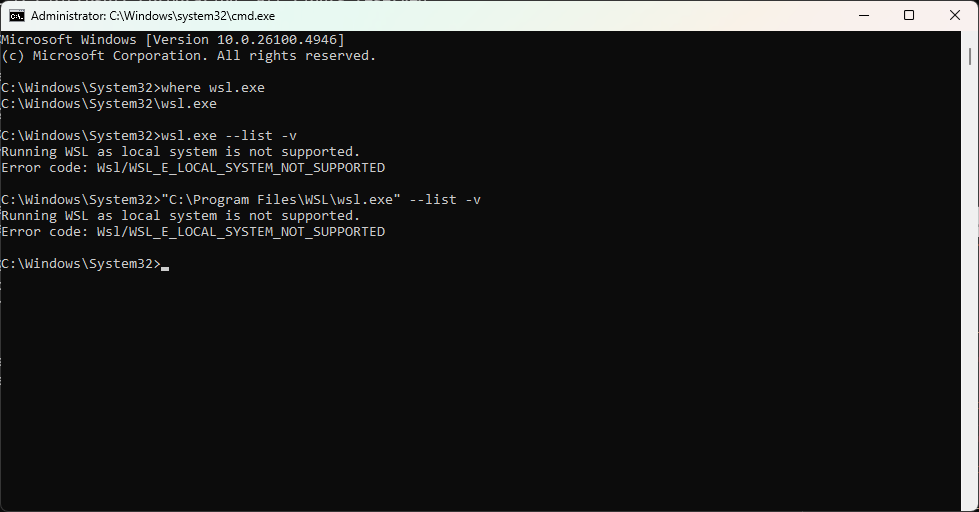
Now that we got all this out of the way, let’s lay out what are the steps to actually use WSL as server software. For all intents and purposes, I will be using Debian because we want a stable server here. What we will need is:
- Set up all the software you will need
- Configure the appropriate networking
- Create a service user account
- Set up WSL and your Distro of choice
- Set up automatic startup for WSL
Why do this?
-
You’re running Windows Server!
It’s a legitimate situation. You’re the owner of your software deployment and you have your own use cases. -
Because you can mix and match software from both sides
You could run data processing on Linux, and parse the results on the Windows side without any need to go across a network service to get things done. -
RAM and Storage are no concerns (more than your base OS)
Unless you have very specific requirements, WSL can be set up and left alone with resources for the most part. Or if they are! they can be tinkered with really easily, and memory can be scaled up and down as it needs to. If you want to run a Linux VM for this, you will have to assign a dedicated chunk of memory under Windows.
Let’s start with all of this
1. Install everything you’ll need
- Hyper-V Role: Yup! Since you’re using WSL, you are familiar with Hyper-V, and you understand a little bit on how WSL gets its networking capabilities. This will be useful to manage the network side of things for WSL.
# Remove ComputerName if the command is run locally
Install-WindowsFeature -Name Hyper-V,Hyper-V-Tools,Hyper-V-PowerShell -ComputerName <computer_name> -IncludeManagementTools -Restart
- Windows Subsystem for Linux: Obviously. This is what we want to run. You can run the following command to make sure that you’re running the latest and greatest version of WSL, and set it up to WSL version 2 (based out of Hyper-V):
# Remove ComputerName if the command is run locally
Install-WindowsFeature -Name Microsoft-Windows-Subsystem-Linux -ComputerName <computer_name> -IncludeManagementTools -Restart

wsl.exe --update; wsl.exe --update --pre-release
wsl.exe --set-default-version 2
- Sysinternals Suite: We may need to open up another user’s session, and we need psexec for this purpose, which is included in this suite.
# Install Sysinternals Suite from the MS Store - This version adds itself to the PATH variables
winget install 9P7KNL5RWT25
2. Configure an external switch
Since you’re using WSL, you are familiar with Hyper-V, and you understand a little bit on how WSL gets its networking capabilities. In a nutshell, it is an Hyper-V VM that can be accessed through a Terminal window, and therefore it uses an ad-hoc switch to allow the WSL system to punch to the Internet. But! If you want to host services to your broader network (e.g. a web server), then you’ll need to create a dedicated switch that persist across multiple reboots. You can do that by accessing the “Virtual Switch Manager”:
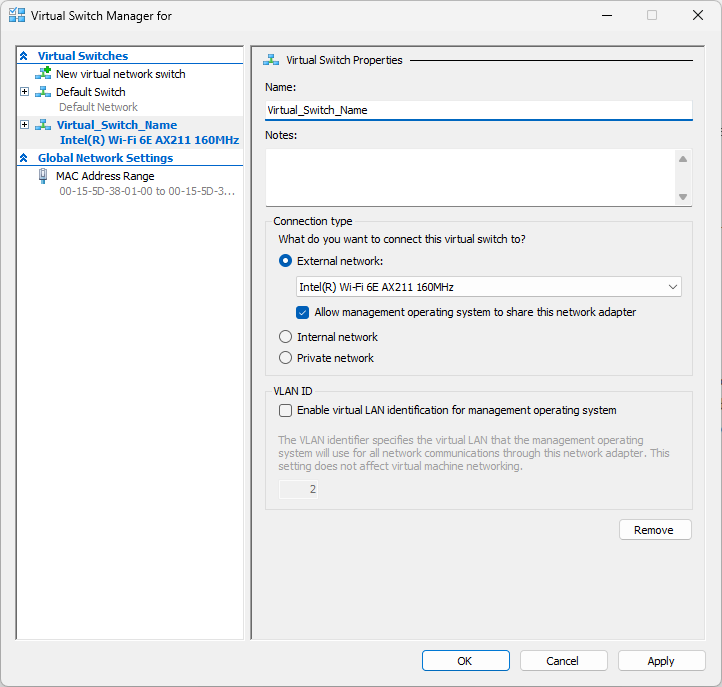
Note: Please ignore the “Wi-Fi” adapter - this is just to illustrate how to create the Virtual Switch. Make sure you use an Ethernet adapter for this purpose. Virtual switches don’t play well with Wi-Fi adapters.
If PowerShell is your jam, you can run the following commands:
# Obtain the name of the Network Interface you want to use
Get-NetAdapter | ft ifIndex, Name, Status -Auto

# Create the Virtual Switch on that Network Interface
New-VMSwitch -Name "Virtual_Switch_Name" -NetAdapterName NIC_Name -AllowManagementOS:$true
2. Create a user account to run WSL from
Already covered this above, you need to have a separate user account if you want WSL running in your environment in an unattended manner. You can do this by executing the following:
$Password = Read-Host -AsSecureString
$params = @{
    Name        = 'wsluser'
    Password    = $Password
    FullName    = 'WSL User'
    Description = 'User account for WSL.'
}
New-LocalUser @params
Also note that this is just a regular user account, and not one with high privileges!
Conversely, if you have access to an Active Directory, and you already have the ability to use Group Managed Service Accounts (gMSAs) where Windows takes care of the password management, you could create a gMSA for use with WSL:
# Make sure you include the $ sign at the end of the Machine name.
New-ADServiceAccount -Name wsluser -DNSHostName server_name.domain.com -PrincipalsAllowedToRetrieveManagedPassword WSL_Machine_Name$
3. Configure WSL from within the user’s account
For this part, you need to start a session as the actual user. If you are creating a Local User, then you can just log into the user through Windows and open a Terminal / Command Prompt. Otherwise, if you decided to create a service account, you will need PSExec:
# Start up a Command Prompt window from that specific user
# Replace ~ with the password of the user if it is not a gMSA
psexec -i -d -u DOMAINNAME\wsluser$ -p ~ cmd.exe
Once you have the user session open and working. You’ll need to do the following:
- Create a “.wslconfig” file: This configuration file applies global settings to each VM for WSL. You will need to place this file in the
%USERPROFILE%\.wslconfigpath (that is, the file needs to be placed in the User Profile folder). You can use the following example
[wsl2]
networkingMode = bridged
vmSwitch = "Virtual_Switch_Name"
macAddress=00:11:22:33:aa:ff
vmIdleTimeout=-1
You should pick any Mac address you want. I prefer to start with 00:15:5d because it denotes a Microsoft device.
- Install a Distro through WSL: As already mentioned, I’d recommend Debian, and using the web download version instead of the MS Store one. If everything goes well, you should get a prompt for setting up a local user in Debian with
sudopermissions
wsl.exe --install Debian --web-download
- Create a wsl.config file: From within the Debian session that was started by the previous command, you need to create a file that will set up specific settings of the WSL machine that is deployed.
sudo nano /etc/wsl.conf
You can use the following example for the contents of this file:
[boot]
systemd=true

[gpu]
enabled = true

[time]
useWindowsTimezone = true

[network]
hostname = my_hostname.domain.com
After all of this is configured. You should restart the WSL instance to make sure that all is working:
# Exit Debian
exit
# Restart WSL ensuring that the settings from wsl.config are read.
wsl --shutdown
wsl -d Debian
# Observe that the host name matches the value from the wsl.config file.
If everything has been done correctly you should have:
- A WSL instance that is exposed to your broader network
- A static Mac Address that you can use to configure a static IP address
- A bash prompt ready for you to deploy any software you want (e.g. Docker)
4. Start up the WSL instance on boot
Once you’re done with configuring all your Linux needs, you’ll want to make sure that the WSL instance starts with the server. I have achieved this by creating a Scheduled Task with the settings listed below. Note that if the setting is not mentioned, it should be disabled:
- Security options:
- Name: name_of_task
- When running the task, use the following user account: wsluser
- Run whether user is logged in or not
- Do not store password. The task will only have access to local computer resources.
- Run with highest privileges
- Triggers:
- At start up
- Delay task for: 3 minutes
- Enabled
- Actions:
- Start a program:
- Program/script:
C:\Windows\System32\WindowsPowerShell\v1.0\powershell.exe - Add arguments:
wsl -d Debian
- Program/script:
- Start a program:
- Conditions:
- All conditions disabled
- Settings:
- Allow task to be run on demand
- If the task is already running, then the following rule applies: Do not start a new instance
Once you confirm, you will get prompted for the password of the user account. Even if you want to store the password or not. And that should be it if you’re using a local user account. If you’re using a gMSA, you should not enable the “Do not store password” setting. You can use any account to save the task, and you can use the following command to map the task to the right user account:
# Note the backwards slash on the name of the task. This denotes the path of the task within Task Scheduler, you can change tasks within task sub folders with the same structure.
schtasks /change /TN "\name_of_task" /RU DOMAIN\wsluser$ /RP
Then reboot and you should have your very own WSL starting up automagically and completely interoperable with the Windows side of things
So what’s left?
Obviously Microsoft does not condone this as a valid use case for many reasons that I will need to investigate further:
- Security: What’s the attack surface from leveraging a WSL instance in this state
- Firewall: My WSL deployment is behind a VLAN, but I think there’s no firewall deployed, so you may need to deploy your own
- Performance: If your intention is to use it as a Docker environment (one of my objectives) there are massive penalties from virtualize something virtual - even going through the Docker Engine setup process tells you to install “Docker Desktop” for Windows
- Reliability: Obviously a Scheduled Task is not the best mechanism to start up a service. It should definitively be a service, and I will be revising this guide to configure this.
- Scalability: What if you want to run multiple WSLs? I still have no idea what the
macAddresssetting will do to this setup, but I will investigate!