Hi!
I have an experiment going where I’m trying to get both my laptop and desktop computers to boot off of a Sabrent Thunderbolt 3 NVME enclosure with a Intel Optane P1600X 118GB NVME drive loaded. The goal is to allow me to use my more powerful desktop computer when I’m at home and my laptop when I travel, while keeping the same OS and files on the external drive.
This now works, but getting there was quite frustrating because of the lack of relevant docs, so I thought I’d make a thread here to help the next guy or girl getting this going.
I used my Dell XPS 15 9570 laptop to install Kubuntu 23.04 to the drive while mounted in the Sabrent enclosure and after some messing with the BIOS settings (basically enabling everything Thunderbolt related), it booted and worked nicely on the laptop.
The desktop was another story though. I have a ASUS ROG Strix Z490-A motherboard with a Intel i9-10900 CPU and an ASUS ThunderboltEX 3-TR Thunderbolt card. The Thunderbolt card worked well out-of-the-box with my LG Ultrafine 5K monitor and it also worked well with the Sabrent NVME drive as a plain storage device, but getting the motherboard to boot from it proved to be more troublesome. The user manual for both the motherboard and the Thunderbolt-card are pretty scarse on details on how to hook this all up, but here’s what proved to be successful for me:
Hardware - part 1
- Start with the system powered down and disconnected from mains.
- Connect the Thunderbolt card as per the motherboard user manual and make sure to connect all the cables to their corresponding sockets and use the PCIe 3.0 x4 socket on this motherboard, as that is the only one connected to the PCH on this motherboard. I could not get the NVME to boot with the Thunderbolt card in any of the PCIe 3.0 x16 sockets, so this part is important.
- Keep all Thunderbolt devices disconnected. Use a monitor connected to the Displayport or HDMI-port on the motherboard.
BIOS
- Start by resetting the BIOS to its optimized defaults and reboot the system.
- After rebooting, adjust the Thunderbolt settings as per the screenshots below. All settings are important, so be dilligent about getting them all right.
- Save the BIOS settings and then shut the system down.

Hardware - part 2
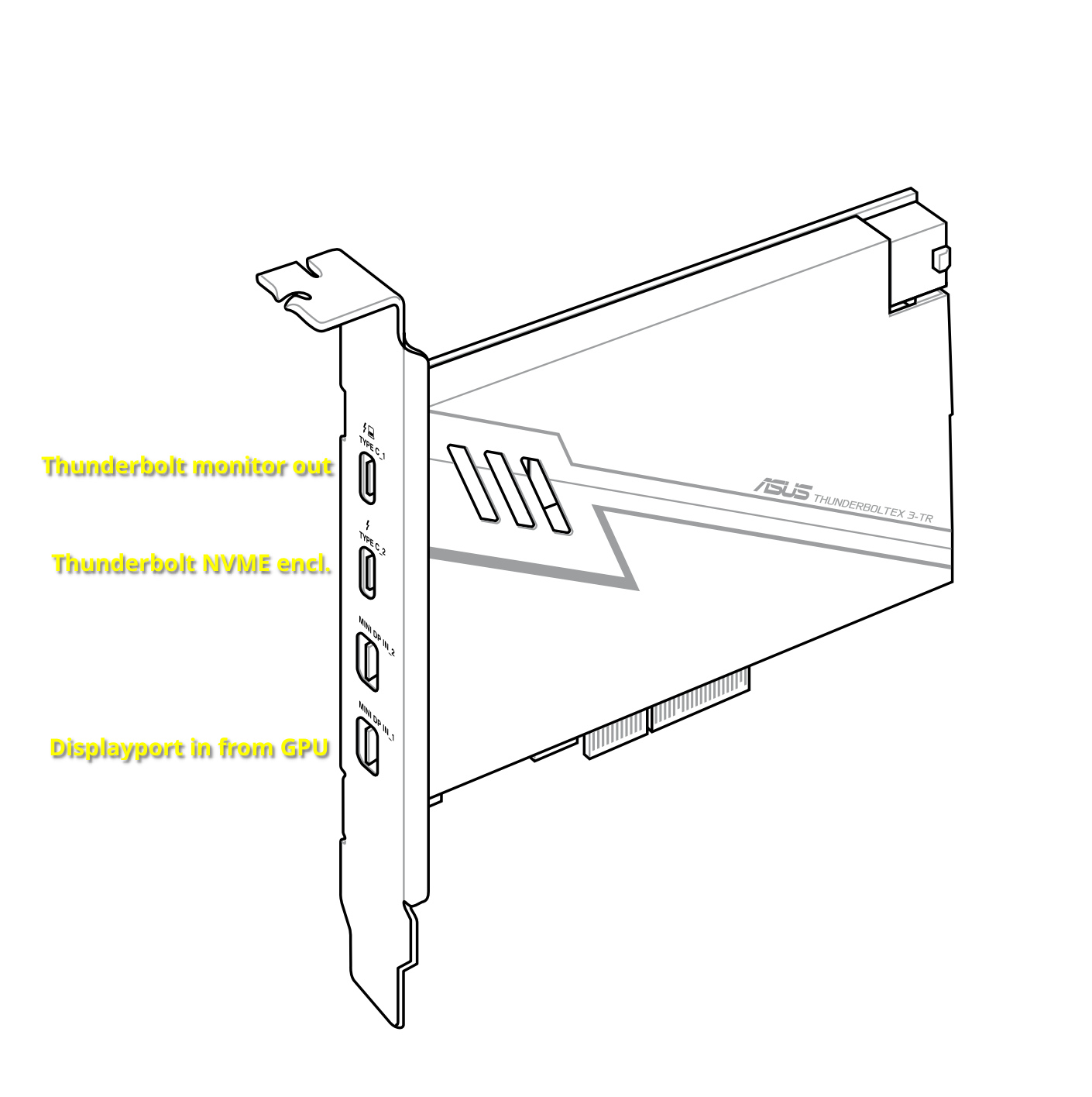
- With the system powered down, connect devices to the Thunderbolt card like this:
- Start the system and (fingers crossed) it should boot from the NVME drive with both the monitors speakers, webcam and USB-ports working.
I hope this can be helpful to someone! 

