This is a very good point, especially on the tests, but I don’t think a “100% random read test” on a SSD even is a 100% random read test inside the SSD, is it? Since the data must be written first, to a recent block of drive, and then read randomly in 512b or 4k chunks, one at a time, from random places within that block, the data is likely striped across chips/banks and into freshly optimal blocks for this kind of read.
In terms of fragmentation, the individual blocks themselves could contain mostly deprecated data over time that’s no longer relevant to the read operation, but the bytes remain in that block because they haven’t had the opportunity to be written elsewhere, leading to reading a bunch of mostly-garbage blocks into cache, and then needing to go back and find new mostly-garbage blocks.
IIRC, SSDs use some pretty massive internal sector sizes more in the range of 16k~128k, but present themselves as 4k sector size for compatibility, right? And the physical block address is a total lie, of course. So, a read operation going block to block using physical addresses might end up hitting a very sub optimal read configuration that just wouldn’t happen in real software, because the drive is storing blocks optimized probably by write ordering and wear leveling.
It would be interesting to try this test on individual files as well. Maybe @Marandil’s util can do that? It seems like it might actually be a more useful test of real world performance degradation, too, since what’s loaded isn’t so much block ranges as it is files.
I’d do the hot/cold test myself if I had money to burn and a convenientfly fast Windows machine. One NVME in the fridge, one on the fridge.
I like this explanation better than my temperature difference idea.
Although I’m still not a big fan of how alot of sata ssd’s case’s are plastic nowadays and insulate heat better than dissipating it.
I’m sorry for offending you, however I didn’t come in asking for help - if you see my original post I came in providing a bunch of my collected data, anecdotal experience, and I asked what the other people here who are experiencing this same issue think. I jokingly said that I feel like I’ve found a support group (because of how niche this problem is).
In regards to what you suggested, I’m sorry that I didn’t provide enough information and made it seem like this is something that perhaps could be troubleshooted away. However this is a phenomenon I’m observing on all but one of my drives to varying degrees, across multiple systems and use cases. Regardless if they’re SATA or NVME, PCIe3 or PCIe4, running 24/7 or for 1-2 hours per day, laptop or desktop, Intel or AMD. So the issue isn’t one M.2 or SATA slot, or one power supply, it’s an issue that many SSD models appear prone to and it needs to be discussed publicly instead of considered a one-off issue.
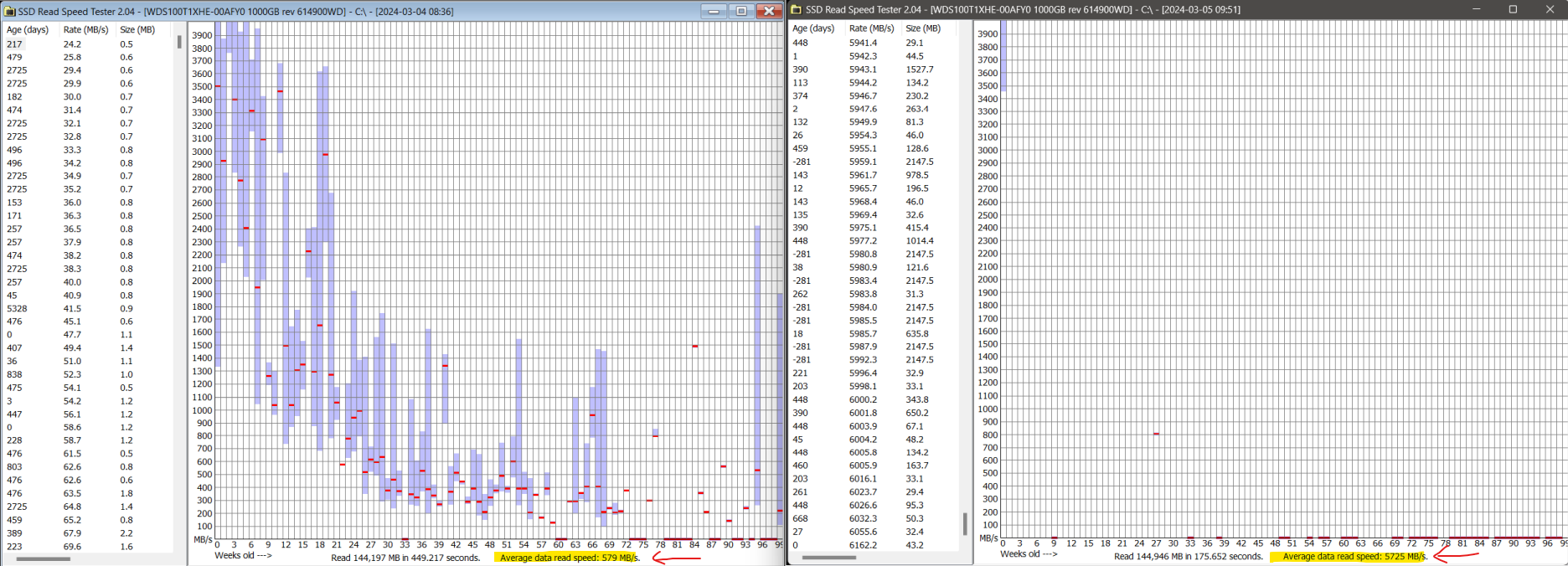
Also, I’ve resorted to using this software to track and illustrate the issue BECAUSE I observed massively degraded read speeds through regular everyday use, attempting to copy my files from one drive to another. I can replicate the results it provides in at least two other software I have available, here is one (it was last updated in August 2019…):
I can shuck the cases off of these SSDs for the next test, but it’s already a pretty cool environment that they sit in, the nearest SSD reports 23°C at idle, and the drives I’m testing this with are always totally idle (nothing is reading/writing to them), they’re just sitting and chilling.
Also, so far the ONLY drive I have measured that did not exhibit this phenomenon is a SATA Crucial MX500 1TB, that bad boy is always a rock-solid straight line across the whole span at max speed, despite having a good chunk of the data onboard sitting for upwards of a year now.
Perhaps we can start a public database where people can report drive models that are/are not prone to this issue, along with as much info as possible about the flash and NAND onboard (using flash_id). With enough data points we could start narrowing down something they all have in common.
It should *mostly be. As far as the benchmarks are concerned the random read test just means its hitting non sequential LBAs in some pattern, but the SSD itself likely isn’t serving up “sequential” pages of NAND when servicing squantial LBAs because of wear leveling and the FTL. I think for most SSDs, the controllers look ahead when sequential LBA requests are being serviced is why they perform well in sequential reads.
This is what TRIM and garbage collection fixes.
Sabrent has a pretty concise article on SSD organization:
The utility all the way back in post #5 was measuring read speed per file, and then corelating it to the reported age of the file (NTFS timestamps), there was definitely speed degregation associated with age but the problem with that test is that it was done on many different files of different sizes and there was no accounting for the size of the file affecting the read speed. The left-most pane of the test does show individual files and their size and speed, but size isn’t reflected on the graph.
That’s just it, though, is it’s serving those LBAs from recently written data, which will be written more optimally for performance and then read back from that more optimal layout. Even without lookahead, the controller could possibly be serving requests for that data more efficiently than a more storage-optimized flash layout, and therefore not reflecting true random read performance.
For example, striping the pages across nand packages ala dram, and not having multiple 4k chunks in different pages on the same nand package would greatly impact read performance.
I just think it’s another possibility here, but I think the test proposed with cold and warm offline drive storage is the best way to determine how much degredation is ECC/nand drain.
interesting, maybe there is hope for some consumer drives afterall?
This would be very useful.
I think the hardest part would be coming up with a test easy enough for people to run and have results be consistent.
I suppose it could be as simple as “hey go run HD Tune on your old drive”, if we see any degradation in read performance we can classify the drive model as bad.
It would be nice to 100% confirm it’s an age related problem and not some kind of fragmentation problem from other writes to the SSD. Its a problem either way, but if it was the latter I would call into question the competency of the firmware programmers.
MX500 - I can attest to that. After having issues with my one drives, I started doing surface reads on some of my others. After sitting in a drawer for 2 years my 1TB MX500 still reads at top spec.
This is good news! It looks like we may have found a consumer drive that has proper garbage collection implemented.
If there are exceptions to read performance degradation on the consumer side it makes me wonder if there are exceptions in the other direction on the enterprise side.
All the more reason a list of the “good” drives and the “bad” drives should be created.
I’ve already begun recording data for all the SSDs that I have in my possession.
I may have discovered another good model, an OEM Samsung 980 PRO equivalent, but I need to investigate more closely. It all reads at a good speed, but that speed is ~2.0-2.4GB/s, meanwhile a benchmark results in read speeds up to 6.4GB/s. While there aren’t many large files, surely SOME of them should read faster than 2.0-2.4GB/s. When I have a chance I’ll do a refresh and re-test.
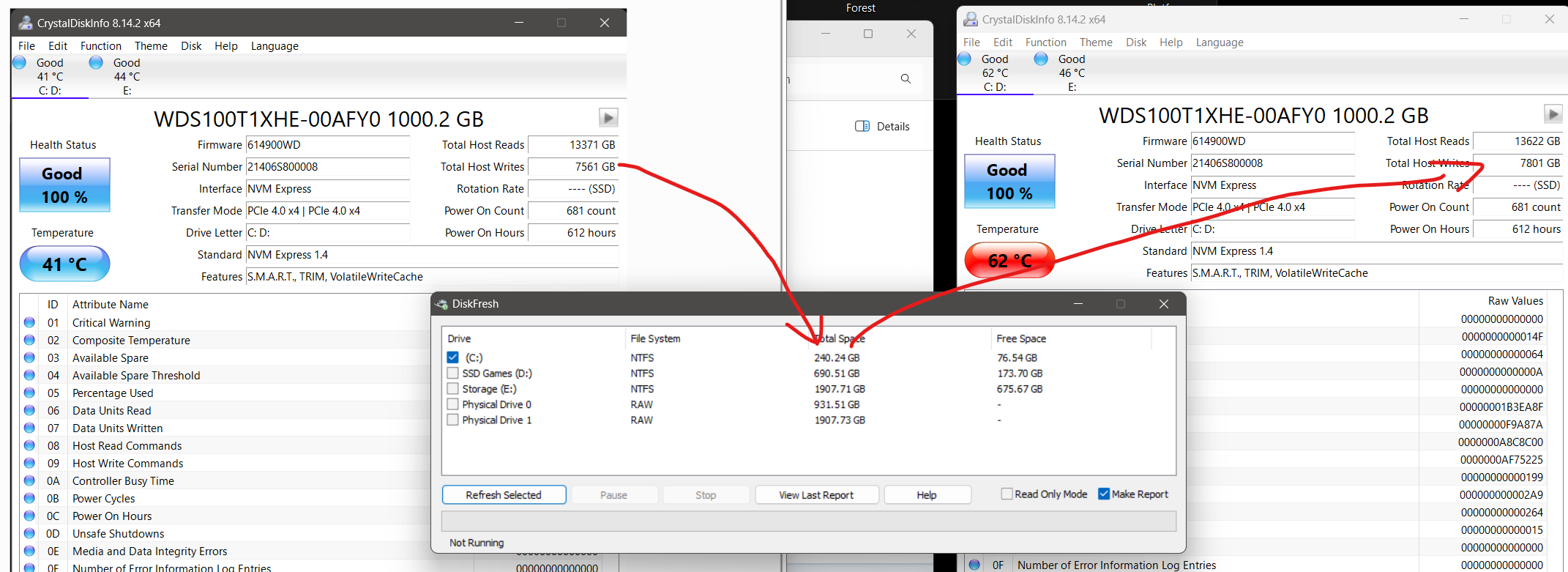
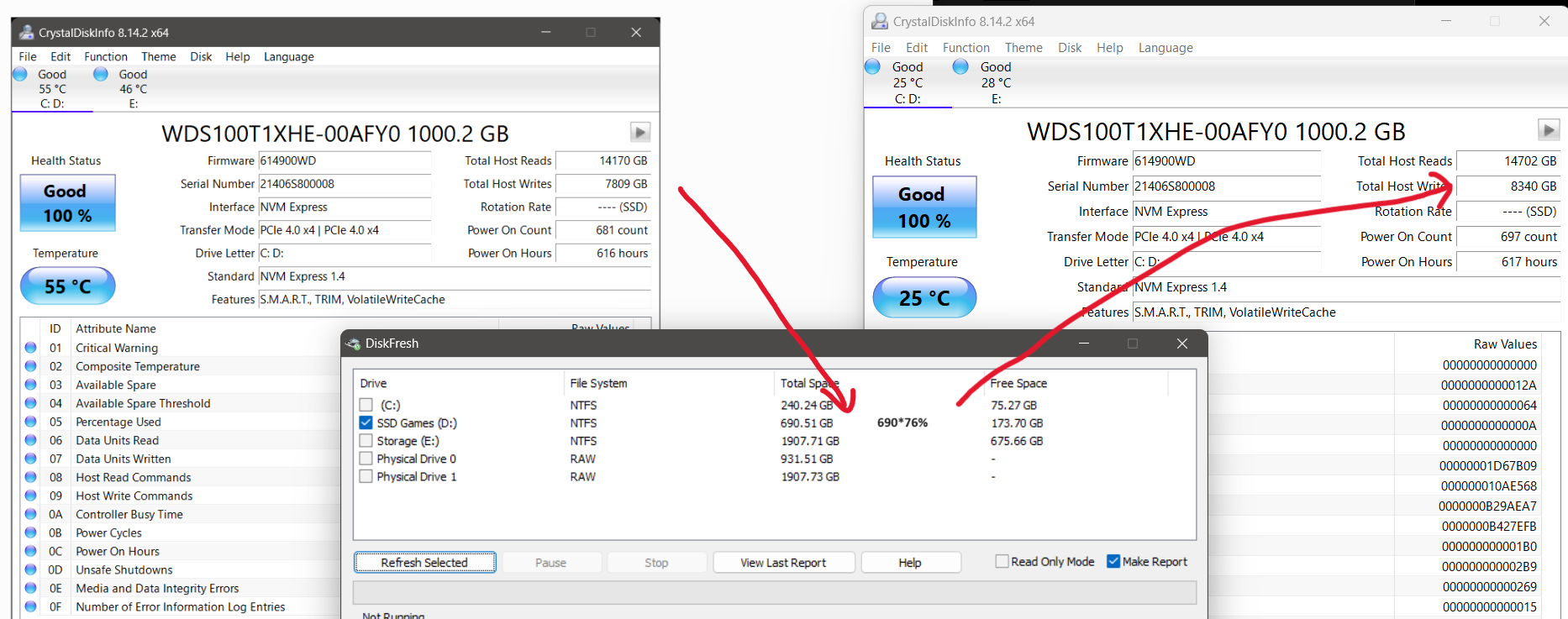
BY the way, a handy alternative to Hard Disk Sentinel, the little utility ‘DiskFresh’ has the wonderful ability to rewrite the data on your drive ENTIRELY in-place, even on a LIVE system (C:) drive, something that Hard Disk Sentinel’s surface test mode seems incapable of doing. It is also free in contrast…
Also, DiskFresh’s rewrite mode can be run on individual partitions or even ranges on a partition. And most importantly, it can be run from a command prompt or batch file, so you can schedule rewrites.
The downside of DiskFresh is that it’s “dumb”, it doesn’t analyze the drive’s performance for each file/sector first, it just blows through rewriting all the data. In fact, I think if you’re not careful and set a range, it will even “rewrite” empty space… (this 1TB drive is partitioned into C and D)
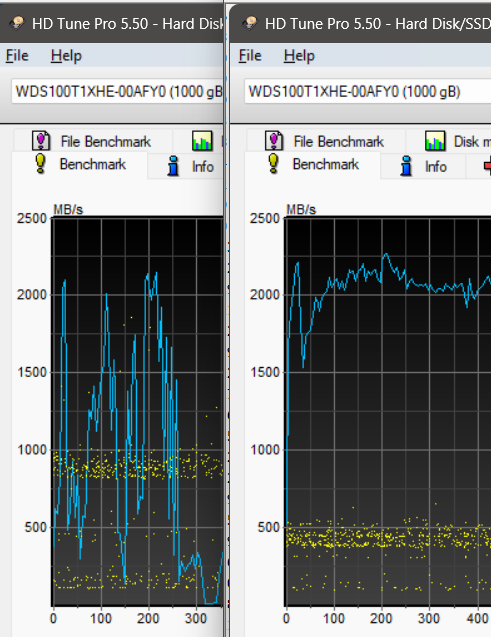
NOW clearly HD Tach and HD Tune’s read speed tests have some limitations - in order to perform a quick test spanning the entire drive they only read smaller chunks of data, which produces what looks like lower speeds. That is where the SSD Read Speed Tester tool comes in. It reads the entire drive/partition and plots the speed of reading a file VS its age in weeks.
One last before and after data refresh for the C: partition (NOTE the tool can only plot values up to 4GB/s but see the individual file read speeds on the left for reference, and note the red line denoting the average speed isn’t even showing up meaning it’s > 4GB/s):
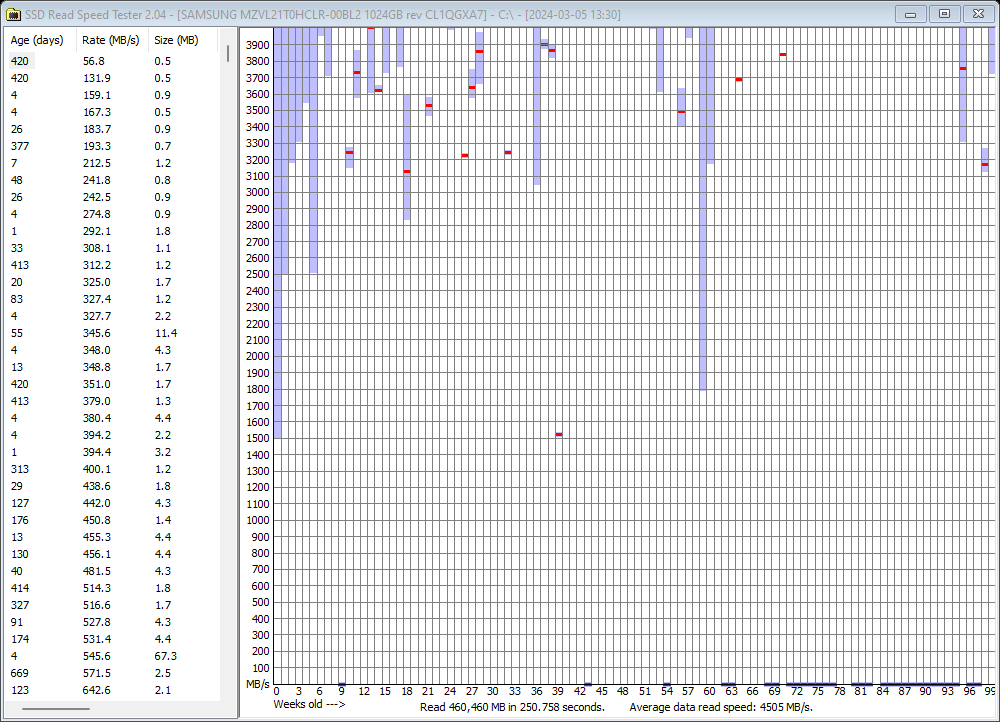
In regards to my comment here, I realized that HD Tune/Tach don’t paint an accurate enough representation on their own so I ran this SSD through SSD Read Speed Tester and the result is MUCH more in line with the expected performance:
Note how file age doesn’t seem to correlate with speed, and the average read speed at the bottom right is quite close to the drive’s rating. And this is after just over 1 year of daily 8-hour use (work laptop).
So, the Samsung MZVL21T0HCLR also gets my seal of approval. √
How come, just for fun? Because from the ‘before’ test there seems to be no need for it.
It depends which parts of the drive actually HAD data on them. These full-drive spanning tests inevitably end up “testing” parts of the drive where there is no properly recorded data, so results there are inconclusive and irrelevant. Also, different softwares produce different results in those sections, though the common trend is higher-than-normal performance.
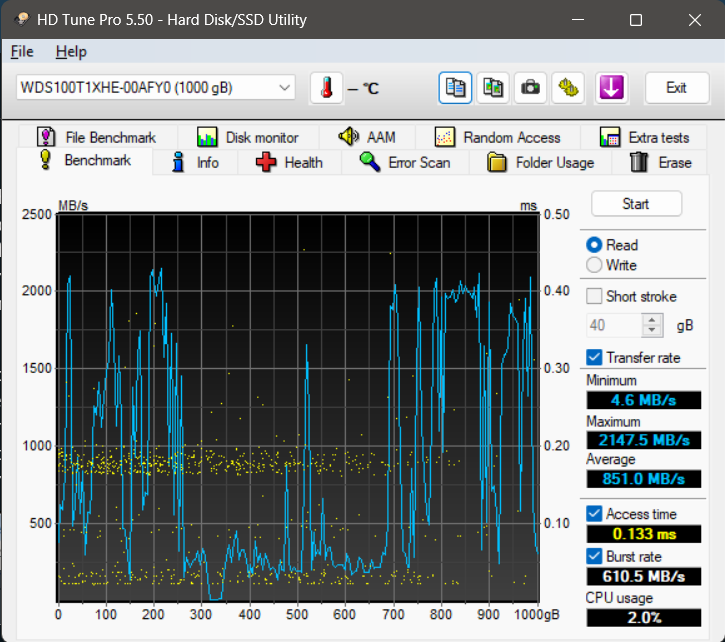
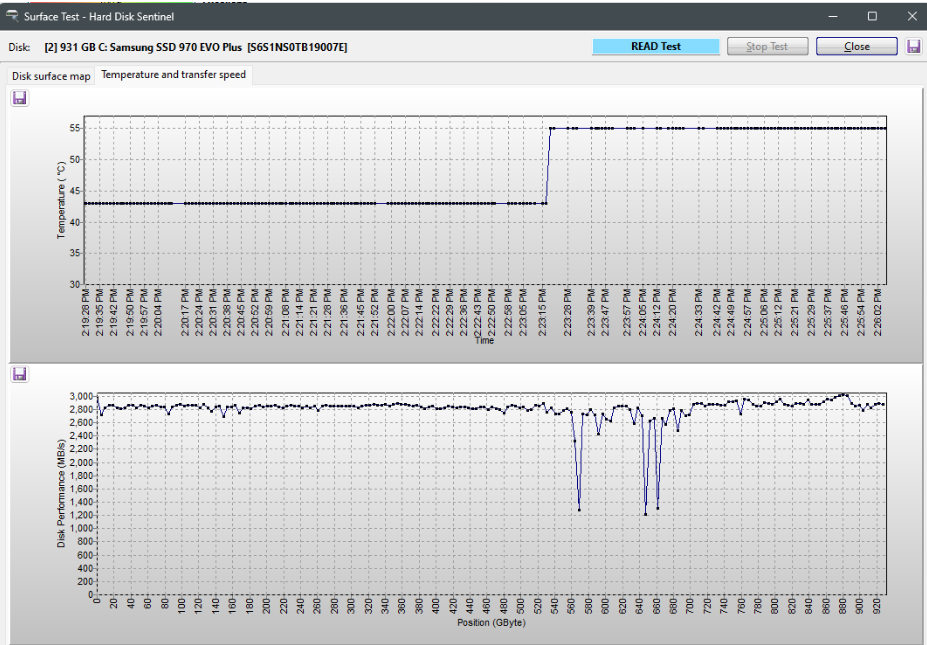
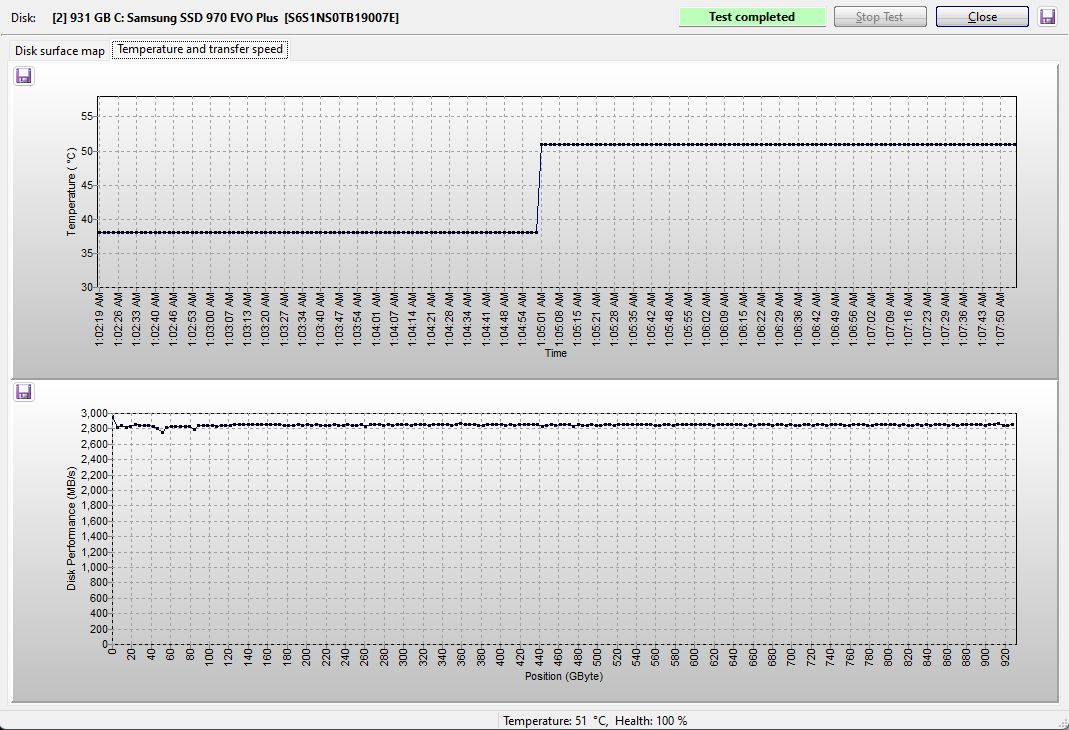
I get that. Here is a tip - don’t bother using Hard Disk Sentinel’s read test to estimate speed, it’s REALLY slow for what it’s doing. HD Tune’s read test takes a tiny fraction of the time and it will give you an idea if there is significant speed degradation spanning the volume. Then you can use DiskFresh to refresh JUST the section of the drive which you think needs it.
So, for example, in your case you see undesireable performance int he region between ~540GB and 700GB. When you run DiskFresh choose “range refresh” instead of “just refresh” and enter a range of 58% - 75% (540/931~ 58% and 700/931 ~ 75%). This will speed things up even further AND much reduce unnecessary write cycles to the drive’s NAND.
I am doing research on the topic currently, this thread is excellent!
From what I found, SSD data cells do lose charge with time and there is no way to refresh it except re-writing the data. Just plugging a drive to power doesn’t do anything, it’s a misconception.
Manufactures are well aware of that and the job of the drive controller is to actively identify cells with degraded performance and re-write them. From this perspective, plugging in a drive to power does help, it allows the controller to do its job on re-writing. How long should it be powered? Nobody can tell.
The fact that drives display visible degradation in tests is an indication that the controller is designed to tolerate that level of degradation in favor of prolonging lifetime. If it was to reallocate data on slightest degradation all the time, the drive would be used up much faster.
So that’s the choice the manufacturers are consciously making. And it is part of not completely honest marketing. The performance is advertised for the new data, but the drive goes into degradation during normal operation.
Maybe the tolerated level of reading degradation and the algorithm of re-writing should be part of advertised specs for all devices.
The user can scrub the data from time to time for the controller to “touch” all cells, as a placebo. Or actively re-write everything, enforcing full refresh and reducing lifetime of the cells.
I think you might be giving the manufactures too much credit here.
It would appear that the vast majority of the consumer level SSDs completely omit the weak-cell-refresh algorithm. The reason I think this is that the consumer SSDs that have been tested will loose multiple orders of magnitude read performance on the affected cells with no end in sight to the drop, if I was programing the firmware I would have had the refresh algorithm kick in by then.
Even re-reading the affected cells does not improve their performance. These are drives that have had continuous power applied to them as well.
This rings true, I’ve got a Toshiba enterprise SSD that does not experience any read performance loss after years of operation, and sees little new data written to it, but I’ve noticed the “Remaining Rated Write Endurance” meter drop at a disproportionately high rate to the data being written to it.
My assumption is that it is burning up P/E cycles in the background to maintain it’s speed.