đź’© Outa LUKS

So it appears to me, once you encrypt a drive with luks that only root or the user who did the encryption can open it.

In other words it’s tied to the userid.

And while there are ways around it, they’re annoying. This has now bitten me again.

My old thread on Linux Mint Forums here:
https://forums.linuxmint.com/viewtopic.php?t=342544

I’m actually to the point where on the multiple computers I’ve got I’m going to wipe them all and make sure I’ve the same userid on all of them. Obviously I can manually change userid at the cli…but I’m that annoyed. Plus I’m feeling the wanderlust of unhopped distros calling me.

I’ve just spent the last day and a half looking for a way to mount a LUKS partition as a different userid and can’t find one

The only thing I’ve yet to try (cause I just thought of it) is having the drives mount at boot. But that doesn’t help when the drive is a usb.

Any ideas?

1 Like

I’ve never encountered this. Are you sure the file permissions aren’t simply the issue? That the UID/GID and your groups are identical across machines or the permissions are OK with anyone that was able to decrypt it? How are you mounting it?

1 Like

Huh really didn’t think the partition is tied to a username. maybe the mount point, and the files inside

LUKS is basically a header convention for setting up dmcrypt mappings.

A dmcrypt mapping operates at the block device level.

There’s not really anything about users at that level - though typically you’ll need root privileges to create such mappings, as is typical with device mapper stuff.

My guess is your woes relate to the file system level, which definitely does tie things to UIDs.

1 Like

okay, played around, and think I kinda got somewhere…

What I did on my holidays

as root, created partition in fdisk

 fdisk /dev/sdz 
 n 
 [enter]
 +100G
 w

so root created /dev/sdz5, then encrypt the blank partition

root@redripper:~/root# cryptsetup -v luksFormat /dev/sdz5

set it with a phrase from password generator

root@redripper:~/root# cryptsetup luksAddKey /dev/sdz5

ran this twice, to add 2 additional passphrases as keys

 root@redripper:~/root# cryptsetup open /dev/sdz5 lukszy
"Enter passphrase for /dev/sdz5:"

Used the third key for this, but all should be interchangeable

 lsblk 
 └─sdz5       65:149  0   100G  0 part  
  └─lukszy  253:0    0   100G  0 crypt 
 root@redripper:~/root# mkfs.exfat /dev/mapper/lukszy
 Creating exFAT filesystem(/dev/mapper/lukszy, cluster size=131072)
 Writing volume boot record: done
 ..
 exFAT format complete!
 root@redripper:~/root# mount /dev/mapper/lukszy /mnt/lukzyPlace/

then testing as user…

 trooper_ish@redripper:~/notes$ echo testymctest >> /mnt/lukzyPlace/tesfile0
 bash: /mnt/lukzyPlace/tesfile0: Permission denied

okay, so normal user, was unable to write to the new encrypted device…

 trooper_ish@redripper:~/notes$ sudo umount /mnt/lukzyPlace/
 trooper_ish@redripper:~/notes$ sudo mount -o uid=1000,rw /dev/mapper/lukszy /mnt/lukzyPlace/
 trooper_ish@redripper:~/notes$ echo testymctest >> /mnt/lukzyPlace/tesfile1

that worked, so then with encrypted partition still mounted the same, I tested as another user…

 troop@redripper:/mnt$ echo exampletest >> /mnt/lukzyPlace/tesfile2
 bash: /mnt/lukzyPlace/tesfile2: Permission denied

Okay, so seems the mounting permissions were blocking me…

 trooper_ish@redripper:~/notes$ sudo umount /mnt/lukzyPlace/
 trooper_ish@redripper:~/notes$ sudo mount -o uid=1000,gid=1001,rw /dev/mapper/lukszy /mnt/lukzyPlace/
 trooper_ish@redripper:~/notes$ sudo mount -o uid=1000,gid=1001,umask=0007,rw /dev/mapper/lukszy /mnt/lukzyPlace/

(with group id from other normal, non admin user)

troop@redripper:/mnt$ echo exampletest >> /mnt/lukzyPlace/tesfile2
 trooper_ish@redripper:~/notes$ cat /mnt/lukzyPlace/tesfile2
 exampletest

Okay, that worked, on the system I set the partition up on. I ejected the drive, went to another computer, connected the usb drive, and gnome presented an option to mount the encrypted device.
I provided one of the keys, and it immediately connected the device, mounted it, and allowed my default user to read/write to it.


root@bakdeb:~# lsblk
└─sde5     8:69   0   100G  0 part  
  └─luks-ead45ad8-1ba7-4170-9005-44211dca547a
         254:5    0   100G  0 crypt /media/othercomputeruser/EB73-FCE3

Pretty nifty… but not what I was testing.


root@bakdeb:~# umount /media/othercomputeruser/EB73-FCE3 
root@bakdeb:~# cryptsetup close /dev/mapper/luks-ead45ad8-1ba7-4170-9005-44211dca547a

added a couple fresh users, and set passphrases, so would be clean with no old permissions etc…

root@bakdeb:~# adduser rod
root@bakdeb:~# adduser todd

reopened the luks container, and set the holding point for it as lukszy

root@bakdeb:~# cryptsetup open /dev/sde5 luckzy

which ulocks the container and sets it’s access point to the /dev/mapper location I specified, luckzy
then tested with new group id for user just created…

root@bakdeb:~# mkdir /mnt/lukszyTodd
root@bakdeb:~# grep todd /etc/passwd
todd:x:1002:1002:,,,:/home/todd:/bin/bash
root@bakdeb:~# mount -o gid=1002,umask=0007,rw /dev/mapper/lukszy /mnt/lukszyTodd/
root@bakdeb:~# su todd
todd@bakdeb:/root$
todd@bakdeb:/root$ echo thirdtest >> /mnt/lukszyTodd/tesfile3
todd@bakdeb:/root$ cat /mnt/lukszyTodd/tesfile3
thirdtest
todd@bakdeb:/root$ cat /mnt/lukszyTodd/tesfile1
testymctest

worked for writing and reading

TLDR: user or / and group permissions on mount is all I needed for it to work…
1 Like

Thanks guys. I agree with all the confuzzled thoughts.

@Trooper_ish : I am embarrassed to admit I never thought to include the user and group in the mount command. What I get for just using the gui.

I’ll play around with it again later today and report back. Thanks again

2 Likes

with the GUI, the password prompt that came up upon insertion, “this device is locked, please enter unlock password” or whatever, was not for my user password. it was for one of the keys used to set up the storage

I do not mean any judgement, but if you used your user passphrase to set up the container, that becomes the first key, and so that would be the unlock code for the container, regardless of who tries to open it…

so, it might be even simpler, and you just have to use the keyphrase when loading it to other computers, perhaps?

It’s the most common setup for Linux too since it’s the path of least resistance. Does the job for a single-user desktop.

I wonder what Linux-first enterprise uses for infrastructure with a larger number of systems and users who can hop in front of any of them.

At the very least, I’d expect a fixed disk tied to a TPM, but the user profile has a lot of different ways it could be administered including whether the data is also centrally managed and/or the local system has user-specific encrypted volumes.

1 Like

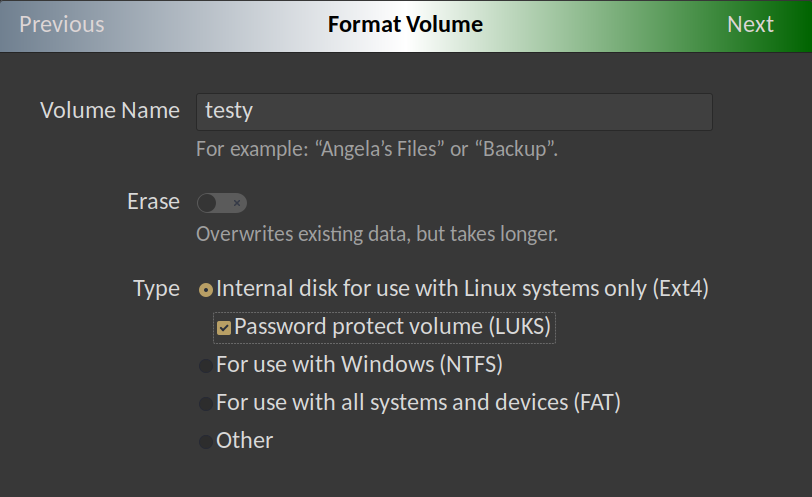
Well, thus far, all of them were set up with the gnome disks util (current desktop is linux mint - ubuntu edition.)

Specifically, format ext4 with luks. Disks asks for an ecrypt. password.

Now give it the super secure password:

and that’s it. The next screen is asking for my sudo pw to actually create the partition.

…

Naturally, in the case of my current machine with the above 100MB “drive” it kinda sorta worked just now.

I’ll play more later today/tonight. My laptop needs a new drive anyway so this might be a good time install it and test - maybe even add a couple distros…

the more I look at this the more I think it’s got to be something related to mount point permissions like @Trooper_ish mentioned above.

I’ll be back

2 Likes

Thanks for bringing this problem to us!

I have heard of luks, and been aware of it for like, over a decade, before I even used Linux, but never looked too closely.

I am silly, and tend to look towards the CLI when playing with things, so of course checked the Arch Wiki first, then Quacked around, until i worked out how to roughly get started, then tested a couple bits, and kinda-sorta-almost worked out the general ideas around it.

but, like I said, I had been aware of it for ages, but never looked too close, till now, so Thank You very much @SomeDudeInAZ for the inspiration to look a little closer…

May also look at the GUI way tomorrow, and see how it goes on that side.

I am also a little backwards, in using Mate, and so have an older version of Gnome, with fewer bells and whistles… although, I am not sure where Mint is with it, so perhaps,. not too far outdated…

but yeah, GUI way will be next on the testing side…

and thanks again for both starting this, and also, not abandoning, and sticking with it…

1 Like

My gut instinct is that GUIs tend to reduce the amount of control over processes, exposing only common denominator features for the mass market. In nearly every situation where I’ve had to set up something in a specific way, I had to eschew the GUI for CLI and configuration file customizations.

2 Likes

Welp, it does indeed come down to mount point permissions. Give yourself a :trophy: @Trooper_ish .

You too @LiKenun :trophy:

Doing things within the gui does indeed hide things. Just like any other drive, when mounted, the partition mounts with user:group, the account and group I used when I formatted and encrypted the drive.

So stalking my /mnt and /media dirs…

Once the drive was unlocked, I saw that the mount point owner changed (from root:root) to user:group and permissions were at 700 (rwx------)

A quick chown to root:sharedgroup and chmod to 770 (rwxrwx—) and all was well.

So the lesson is to check the permissions of the mountpoint And set them as soon as possible to avoid this kind of :poop:.

Just to add insult to injury…

Now that I see what the solution actually is…this all goes back to one of the very first posts I made when I switched to linux back in 2019…

[SOLVED] Mounting Shared Partition Woes (newbie)

All I can say is…
banging-head-against-wall

Thank you one and all

2 Likes

hey, no worries

and it is very much a case of the devs making things overly simplistic for new users, not expecting multi-user use…

I love Linux, and use it daily, but it is not easy, and straight forward for new users, much to my dismay.

any after 6 years, you are not a new user…

I really am glad you stuck with it, instead of throwing toys out of the pram, and declaring Linux useless…

So, I say, Well Done You!

1 Like

So it seems like you’re talking mainly about a storage drive that is used across distros? Remember, usernames are not stored on the filesystem. Only UIDs/GIDs are (and neither are stored in the LUKS container, just passwords and keys). You can use a mount option to force UIDs/GIDs for the whole mount, but you can also be sure when you create a new user on a new distro, it has the same UID/GID (although only some installers will let you manually change this, most start from 1000:1000 these days).

If you want a deeper dive on house LUKS works under the hood, I wrote an article about copying Linux between different machines, and you can see all the LUKS/mkfs/lvm commands and how they fit together:

Also, over the years, i have learned to love the idea, of keeping /home/ and the subfolders, on a separate drive (well, array) than the / partition, as that means I can move distros a little easier, or reformat my machine.

I seldom actually backup my actual . drive, and mostly backup /home each day.

when / fails me, i will start fresh, with whatever new joys the linux world is willing to show me…

I’ll check out the article thanks.

And yes these are just data drives. My /home is basically just configs and temporary file storage. I learned long ago - NEVER store data on the OS drive/partition.

Back in the day, when I owned a computer support company my biz partners and I always had 2 drives in our machines. Especially in the laptops we would carry from client to client.

Every morning we’d update our security software and make a drive image (Norton Ghost at the time). Then, when we were done with each client we’d restore the image at the client site before we left. Just in case something snuck in.

1 Like

This topic was automatically closed 273 days after the last reply. New replies are no longer allowed.