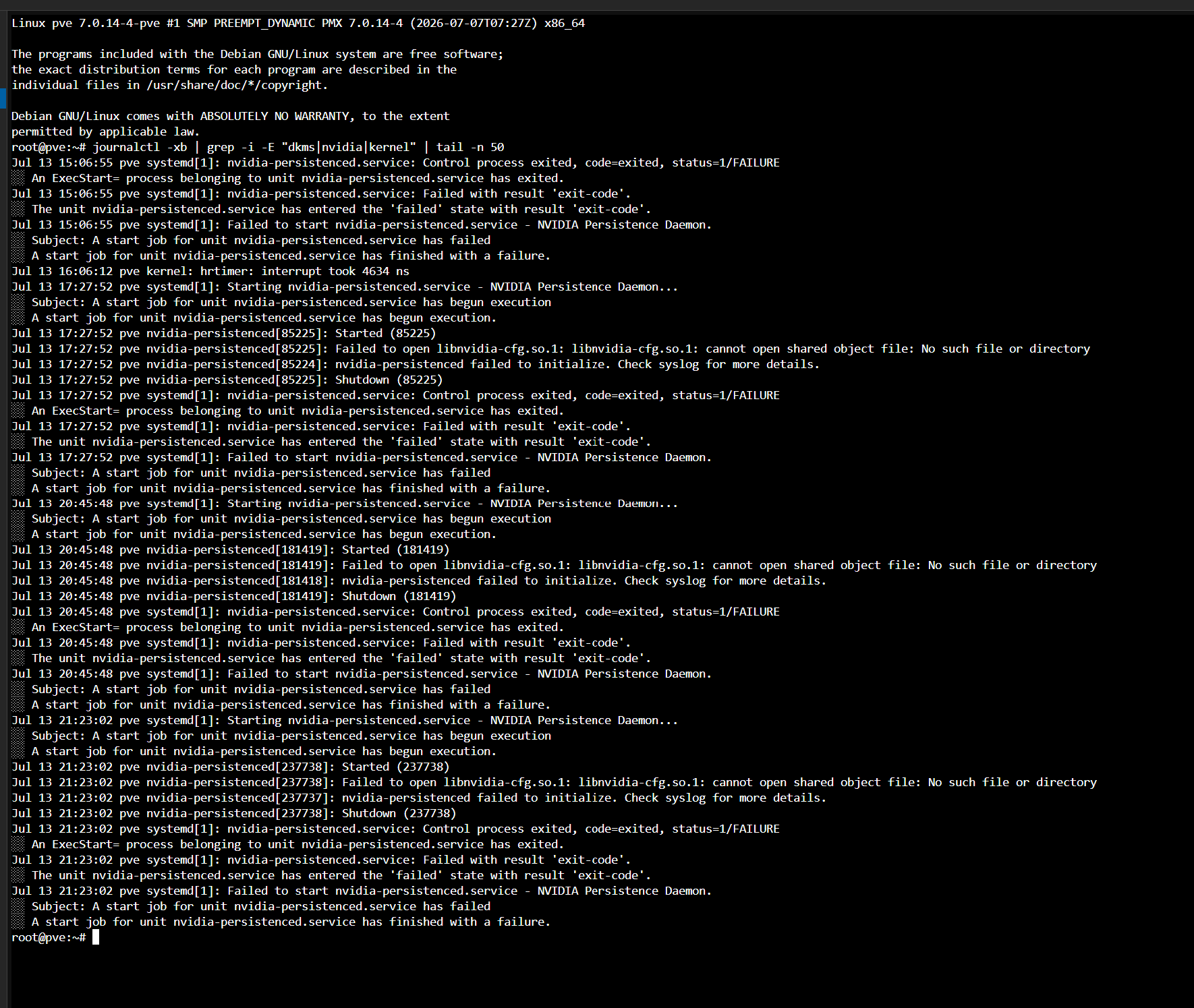
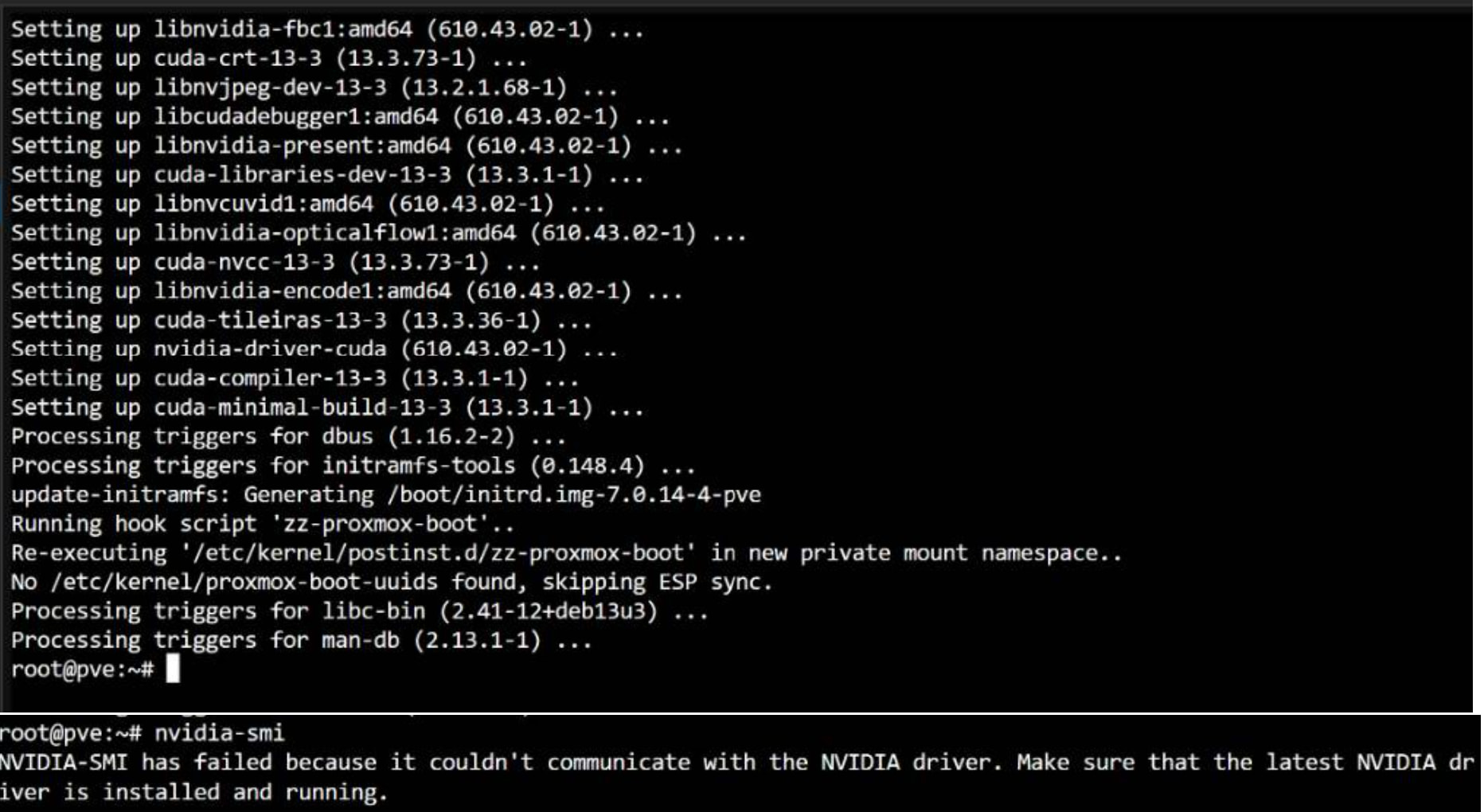
So, a couple months later and I actually found myself in somewhat of the same situation you were in. I’ve got several Nvidia Tesla A2s in my Proxmox servers, and I wanted my LXCs to have access to them with Nvidia drivers and CUDA support.
I’m currently running PVE9, on Kernel 7.0.
Here’s what worked for me, admittedly with quite a bit of Claude’s involvement as I ran into driver+kernel issues and didn’t want to get too into the weeds myself. Apologies, as I pulled it from my internal Wiki article I made a month ago so versions may have updated since writing.
NVIDIA A2 Passthrough to Privileged LXC
Applies to all Proxmox nodes with an A2 installed.
1. Install the NVIDIA driver on each host
Reference: NVIDIA Tesla driver installation guide (Debian)
-
Blacklist Nouveau so it doesn’t grab the card first:
echo -e "blacklist nouveau\noptions nouveau modeset=0" > /etc/modprobe.d/blacklist-nouveau.conf
update-initramfs -u
reboot
-
Install headers matching the currently running kernel — Proxmox
doesn’t ship a linux-headers-generic virtual package, so target the
branch your active kernel belongs to:
apt install proxmox-headers-$(uname -r | cut -d. -f1,2)
For 7.0.14-11-pve, this resolves to proxmox-headers-7.0. Confirm with
uname -r first if you’re not sure which kernel is currently booted —
with multiple PVE kernels installed across update cycles, apt install linux-headers-generic has no candidate, and installing headers for a
kernel other than the running one won’t let DKMS build the module. (If
uname -r ever reports a non--pve suffixed kernel, e.g. a stock Debian
6.12.107-1 build, that branch doesn’t follow this naming — install
linux-headers-amd64 instead.)
-
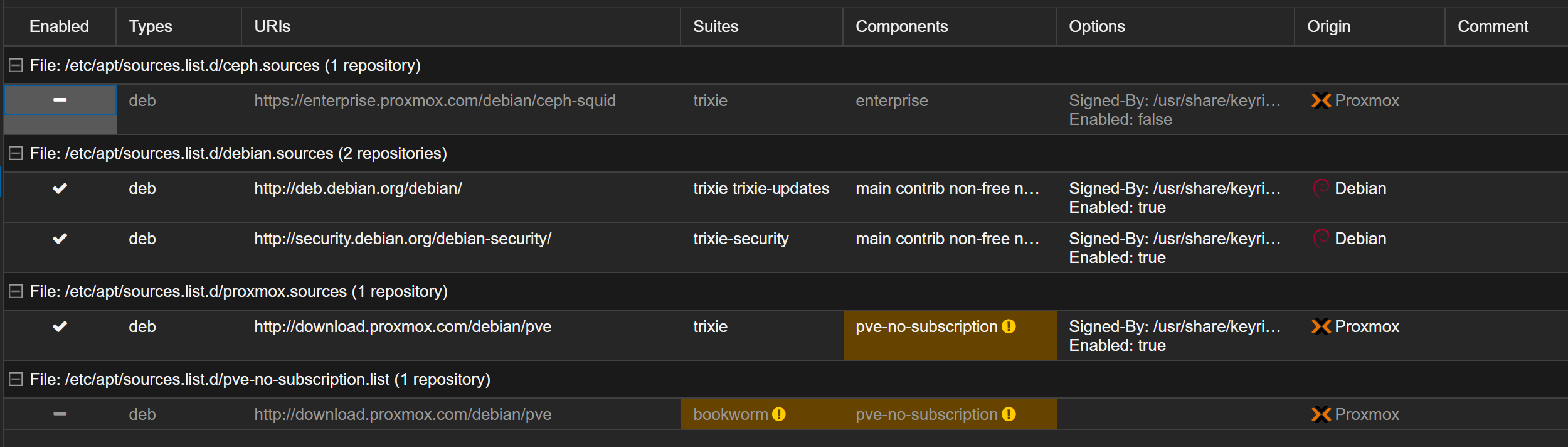
Make sure contrib is enabled. Proxmox doesn’t ship
software-properties-common, so add-apt-repository isn’t available —
and Debian 13’s default /etc/apt/sources.list.d/debian.sources (deb822
format) usually already includes contrib non-free-firmware out of the
box. Check first:
cat /etc/apt/sources.list.d/debian.sources
If Components: doesn’t already include contrib, add it (repeat for
every stanza in the file, e.g. the trixie-security one too):
sed -i 's/^Components:\(.*\)$/Components:\1 contrib/' /etc/apt/sources.list.d/debian.sources
apt update
You don’t need Debian’s non-free component for this — the CUDA driver
comes from NVIDIA’s own repo via cuda-keyring in the next step, not
from Debian’s non-free. Verify contrib is indexed:
apt-cache policy | grep -A1 contrib
-
Add the proprietary NVIDIA repo:
wget https://developer.download.nvidia.com/compute/cuda/repos/debian13/x86_64/cuda-keyring_1.1-1_all.deb
dpkg -i cuda-keyring_1.1-1_all.deb
apt update
-
Pin the GPU-compatible driver version. 590 failed to build against
this kernel branch — see the troubleshooting note below — use 615
instead (or whatever the current working pin turns out to be at the
time you’re reading this; check with apt list -a nvidia-driver-pinning-*
if in doubt):
apt install nvidia-driver-pinning-615
-
Install the driver and CUDA toolkit. Use the versioned cuda-toolkit-*
metapackage, not nvidia-cuda-toolkit — that name belongs to a
different, Debian-maintained package that lives in Debian’s non-free
component, not NVIDIA’s own repo, and won’t resolve with only contrib
enabled. Check apt-cache search cuda-toolkit for the current versioned
options and pin one explicitly, the same way you pinned the driver:
apt -V install nvidia-open cuda-toolkit-13-4
Watch the DKMS build output at the end of this command — it builds the
kernel module for every installed kernel with matching headers present,
and a compile failure here is what the troubleshooting note below walks
through.
-
Run this exact sequence, with the same pinned driver (615) and toolkit
(13-4) versions, on all three nodes. Since containers may end up
scheduled on any node via the gpu-a2 resource mapping, a driver
mismatch between nodes will surface as a container-vs-host version error
even though each host is internally fine. The version pins make it easy
to keep this in sync going forward — just re-run apt install nvidia-driver-pinning-<version> and pick the matching cuda-toolkit-*
on each node when you upgrade, rather than tracking versions by hand.
Troubleshooting: DKMS build fails with page_free/zone_device_page_init errors
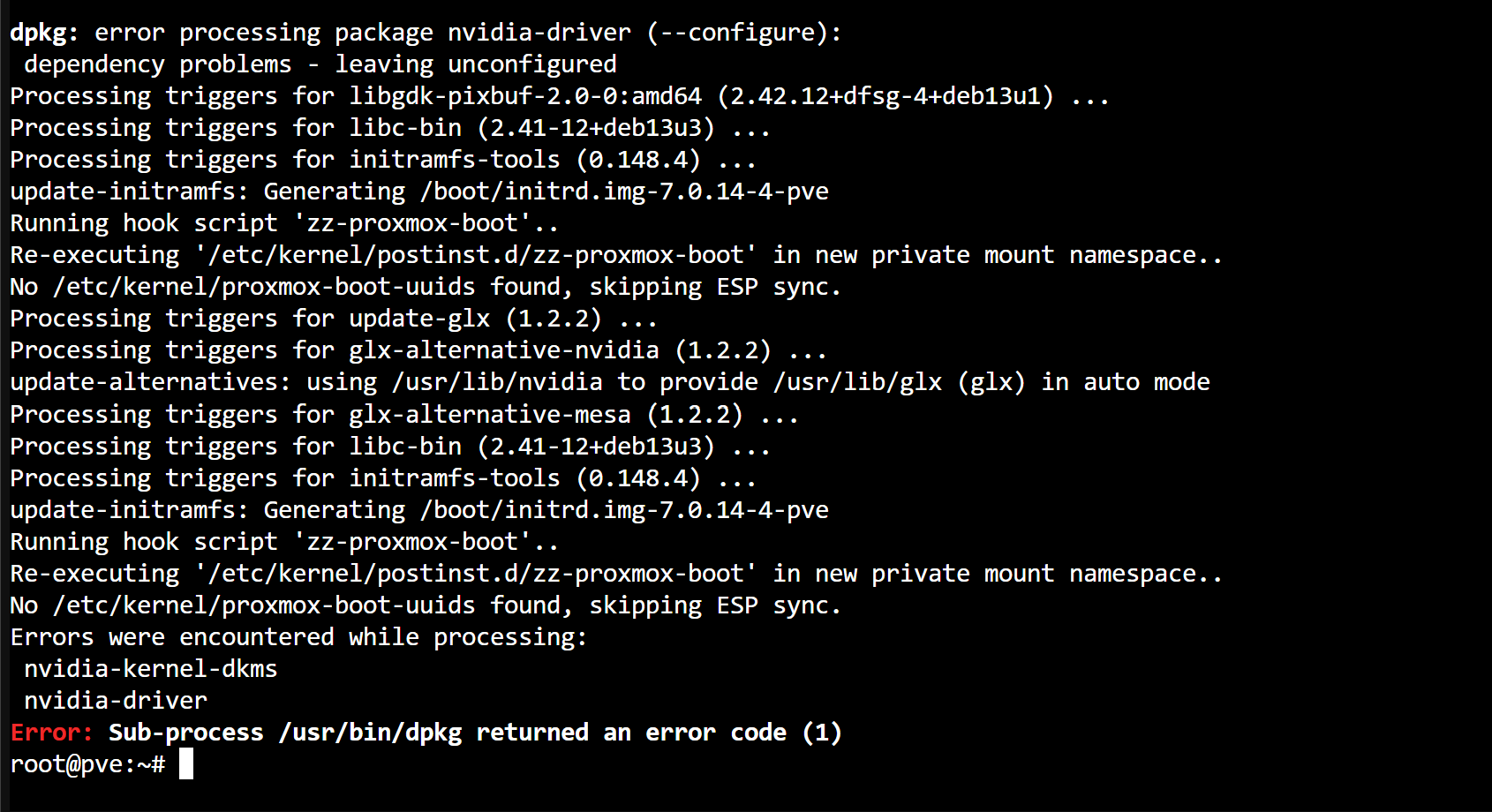
If apt -V install nvidia-open ... fails during the nvidia-kernel-open-dkms
step with compiler errors like:
error: 'const struct dev_pagemap_ops' has no member named 'page_free'
error: too few arguments to function 'zone_device_page_init'
this is a genuine kernel-API incompatibility, not a headers-mismatch problem
— it happens the same way regardless of which kernel/headers pair DKMS
builds against. It means the pinned driver branch predates a kernel-side
API change (a struct page → struct folio conversion in the
dev_pagemap_ops memory-management code) that this Proxmox kernel branch
already has. The fix is a newer driver branch with updated kernel-compat
code, not anything on the headers/kernel side:
apt list -a nvidia-driver-pinning-*
Pick the newest available branch, clean up the broken partial install, and
retry:
apt remove --purge nvidia-driver-pinning-<old> nvidia-kernel-open-dkms nvidia-driver nvidia-open
apt install nvidia-driver-pinning-<new>
apt -V install nvidia-open
This is what happened during initial setup: 590 failed this way against
the 7.0.x-pve kernel branch; 615 built clean. If a future PVE kernel
upgrade breaks the build again, check for a newer nvidia-driver-pinning-*
branch before assuming it’s a headers problem — this class of failure
doesn’t affect the A2’s hardware support (NVIDIA’s data-center driver
branches carry long backward GPU support), it’s purely about the driver
source’s kernel-API coverage.
2. Confirm device nodes on each host
nvidia-smi
ls /dev/nvidia*
Expect nvidia0, nvidiactl, and (on current driver branches) nvidia-modeset. nvidia-uvm and nvidia-uvm-tools will likely be missing on a fresh boot — this is normal, not a fault. nvidia-smi talks to the GPU through NVML and never touches UVM, so it succeeds regardless. nvidia-uvm is the Unified Virtual Memory device — required for any actual CUDA context (cuInit/cudaSetDevice), used for managed memory and host↔device page migration. nvidia-uvm-tools is a sibling node used by profiling/debug tools (cuda-gdb, Nsight).
Normally you’d never create these by hand: libcuda.so calls the setuid nvidia-modprobe binary itself the first time any CUDA application initializes a context, creating the nodes on demand. That lazy model doesn’t work here, though — Proxmox’s LXC Device Passthrough bind-mounts these exact paths into the container at container start, so the nodes must already exist on the host before any container starts, not whenever the first CUDA workload happens to run inside one.
So on every node, create a systemd unit that creates them at boot, ordered before Proxmox starts any autostart guest:
cat > /etc/systemd/system/nvidia-uvm-devices.service <<'EOF'
[Unit]
Description=Create NVIDIA UVM device nodes before guest autostart
After=systemd-modules-load.service
Before=pve-guests.service
[Service]
Type=oneshot
RemainAfterExit=yes
ExecStart=/sbin/modprobe nvidia_uvm
ExecStart=/usr/bin/nvidia-modprobe -c0 -u
[Install]
WantedBy=multi-user.target
EOF
systemctl daemon-reload
systemctl enable --now nvidia-uvm-devices.service
Confirm pve-guests.service is actually the autostart-umbrella unit name on your Proxmox version before relying on this ordering (systemctl list-unit-files | grep -i pve-guest — current as of the 8.x+ line; older PVE used per-container pve-container@<vmid>.service units with no single umbrella to order against). Verify after a reboot, not just after a manual systemctl start:
ls -lah /dev/nvidia-uvm*
systemctl status nvidia-uvm-devices.service
3. Create the LXC as privileged
When creating the container (or editing an existing one):
- Options → Privileged — uncheck “Unprivileged container” at creation
time, since this isn’t changeable after the fact without recreating the
container.
- Privileged avoids the UID/GID mapping headaches that unprivileged
containers hit with GPU device ownership, and lines up with wanting NFS
access from inside the container for the Hermes/Judge agent’s home
directory — Kerberized or ID-mapped NFS mounts are simpler to get right
from a privileged container than punching them through an unprivileged
container’s user namespace.
4. Attach the GPU via Device Passthrough
-
Select the container → Resources → Add → Device Passthrough.
-
Add one entry per device node, typing the path directly (same four paths
on every node, since each node’s A2 enumerates the same way):
/dev/nvidia0
/dev/nvidiactl
/dev/nvidia-uvm
/dev/nvidia-uvm-tools
-
Start (or restart) the container.
5. Install driver userspace inside the container
Same pinned driver version as the host, but install only the userspace
metapackage — not nvidia-open — since the container shares the host’s
already-loaded kernel module through the passed-through device nodes and
has no kernel headers to build a DKMS module against anyway.
The right package is nvidia-driver-cuda (confirmed via dpkg -S $(which nvidia-smi) on the host — that’s what actually owns the nvidia-smi
binary). Its dependency list is pure userspace (libnvidia-ml1,
libcuda1-adjacent libraries, nvidia-opencl-icd, nvidia-persistenced,
etc.) with no nvidia-driver/DKMS dependency — unlike nvidia-open,
which pulls in nvidia-kernel-open-dkms and will try (uselessly) to build
a kernel module inside the container.
Using the same apt-based repo setup as step 1 (headers/contrib/non-free
steps can be skipped inside the container):
wget https://developer.download.nvidia.com/compute/cuda/repos/debian13/x86_64/cuda-keyring_1.1-1_all.deb
dpkg -i cuda-keyring_1.1-1_all.deb
apt update
apt install nvidia-driver-pinning-615
apt install nvidia-driver-cuda cuda-toolkit-13-4
You may see a message during cuda-toolkit setup about installing
linux-headers-<kernel> — that’s the optional GPUDirect Storage
(nvidia-fs) component offering an unrelated DKMS module. Harmless to
ignore unless you specifically need GPUDirect Storage; it doesn’t affect
nvidia-smi or CUDA inference workloads.
nvidia-driver-cuda pulls in nvidia-smi and the userspace driver
libraries without touching the kernel module, since /dev/nvidia* is already
passed through from the host.
6. Verify
nvidia-smi
inside the container should report the A2. If you get a driver
version-mismatch error, the container’s userspace driver doesn’t match
whichever host it’s currently scheduled on — check that first before
digging into device permissions.
Keeping This Setup Working Through Updates
Two things drift out from under this setup over time: the PVE kernel
(new headers needed, DKMS has to rebuild against it) and the driver
version (host and every container’s userspace must stay in lock-step).
Handle them in that order — kernel first, then confirm the module actually
rebuilt — every time you run apt upgrade on a node.
A. Routine apt upgrade on a host
-
Before upgrading, note the currently working kernel and driver:
uname -r
nvidia-smi   # top-right shows driver version, e.g. 615.xx
-
Run the upgrade as normal:
apt update && apt upgrade
If this pulls in a new proxmox-kernel-* package, apt will not
automatically install matching headers for it — that’s a separate
package you still have to install yourself (step 4).
-
Don’t reboot yet. Check whether a new kernel was actually installed:
proxmox-boot-tool kernel list
Compare against uname -r. If a newer kernel now appears in the list,
that’s what you’ll boot into next.
-
Install headers for the new kernel before rebooting into it, using
the same pattern as initial setup:
apt install proxmox-headers-$(ls /boot/vmlinuz-* | sort -V | tail -1 | sed -E 's#.*vmlinuz-([0-9]+\.[0-9]+).*#\1#')
This derives the branch from the newest kernel file in /boot rather
than the currently running one, since after an upgrade the two
differ. If that’s ever unclear, just read the version off
proxmox-boot-tool kernel list and install proxmox-headers-<X.Y>
directly — more explicit, harder to get wrong.
-
Reboot:
reboot
-
After reboot, verify DKMS actually rebuilt against the new kernel
before assuming the GPU is fine:
uname -r
dkms status
nvidia-smi
dkms status should show the nvidia module built against the kernel
uname -r just reported. If nvidia-smi fails with “NVIDIA driver
not loaded” or similar, the headers either weren’t present at boot time
or didn’t match — install the correct proxmox-headers-<X.Y> package
and force a rebuild:
dkms autoinstall
If dkms autoinstall (or the original DKMS build during apt install)
fails with compiler errors instead of a missing-headers error, that’s a
different problem — see “Troubleshooting: DKMS build fails with
page_free/zone_device_page_init errors” under step 1, which covers
the kernel-API-incompatibility case actually hit during initial setup
on this cluster.
B. Upgrading the NVIDIA driver itself (host + all containers)
Do this deliberately, not as a side effect of apt upgrade — the pinning
package is what prevents an ordinary upgrade from silently jumping driver
versions on you.
-
On one host, check what’s available and pick the new pinned driver
and toolkit versions:
apt list -a nvidia-driver-pinning-*
apt-cache search cuda-toolkit
-
On every node, in the same session/day so nothing runs mismatched
for long:
apt install nvidia-driver-pinning-<new-version>
apt -V install nvidia-open cuda-toolkit-<new-version>
reboot
-
On every privileged LXC using the GPU, matching the same versions:
apt install nvidia-driver-pinning-<new-version>
apt install nvidia-driver-cuda cuda-toolkit-<new-version>
Container restart is usually enough (no reboot needed — no kernel
module inside the container).
-
Verify everywhere:
nvidia-smi # on each host, and inside each container
All of them should report the same driver version. A mismatch here is
the single most common failure mode with this setup — if any
nvidia-smi errors out with a version-mismatch message, that node or
container is the one still holding the old pin.
C. Quick pre-flight checklist before any PVE point release
- Snapshot/note current
uname -r and driver version on each node
- After upgrade, install headers for the new kernel before reboot
- Reboot, then confirm
dkms status shows a build against the new
kernel and nvidia-smi succeeds
- Only touch the driver version (
nvidia-driver-pinning-*) as its own
deliberate step across all three nodes + containers together — never
let it drift as a side effect of a routine kernel/security upgrade

 You need to install the driver from the VM that has the GPU passed through to it! Otherwise, you can focus on passing in the GPU first, as the Driver isn’t needed on the VM’s host system