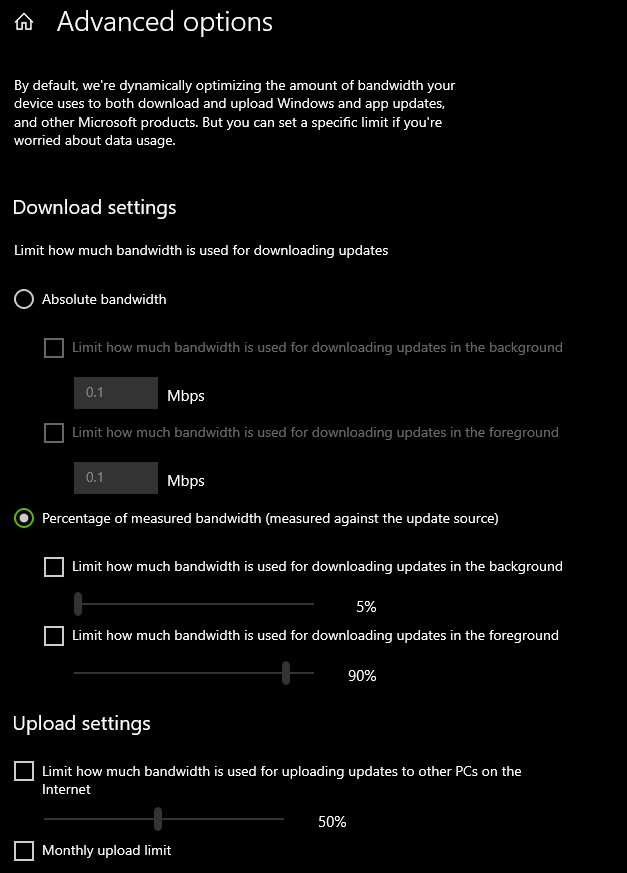
I have a machine here that I left with unsupported Windows 10 and no part of the OS has been updated since 27th November 2025. Recently I discovered that it’s still connecting to the internet and downloading updates for other PC’s via the windows delivery optimization platform.
So if I have this right, Microsoft is denying me updates while still continuing to use my hardware without my consent to download and store updates for other machines that may be nearby?
How can I kill delivery optimization without killing the OS? Anyone know?
It only allows you to disable downloads from other computers on the network and that’s disabled but it still connects to MS servers and does downloads even though I’m not benefiting whatsoever. The only thing I can do is change how much bandwidth is uses in the background and there’s no NONE option - a minimum of 5% of available bandwidth. They’re doing whatever they want with my bandwidth and my storage. See in the screenshot the minimums for absolute bandwidth usage too. This is nuts.
What Windows 10 version do you have? the ones with Extended support should have ongoing patches, but the way you’re referring to your case sounds like you are not even bothering with that
Also, Windows should NOT download or offer patches to others if you’ve deactivated this setting (i.e. turn it off)
as for disabling anything more than that (e.g. BITS Service) I would not, because BITS is used not just on for Updates (i.e. essentially whatever app decides to implement BITS is free to do so, but you may not know about)
As to how I noticed it …. I’ve got a bandwidth monitor running on that machine, saw data being moved but knew it wasn’t anything I had running so checked the network connections, found svchost cloaking delivery optimization - couldn’t kill it in the task manager but could terminate the connection with my firewall without terminating the process so I did that and that data movement stopped - so it isn’t something that particularly easy to notice.
And yes, I agree this should not be happening. This is a completely unwarranted usage of my personal resources when I am getting absolutely nothing in return - no updates, no ‘protection’ from bogeymen - they’re essentially stealing from me - my bandwidth and my storage because that data has to be stored somewhere locally too.
OS Version is Windows 10 Home 22H2. Thanks for the direction and have a great day.
Well, it just occurred to me that driver delivery also happens through Windows Updates, so you may still be getting those. Try checking in the Update History if there’s anything installed recently. (But remember you have four categories Quality, Driver, Definition, Other)
…. and believe me every other security setting on that OS that can be disabled has been disabled - every off switch I could find I flipped it. Point is that if I’m not using the damned services they shouldn’t be continuously updating themselves. If I could choke an OS I’d squeeze every bit of ‘help’ out of this damned windows until it’s eye bulged out of it’s head and flopped onto the ground.
I’m going to try disable it via one of the methods you directed me to earlier but I can’t restart the machine until later so I’m leaving it for now.
You could also try just toggling the metered connection setting on the network connection and setting an arbitrary value. Windows will basically disable auto updates and using your connection to upload windows updates.
Thanks, I’ll keep this in mind and do it if one of other methods mentioned above doesn’t work. I’ll let you know how it goes. You have to tell it to use a metered connection in the Updates section but then you have to go into the Delivery Optimization section to set the limits - typical bullcrap. Imagine how confusing this must be for the average user - not that I’m a power user or anything - far from it - but I know enough to know what should not be happening.
Wait up - Definition updates are from Windows Defender / Windows Security (in Windows 11), and you may want that. They are updates to the built-in antivirus. However the screenshots that you’re showing are from the protection history within Windows Defender.
That’s probably something you want… it’s a FREE antivirus that Microsoft will continue to support, and Windows Defender / Security does a decent job. But if you don’t want it, it’s truly up to you.
You can TRY (I have not done this myself) and configure the updates to the antivirus to something ludicrous that you’d barely see any updates at all through Set-MpPreference:
As a personal opinion: I’d enable “Check apps and files” and “Tamper protection” and live with the limited protection if you have to stick to Windows 10. But once again, up to you.
The only people tampering with my shit is Microsoft. Nobody else gives a flying shit about this machine. There is nothing on it of any value to anyone but me. It’s almost 15 years old and for all of those 15 years the only people that have ever molested me is Microsoft themselves. No viruses, no attacks, no ransomware - just Microsoft.
Thanks very much friend. Disabling via the registry seems to have worked. The DO service isn’t running any more so there shouldn’t be any more bandwidth usage.
It still shouldn’t have been running at all. What’s the point in putting a ‘Disable Delivery Optimization” option when it doesn’t disable it at all? We know what the point is and it isn’t a theory, it’s a fact. It’s all about control.