To keep it short, a friends iMac running Sierra has either a severely corrupted file system or the actual drive is failing.
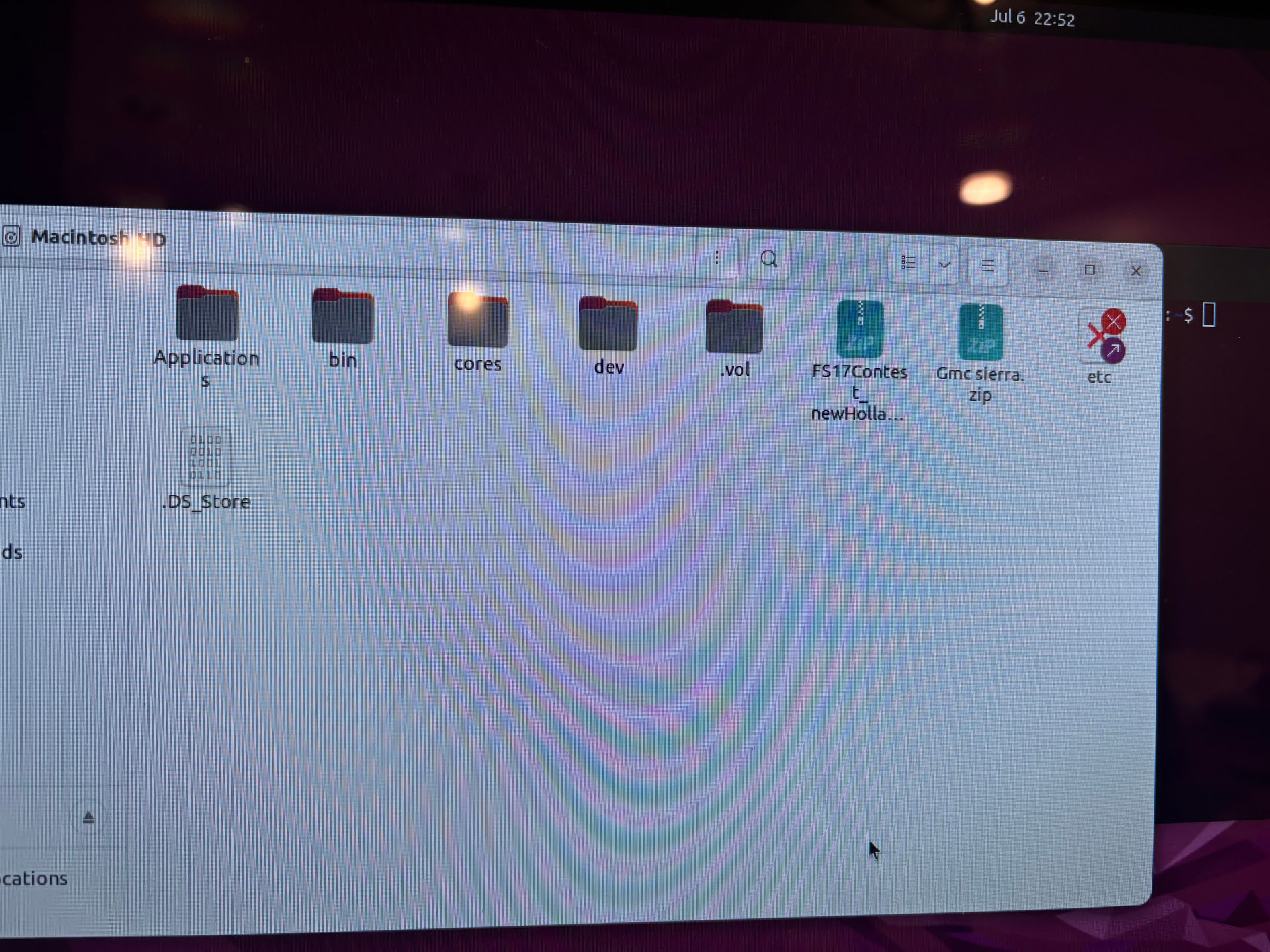
It only boots into recovery mode, first aid fails. Some indication tells me that ~300GB of the 1TB shows as “used” storage. However, when I boot via Live USB, I can only see a small handful of folders on the drive. The users folder is missing.
Things I have tried so far:
Boot VIA USB:
Debian
Fedora
Numerous First Aid attempts
Boot To CloneZilla and clone HD, fails tremendously
Any other suggestions? Considering i can see that there is ~300GB of space used I feel like the files have to be recoverable somehow but i can’t seem to get at them.
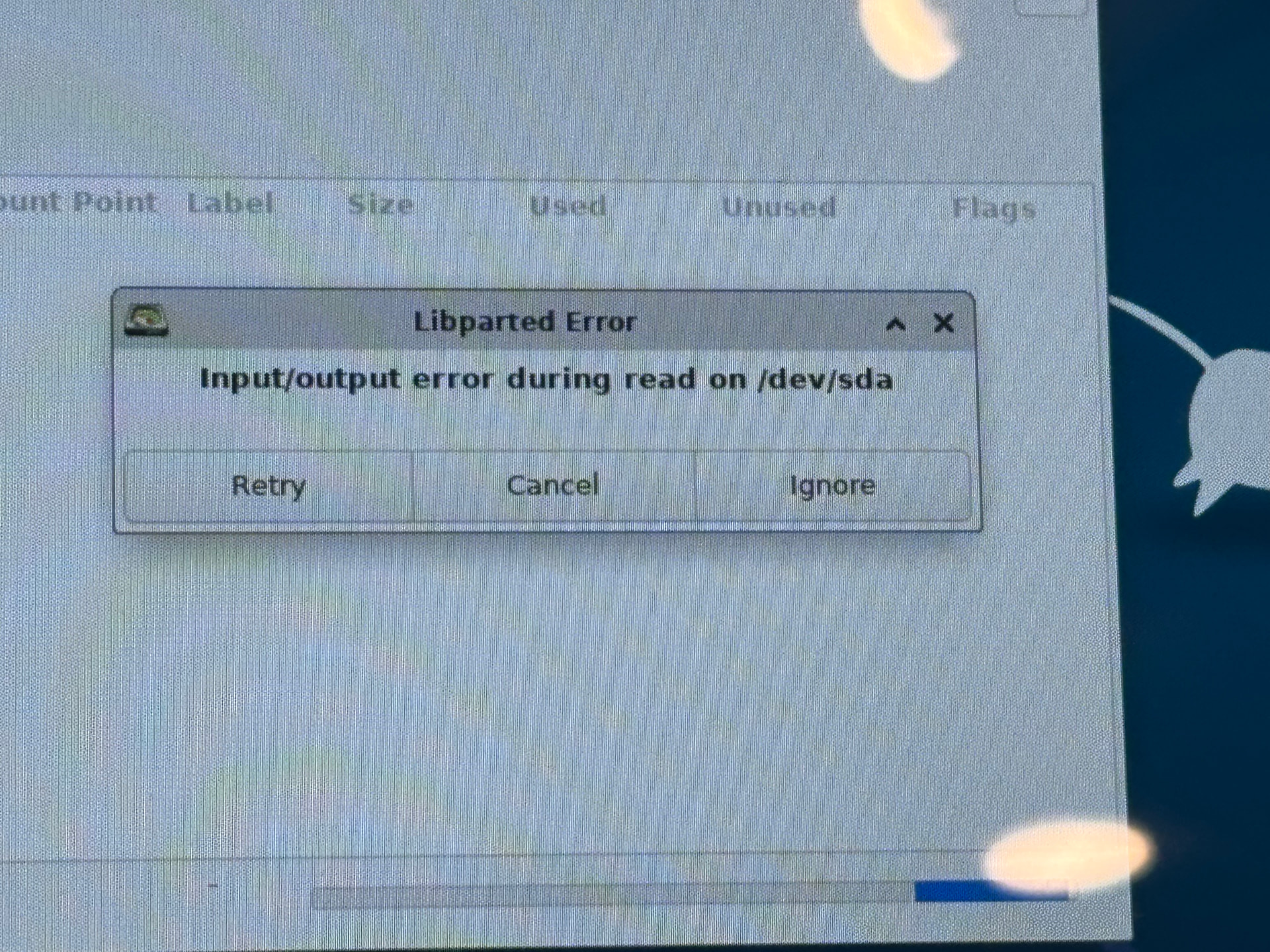
Edit: Restoring internal Drive to External drive produces 1 of 2 errors depending on config
“could not restore - Input/output error”
or
“Could not validate source - error 204’“
Sierra. is quite old. But is the release APFS was introduced.
When did this break. What file system is it now (APFS, or HFS+).
What is ‘used’. do you see files, partitions. what is missing.
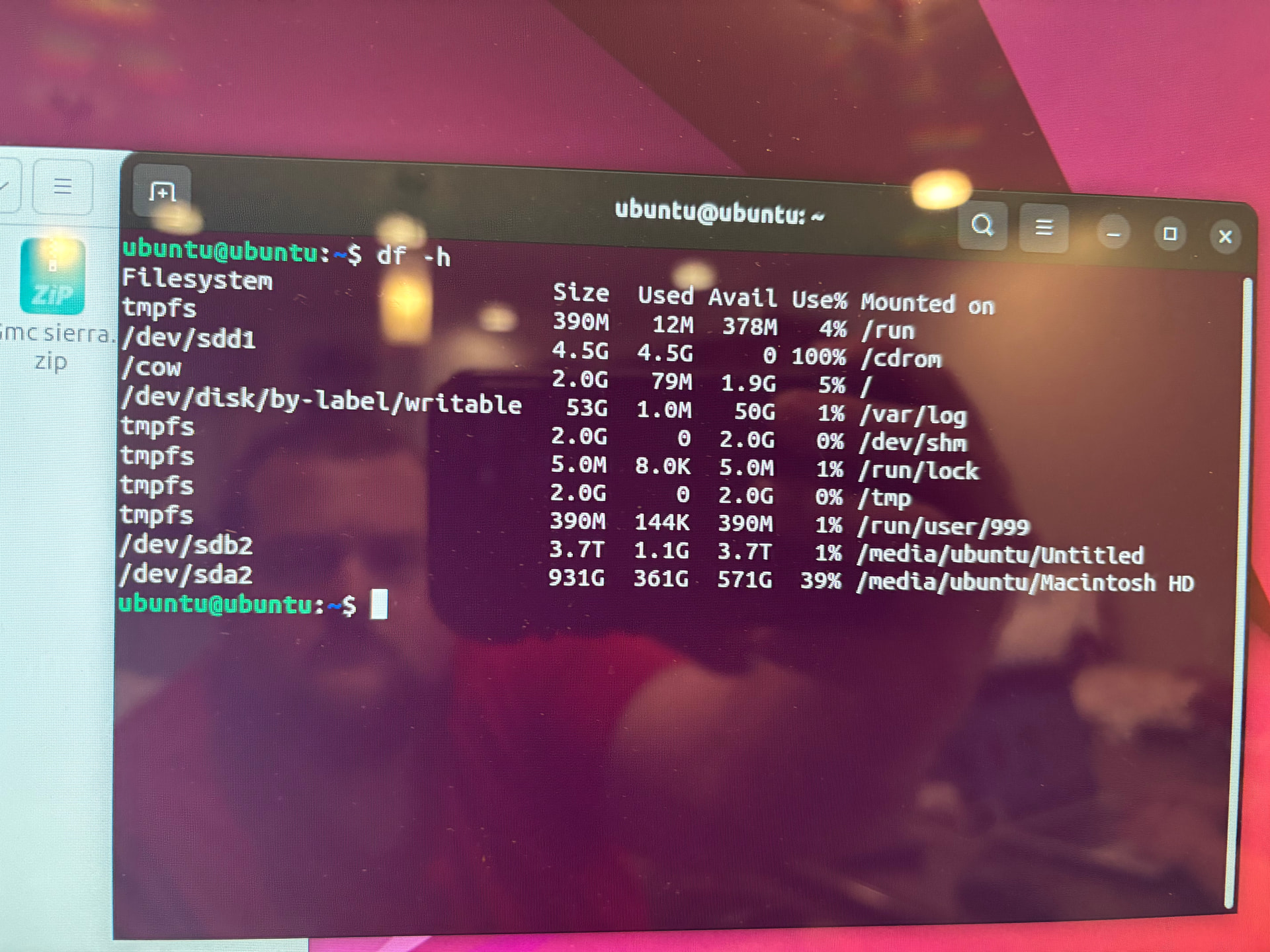
if you boot via live USB (Linux), with it mounted, what does df see. For fdisk -l (dev) – what does it see (partitions. can you mount all of them).
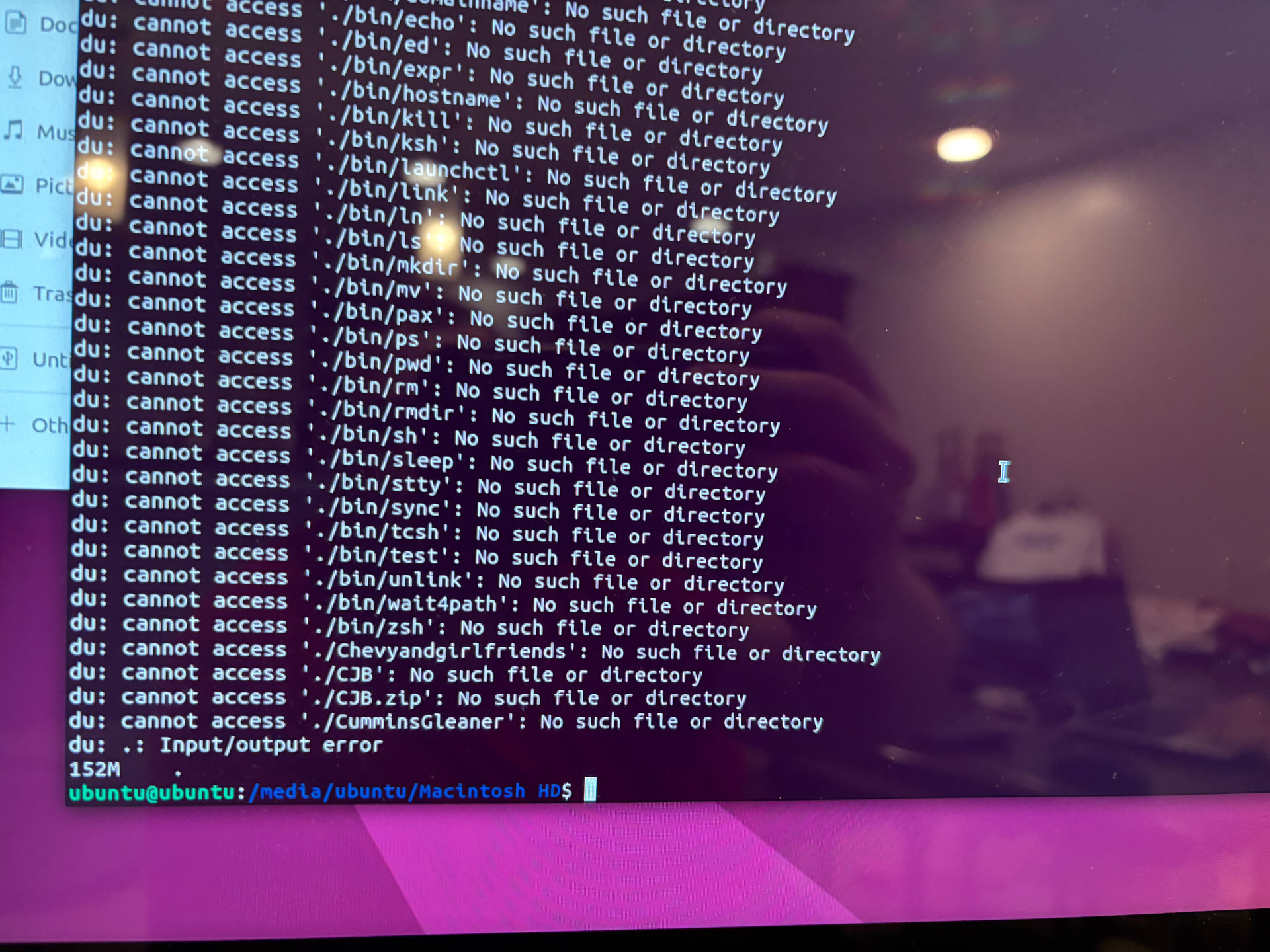
mount the fs and use du -sh * from the sierra root to find the data. did someone recycle /Users ?
Whichever way, this sounds like a data recovery. If you can’t clone it, it may be too late for the disk already, because that is always the place to start (and take any recovery actions, on a copy of the copy). if that’s still necessary, there is gddrescue.
testdisk might be able to scrub for files or partitons if they’re missing. If it’s HFS+, hfsprogs might be able to fsck it or provide more information. Mac doens’t usually setup with /Users on another drive (especially not an imac), but did they have an external drive that had been setup that way.
First, thank you for responding. Greatly appreciate it.
99% from what I can tell its HFS,
Without cracking opening the iMac best I can tell its not a fusion drive. (not sure)
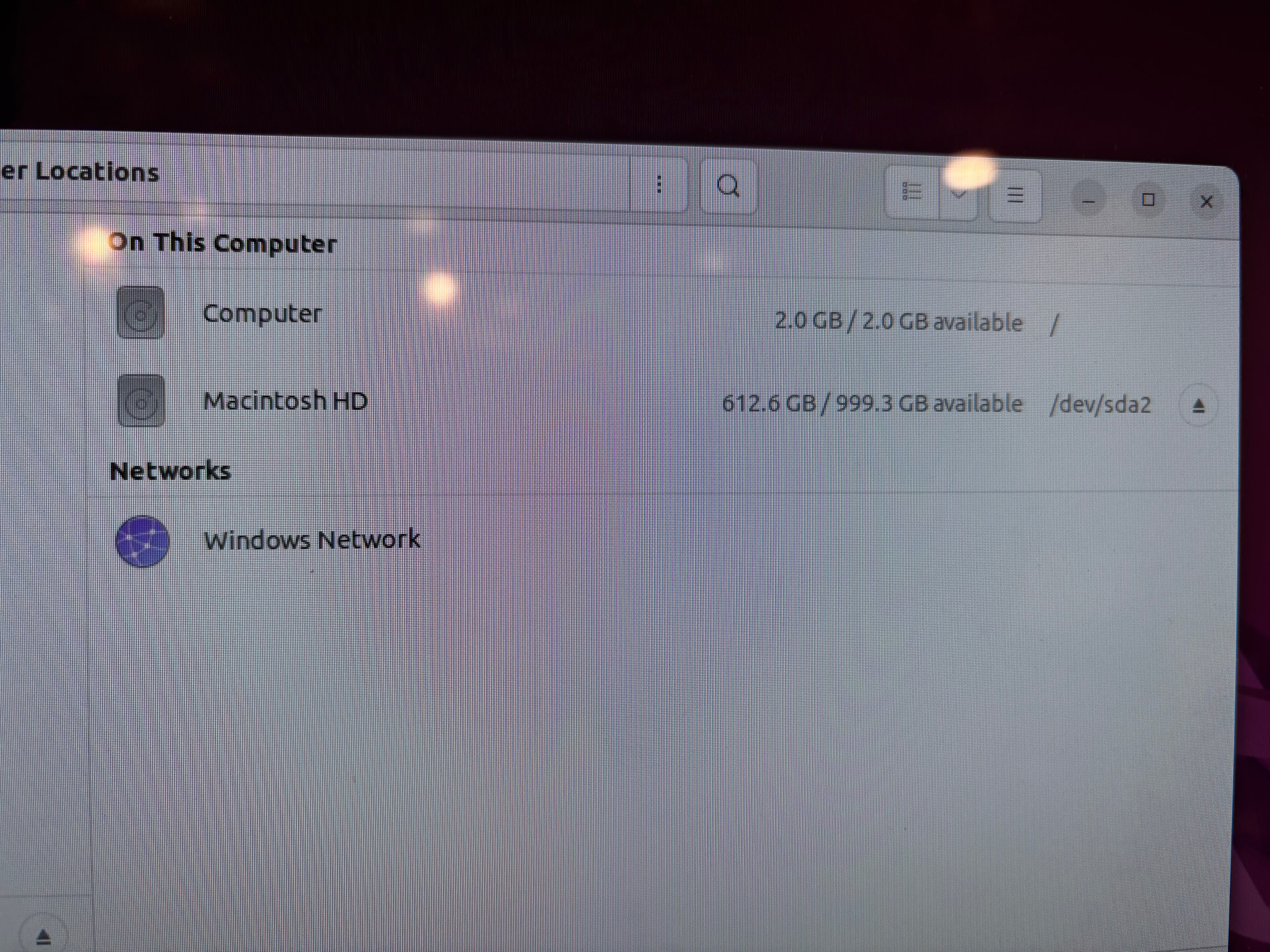
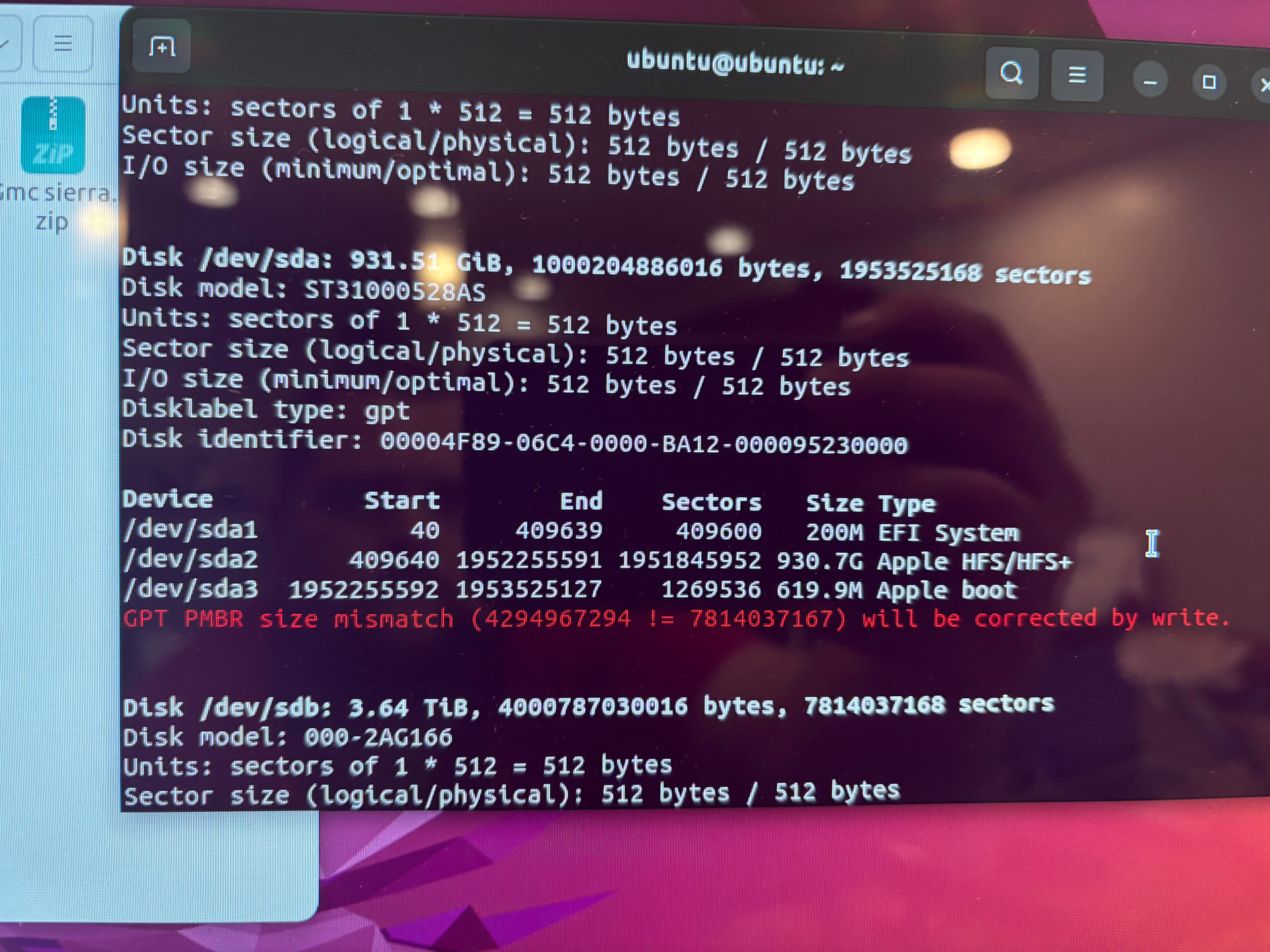
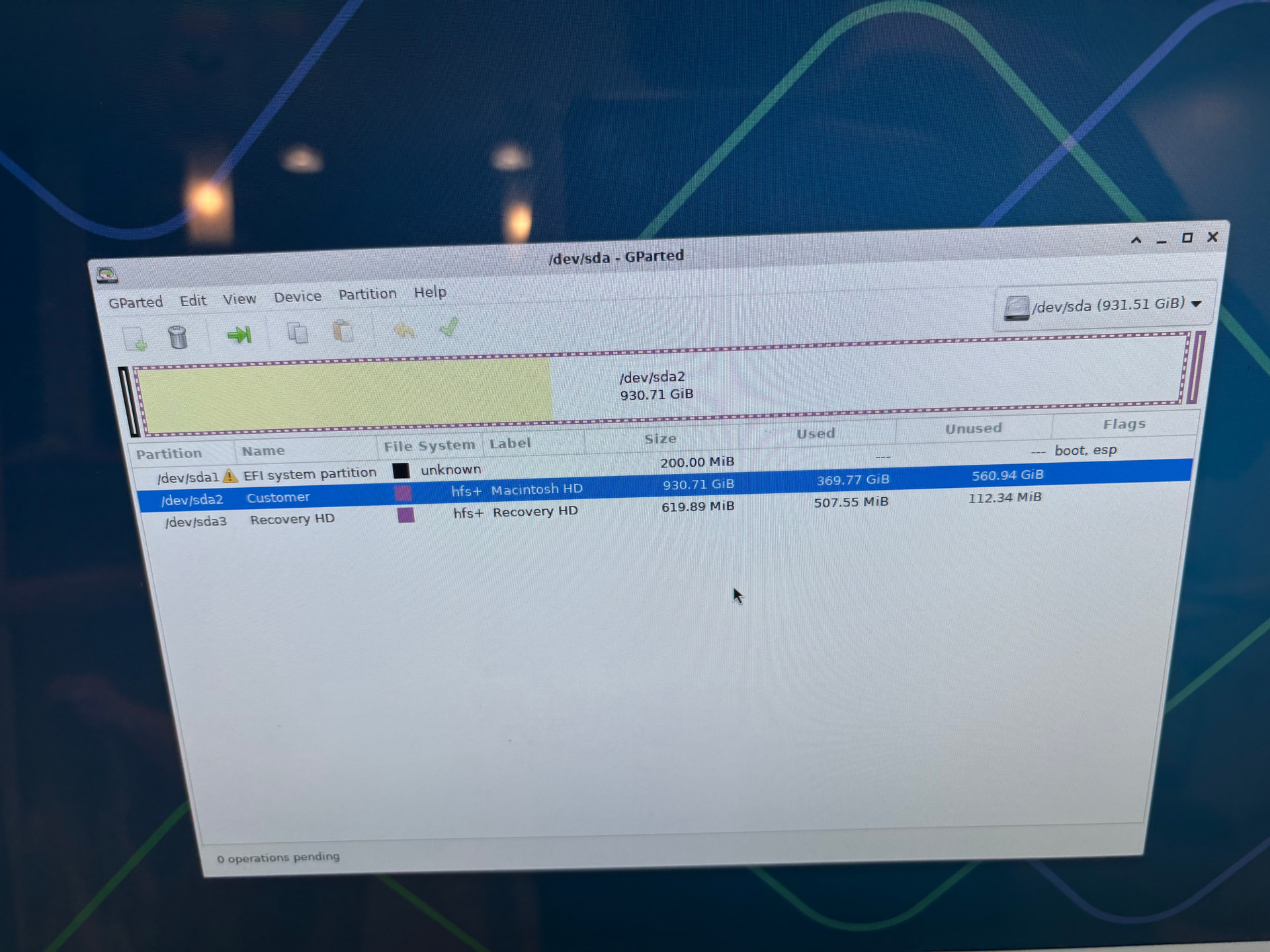
I live booted and took these photos if that helps you better understand what im seeing. I need to pivot and make a USB that is persistent to better troubleshoot based on your advice so far as I ran out of room on the standard live usb.
If you have another Mac available, I’d hold T while powering on to boot the machine in target disk mode (may vary by model) and then image the disk from another device so you have an image of what you can recover.
Not many non-mac people know, but most Macs can pretend to be a dumb external drive when booted in target disk mode.
That said, drive sounds trashed, if the data on there is valuable I’d get a recovery professional to look at it.
Also in hindsight - this is why cloud sync and backups exist.
Sometimes (most of the time - I know I did), people need to learn the hard way at least once before they realise this.
the partition table seems to be fine at least, though the mismatch is weird, so are macs and it can still mount.
from image 1, may need to be run as sudo du -sh * (i.e. with sudo). aim here is to find which directories contain your 300gb - and drill down. maybe some of them are somehow moved user data. remember there may be dotdirs. macOS (then, OS X) may be bloated but not that bloated.
if you want to instead try you can probably trick
to install on an ubuntu live image, if it’s not already in it. you’ll need it to scan as root.
apt install hfsprogs - will make available fsck.hfsplus /dev/sda2 (the path in pictured example, check after boot however). it’ll also need root, and not be mounted when you run it. if it doesn’t say everything is fine, then it should hint on what is not fine.
I considered mentioning target disk but if clonezilla didn’t run complete directly, then that might not be better. I wouldn’t not try it however.
much further than this, is really getting into scraping for blocks.
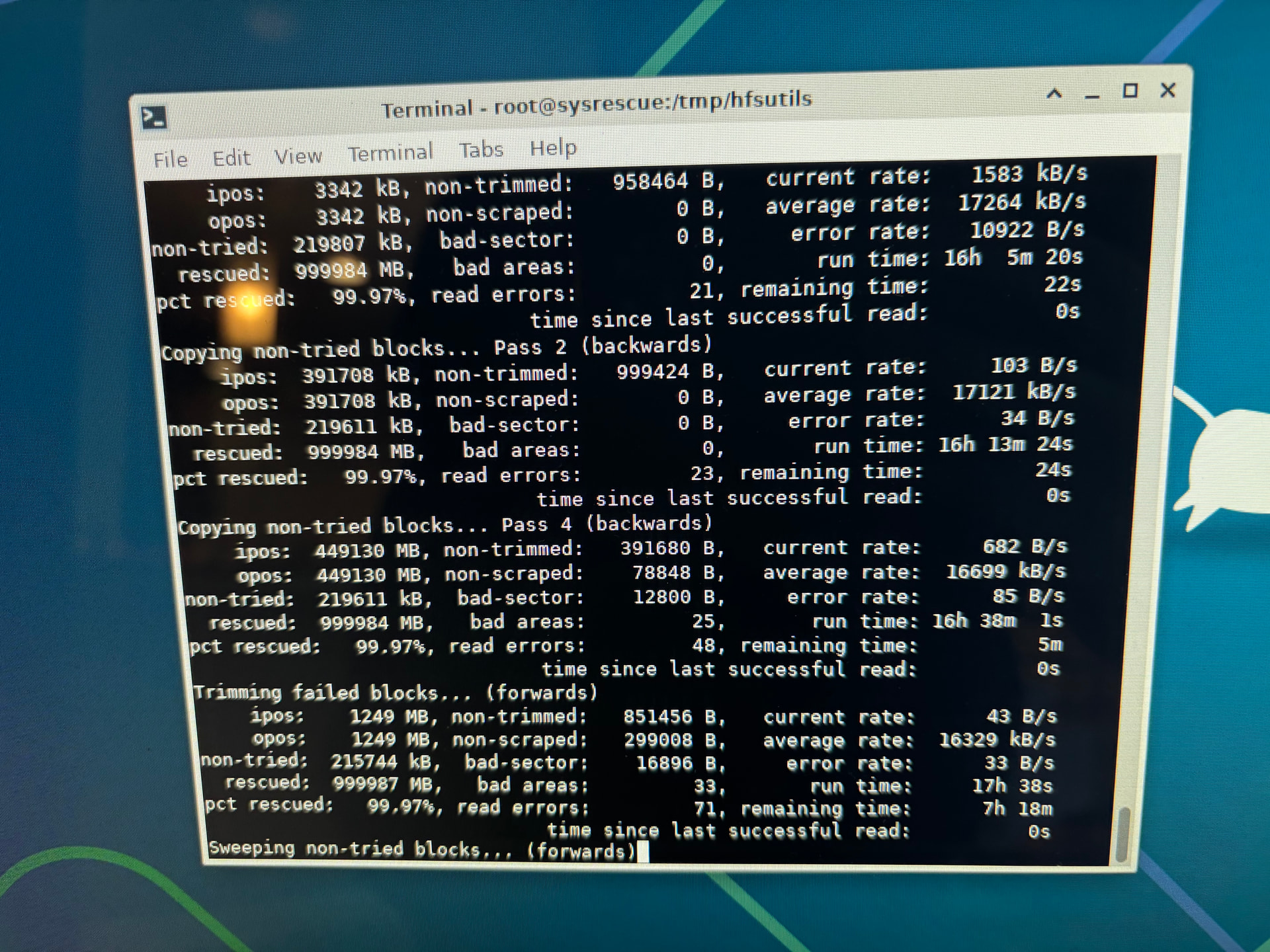
in the interim, i decided to go the DD route. on SystemRescueDisk ISO, im so confused at how it seems to think so much % of the drive is fine (although not all).
Last image looks like gddrescue. it doesn’t, isn’t supposed to know anything about filesystems, it just does a block copy, and it reports it’s capable of a 99.97% pull (what did you do with that file). That is however not 100% but it shows the problem. the drive is bad and further, it’s bad in some areas critical to the filesystem.
the question then, is can (from not further decaying media) the fs within the file be recovered. that is accomplished with a creating a loopback block device from it (losetup) (preferably, you’d first copy the copy, in case the repair or certain options applied to it makes it worse – you can’t count on the source disk to offer up a copy again).
For that loopback block device you can use that like any other disk block device (e.g. /dev/sda2) as a target to repair. This might, stress might be able to recover files or directory trees, then mount.
obviously on a different live image the package or package manager might be different.
& there’s testdisk previously linked, which can also run against the loopback device.
Again, thank you so much for helping. It means alot.
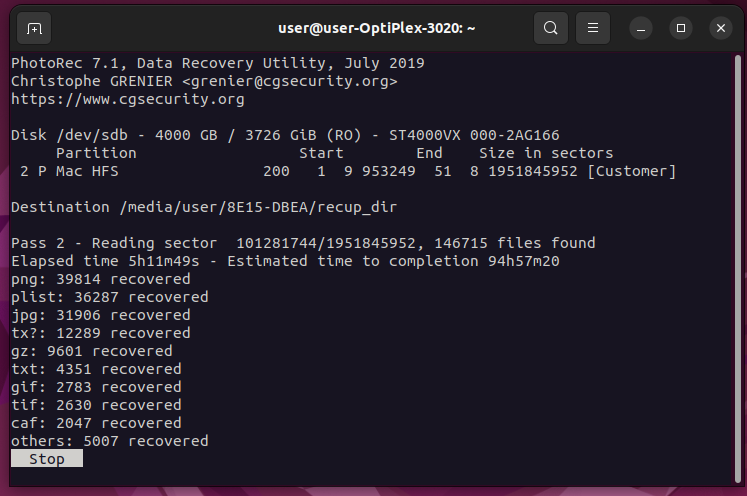
Before you replied, I decided to take the gddrescue version of the drive, imaged an old optiplex i had in storage with ubuntu and installed anything hfs related i could find. also, running a recovery command, sudo photorec /dev/sdb
and at the risk of jinxing it, its finding and recovering images. At first it was just all the Mac built in images apart of the system, but now seeing family photos come onto the drive.
the time estimate was ~150 hours, but its working its way down. at 94 hours estimated currently.
Any ideas if the meta data will be there or is the new “created” date the date of my dd copy?
There might be metadata in the photo file formats themselves but the filesystem stores the metadata like e.g. filename or creation date. photorec just recovers the data.
more information
Let photorec find everything it can, first but you still may be recommended to run
on the gddrescue’d recovery image. it might be able to repair it when the source media is not failing.
Thank you so much. Im going to mark this as the solution, you and Claude have pointed me in the direction enough to recover SOME time stamps on the photos and thats a win.