Again, thanks to FourOhFour for helping out with my custom Windows install from USB.
For some reason when I try to create an ISO from that USB it won’t boot in a VM. The USB boots just fine. I was getting an error that the install.esd was too large, greater than 4GB, but I found the option in ImgBurn that allows it to ignore file sizes exceptions.
I’ve tried creating it with everyone option I can think of, but it just won’t boot in a VM for some reason. Anyone else got ideas?
So I’m going to make a few assumptions here so correct me if I’m wrong. And I’ll answer your ISO question but I think there is a better way to accomplish what you are trying to do.
I’m assuming your reference image was a VM that you updated, customized, and syspreped. And then did you mount the VHD and capture the WIM using Dism /Capture-Image? If so all you need to do is make a copy of your reference VHD and attach it to your new VM. It will boot, detect new hardware, and work just as if you had installed it from an ISO.
Anytime I build a new reference image I always keep a copy of the VHD in two states. One just before I issue sysprep commands (i can add more to the image or fix any screw ups I find later). And the other after it shutdowns down from a sysprep seal. The later I use when spinning up a new test VM using my custom image.
If none of that was how to created your reference image then I apologize
To build a new ISO I’ve used this method before and it works. The other option would be to use a paid program like UltraISO to slip your install.wim into the official MS ISO.
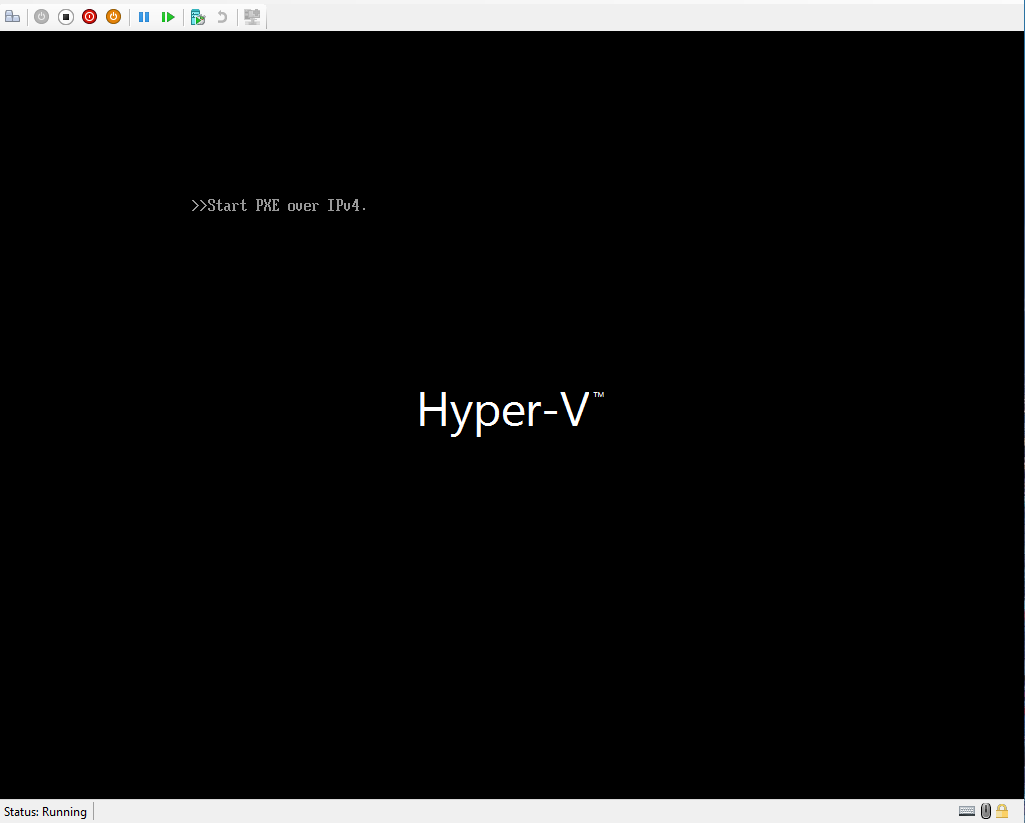
Well that didn’t work either. I don’t know what the deal is. The USB boots on a physical workstation and loads into the Windows installer. It just refuses to boot in a VM. I can boot that same VM instance using the basic Windows ISO that the USB is based off of.
At this point I think I’d try writing the ISO you just built to a USB drive and seeing if it will boot on a physical machine. This might help you determine if it’s an issue with the ISO or your VM settings.
If the physical machine doesn’t boot from the USB then I’d go back over your settings in ImgBurn to double check the “Boot Image:” value points to the IMA boot image you extracted earlier. I really don’t think the issue is related to your WIM or ESD file. I would think the ISO would still boot to the initial Windows Setup dialog even if those files were entirely missing.
Also another option is after sysprep you can use an imaging software on HBCD to create an image of the harddrive on the physical computer and restore the image on to the VM. We’ve done that a couple of times where I work; we just need to get it out the door and don’t have time.
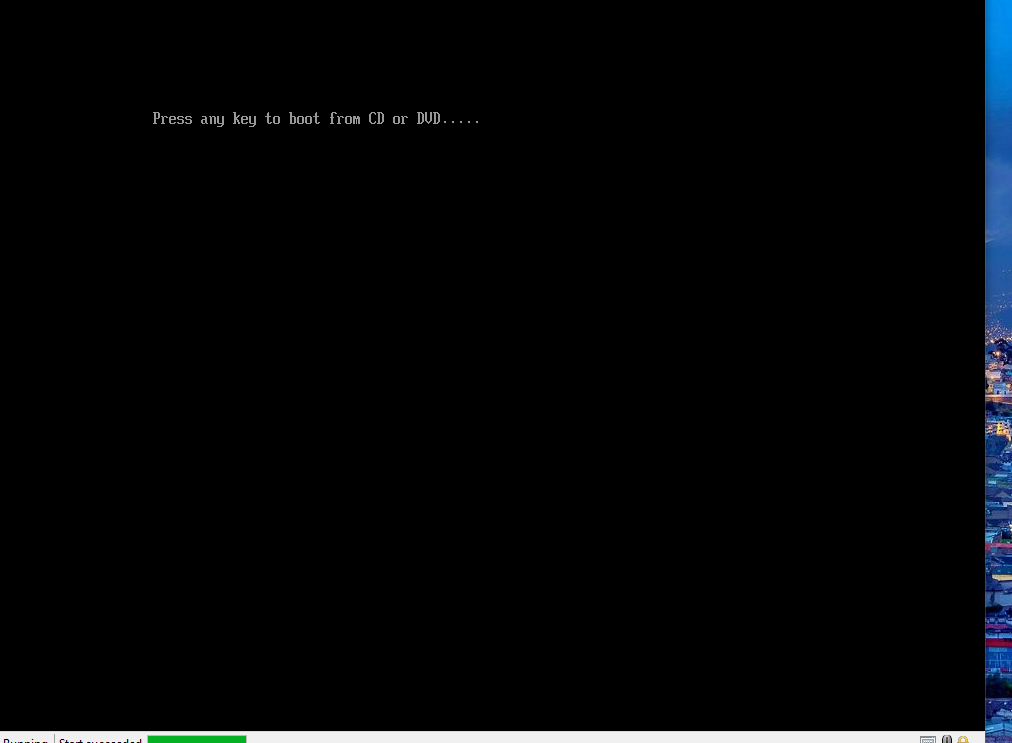
VM is Gen 2 and the CD-ROM is set in the boot order? And you’re connected to the Hyper-V Console before booting the VM to see the “press any key” prompt?
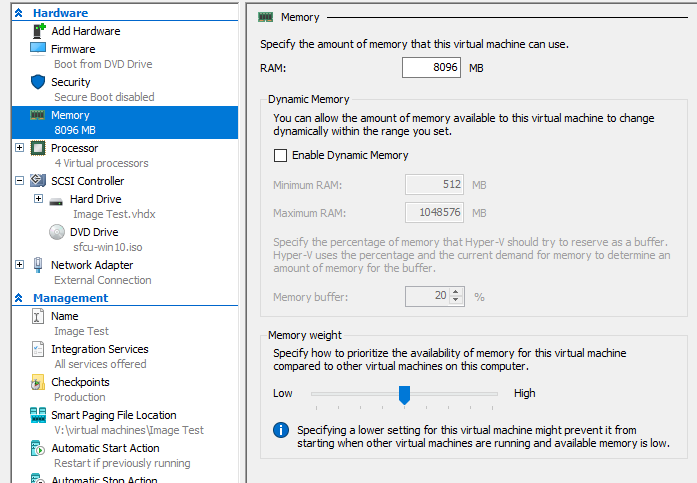
I’m not trying to sound like a broken record, but disable Secure Boot and leave it off until after the OS is installed and working. If enabled it will not allow you to boot from any unsigned ISO or drive.
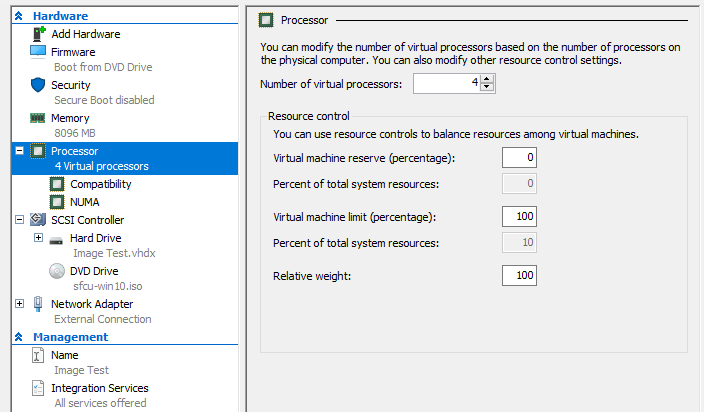
Are you able to post screenshots of your VM settings? Specifically the hardware section?