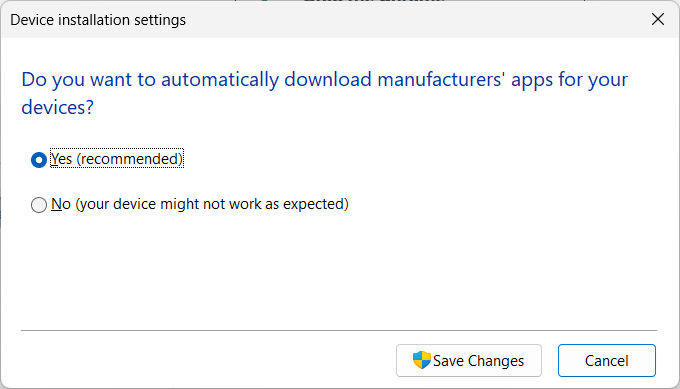
Do you want to automatically download manufacturers’ apps for your devices?
Yes (recommended)
No (your device might not work as expected)
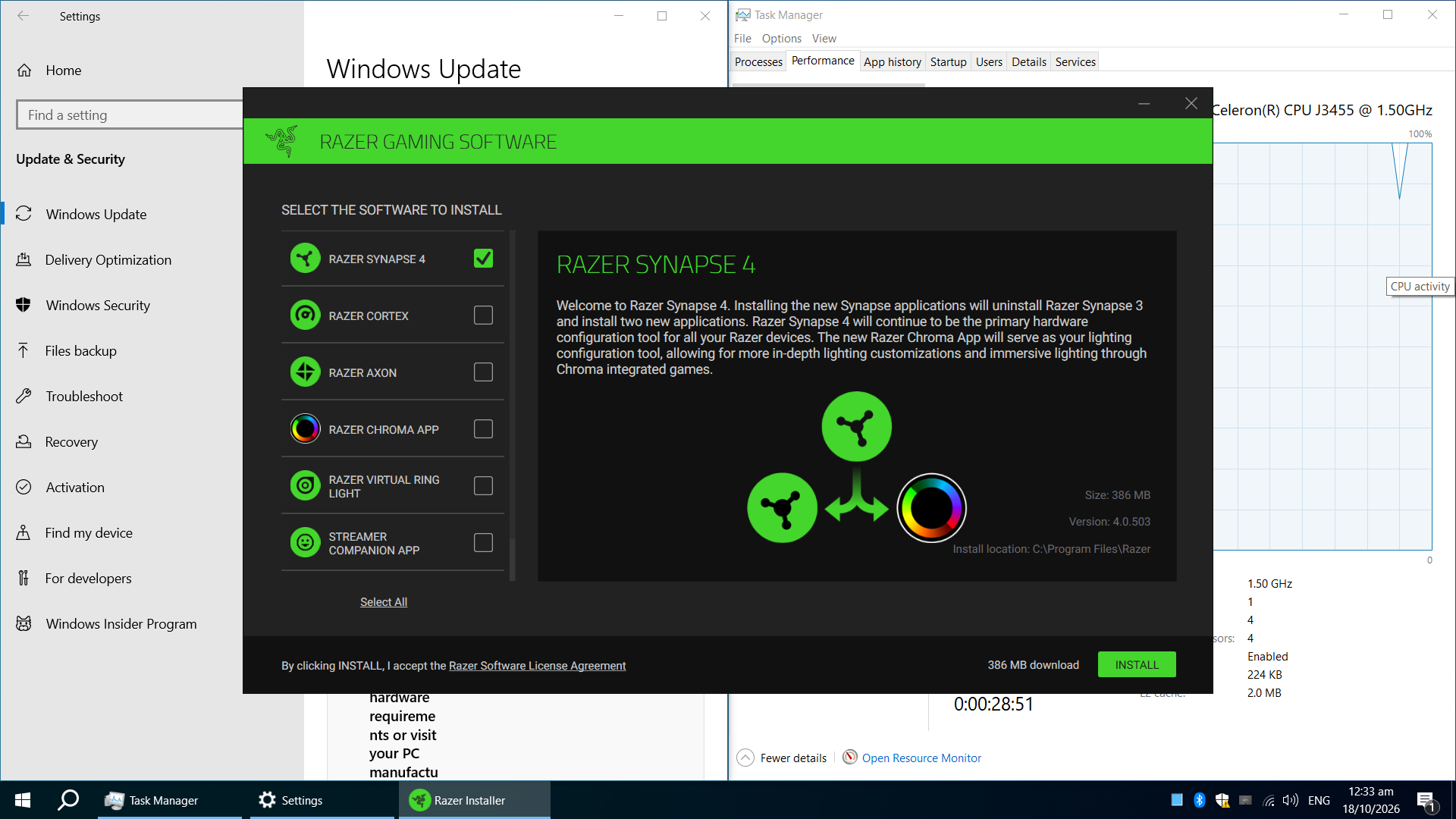
One might assume that ‘No’ is exactly the setting to use to prevent unnecessary manufacturer bloatware, such as Razer Synapse and Logitech Download Manager, from being automatically downloaded the moment the device is connected, but this is not the case.
I just re-ran the experiment on a clean Windows 10 install, and configuring the setting to ‘No’ prior to connecting the machine to the internet did nothing to prevent those stub installers from popping up in my face.
Note that the actual drivers for the device, called Razer HIDClass drivers, were installed separately by Windows Update, and even those weren’t strictly necessary for the device to function normally.
To properly block the bloatware, it is necessary to use Group Policy Editor or Registry Editor, and this will result in all drivers for the device being blocked. It seems like there should be a middle-ground option, and the Device Installation Settings wording describes exactly that. It just doesn’t seem to do anything in practice.
I am left with the question: What exactly are the “manufacturers’ apps” which the setting supposedly governs? Does anyone know?
Can you confirm that changing the setting has no effect on that key value in the registry?
It would be very “amusing” to me if Microslop “accidentally broke” the GUI that people have been using to block installation of bullshit like the LG spyware/adware companion app LG monitors install adware and spyware on windows
If I’m not misremembering, TenForums/SevenForums has a history of inaccuracies in their tutorials and a hostility toward people who suggest corrections. I think in this case the site is just wrong about what the setting does, probably in part due to Microsoft’s confusing and ever-changing wording around it.
The setting has certainly not governed actual drivers in at least a decade. I have needed to implement additional GPs since the release of Windows 10 to disable automatic driver updates.
Windows 11 currently has a GP that appears to function (or rather, not function) identically to the ‘No’ setting in Device Installation Settings:
Computer Configuration → Administrative Templates → System → Device Installation → Prevent automatic download of applications associated with device metadata ENABLED
I have yet to test that in Windows 11 but everything I’ve read says it’s the exact same switch, so I’m assuming it’s exactly as useless.
One or both of the following GPs (I haven’t tested them separately yet) are required to prevent the automatic downloading of bloatware:
1: Computer Configuration → Administrative Templates → System → Device Installation → Specify search order for device driver source locations ENABLED, Do not search Windows Update
2: Computer Configuration → Administrative Templates → Windows Components → Windows Update → Manage updates offered from Windows Update → Do not include drivers with Windows Update ENABLED
And to answer your question, I just confirmed that Device Installation Settings Yes/No is flipping the associated PreventDeviceMetadataFromNetwork registry entry in the latest version of Windows 11, but I could not test it on the Windows 10 machine I was using above because I don’t have access to it right now.
I’m going to organize a sacrificial system to clean install 11 on (don’t want to mess up any of my “good” systems) and test it in case something has changed since 10.
The “manufacturers’ apps” in that setting are most likely software components that ship inside the driver package Windows Update installs.
Since Windows 10 1703, a driver package can include a component INF with an AddSoftware directive, and Windows queues that software after the device installs. Type 1 is a silent MSI or EXE from the driver store, and type 2 is a Microsoft Store app (INF AddSoftware Directive - Windows drivers | Microsoft Learn).
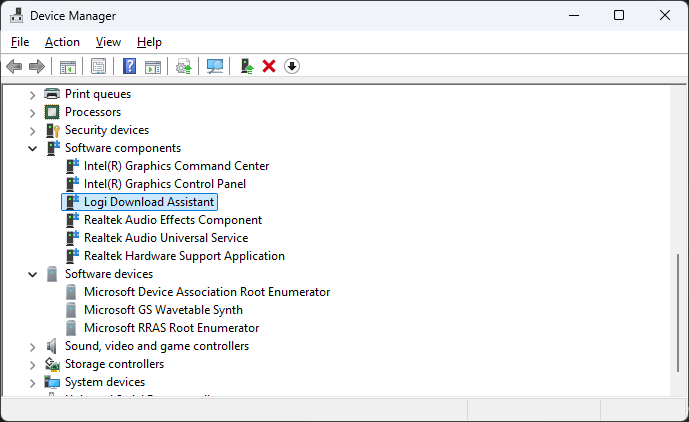
To see which components came in with the Razer device, open Device Manager, choose View > Devices by type, and expand Software components.
The matching package shows in this list with Class Name SoftwareComponent: