Curious if anyone has a recommendation here.
Some references:
Curious if anyone has a recommendation here.
Some references:
I have a theory…
(but might vary from hardware setups)
Is the raid 10 … running from hardware raid?
Yeah, I think hardware RAID makes sense here when possible, but it’s not always an option.
for software raid…
my theory is to partition each drive that will be in the raid so that you save the first 600M of each drive… and the remainder partition is used in the raid setup.
Then after the system is setup and working… dd the bootloader from the boot drive to the other drives.
needs to be tested tho…
Yeah, that’s more or less what’s described in that serverfault link.
You could also use 2 USB drives in a similar way. That’s actually what I’m leaning towards right now.
What’s the use case? I keep bootsector and EFI files on a microsd card or internal USB stick, away from the heavy-lifting and more-likely-to-fail HDDs.
For certain use cases that might of course not be sufficient.
I’d like to know how to eliminate all single points of failure (at least as far as drives are concerned). My use case is a remote server. Currently, if the drive with the /boot partition dies and the system reboots, I have to use IPMI KVM to fix it.
Criteria:
If any single storage device dies or goes offline, I’d want the server to continue running and boot/reboot without any intervention.
The OS needs to be able to report a drive failure. So, for instance, a small USB RAID 1 device for /boot would satisfy the first criteria, but unless it has some sort of driver to reveal status to the OS for logging/reporting, a drive failure would go unnoticed.
Software Raid will take care of most of your concerns, but if the faulty drive is in still in the system on reboot and it is the first drive on the bus, chances are the boot will fail depending on the status of the drive (unlikely, but possible nevertheless).
Ok @sam_vde , you’re absolutely right. I was under the false impression that you could not put the /boot partition on md software raid.
I swear CentOS wasn’t letting me do it the other day. I didn’t test further because the posts I linked above also seemed to presume that this wasn’t possible… I might have had encryption checked by mistake… idk. I have it working now though.
Just to help anyone who comes across this, here is my procedure for redundant boot+OS partitions in CentOS 7.4. This test was run in a VM on an ESXi host which is booting via BIOS. EFI may require slightly different config. Not sure about how /boot/efi partition might be affected.
/boot

/ (root)
Thin provisioning optional… I just use it for easier snapshots.

swap
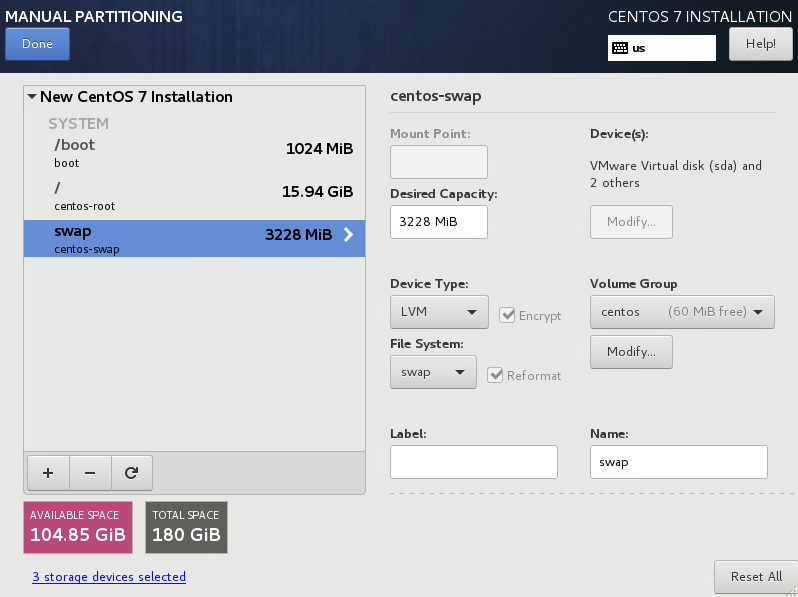
volume group
Be sure to check “Encrypt” here and not on under Device Type. I’m not sure what the difference is, but I had issues not doing this way.
Use whatever Size Policy makes sense for you.

After install, everything looks good…
sudo cat /proc/mdstat

IMPORTANT
Make sure GRUB is installed on all mirrored disks. In my case:
sudo grub2-install /dev/sda
sudo grub2-install /dev/sdb
sudo grub2-install /dev/sdc

Now, I’ll go ahead and kill 2 drives (I just removed them completely while the system was shut off).
2 drives missing as expected. I removed what were previously sda and sdb. Now sdc has become sda. Be careful to check drive labels after each reboot as they can change.
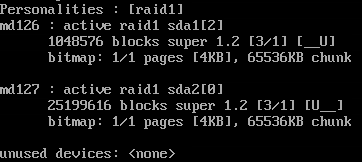
Now I add 2 clean 60GB drives to replace the old ones. If your system doesn’t boot after adding new drives, make sure your bios boot order is not trying to boot from one of the new drives.
Check /proc/mdstat again to double check which drive (sda, sdb, etc) in use, and take note of which partitions correspond to which md mirror. In my case, md126=sda2 and md127=sda1.
Copy the partition table to the new disks:
sudo sfdisk -d /dev/sda | sudo sfdisk /dev/sdb
sudo sfdisk -d /dev/sda | sudo sfdisk /dev/sdc


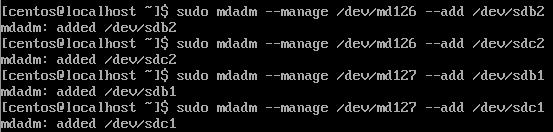
Now add the new drives to the md mirrors:
sudo mdadm --manage /dev/md126 --add /dev/sdb2
sudo mdadm --manage /dev/md126 --add /dev/sdc2
sudo mdadm --manage /dev/md127 --add /dev/sdb1
sudo mdadm --manage /dev/md127 --add /dev/sdc1
sudo cat /proc/mdstat should show that the mirrors are being rebuilt
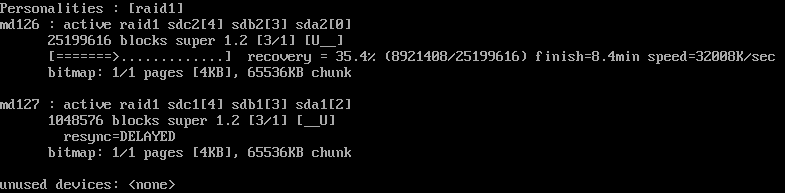
After they’re done rebuilding, issue the following commands. I’m not sure what goes on under the hood here, but they’ll prevent a warning from popping up when we install grub on the new disks. I’m also not sure if all of these are necessary, but they will get the job done…
sudo blockdev --flushbufs /dev/sda
sudo blockdev --flushbufs /dev/sda1
sudo blockdev --flushbufs /dev/sda2
sudo blockdev --flushbufs /dev/sdb
sudo blockdev --flushbufs /dev/sdb1
sudo blockdev --flushbufs /dev/sdb2
sudo blockdev --flushbufs /dev/sdc
sudo blockdev --flushbufs /dev/sdc1
sudo blockdev --flushbufs /dev/sdc2

Now all that’s left is to install grub on the new disks:
sudo grub2-install /dev/sdb
sudo grub2-install /dev/sdc

I’ve done this multiple times so that no original disks were left and everything still booted up fine.
Nice write-up!