Mechanical Drive Bad Sectors: The Drive is Not Always Dead (A Primer)

Here’s our specimen:

=== START OF INFORMATION SECTION ===
Device Model:     OOS22000G
LU WWN Device Id: 5 000c50 0e6e3ad7e
Firmware Version: OOS1
User Capacity:    22,000,969,973,760 bytes [22.0 TB]
Sector Sizes:     512 bytes logical, 4096 bytes physical
Rotation Rate:    7200 rpm
Form Factor:      3.5 inches
Device is:        Not in smartctl database 7.5/5706
ATA Version is:   ACS-4 (minor revision not indicated)
SATA Version is:  SATA 3.3, 6.0 Gb/s (current: 6.0 Gb/s)
SMART support is: Available - device has SMART capability.
SMART support is: Enabled

smartctl -a shows:

SMART Self-test log structure revision number 1
Num  Test_Description    Status                  Remaining  LifeTime(hours)  LBA_of_first_error
# 1  Extended offline    Completed: read failure       90%     15604         35387280
# 2  Extended offline    Completed: read failure       90%     15594         35387280
# 3  Extended offline    Completed: read failure       90%     15577         35387280
# 4  Extended offline    Completed: read failure       90%     15538         35387280
# 5  Extended offline    Interrupted (host reset)      00%     14761         -

Oh no multiple smart long tests with read failures. It’s Dead Jim! … Or.. is it?

Vendor Specific SMART Attributes with Thresholds:
...
  5 Reallocated_Sector_Ct   0x0033   100   100   010    Pre-fail  Always       -       1
187 Reported_Uncorrect      0x0032   055   055   000recover    Old_age   Always       -       45
197 Current_Pending_Sector  0x0012   100   100   000    Old_age   Always       -       12
...

Those 3 stats are the things we’re worried about. Only one reallocated sector? What gives?

The state of things is that we have this drive which was pulled from an array. It seems fine, except it FAILS the long smart diagnostic. But the behavior here is very VERY firmware specific. This drive does NOT automatically correct a bad sector (most drives don’t, some do) because the correction mechanism involves telling you the sector is bad ONE TIME then zeroing it and moving on. The reality is that this is a media error and that sector LBA is likely to be relocated elsewhere.

How do you force relocation? You wire to that LBA:

So the fix for a sector that can’t be read and throws a scary hardware error is to… write to it?

Yes. That forces the LBA to reallocated. But it can be misleading because you may also need to overwrite adjacent LBAs, too.

hdparm --read-sector 35387280 /dev/sdf

results in:

reading sector 35387280: SG_IO: bad/missing sense data, sb[]:  f0 00 03 40 53 02 00 0a 00 96 f7 1b 11 00 00 00 00 00 00 00 00 00 00 00 00 00 00 00 00 00 00 00

and

hdparm --write-sector 35387280 /dev/sdf

will write. If you do the write operation (which requires a secret --force command because its so destructive) then try to do a read:

succeeded
0000 0000 0000 0000 0000 0000 0000 0000
0000 0000 0000 0000 0000 0000 0000 0000
0000 0000 0000 0000 0000 0000 0000 0000
0000 0000 0000 0000 0000 0000 0000 0000
0000 0000 0000 0000 0000 0000 0000 0000
0000 0000 0000 0000 0000 0000 0000 0000
0000 0000 0000 0000 0000 0000 0000 0000
0000 0000 0000 0000 0000 0000 0000 0000
0000 0000 0000 0000 0000 0000 0000 0000
0000 0000 0000 0000 0000 0000 0000 0000
0000 0000 0000 0000 0000 0000 0000 0000
0000 0000 0000 0000 0000 0000 0000 0000
0000 0000 0000 0000 0000 0000 0000 0000
0000 0000 0000 0000 0000 0000 0000 0000
0000 0000 0000 0000 0000 0000 0000 0000
0000 0000 0000 0000 0000 0000 0000 0000
0000 0000 0000 0000 0000 0000 0000 0000
0000 0000 0000 0000 0000 0000 0000 0000
0000 0000 0000 0000 0000 0000 0000 0000
0000 0000 0000 0000 0000 0000 0000 0000
0000 0000 0000 0000 0000 0000 0000 0000
0000 0000 0000 0000 0000 0000 0000 0000
0000 0000 0000 0000 0000 0000 0000 0000
0000 0000 0000 0000 0000 0000 0000 0000
0000 0000 0000 0000 0000 0000 0000 0000
0000 0000 0000 0000 0000 0000 0000 0000
0000 0000 0000 0000 0000 0000 0000 0000
0000 0000 0000 0000 0000 0000 0000 0000
0000 0000 0000 0000 0000 0000 0000 0000
0000 0000 0000 0000 0000 0000 0000 0000
0000 0000 0000 0000 0000 0000 0000 0000
0000 0000 0000 0000 0000 0000 0000 0000

Ayyyy! It worked!

So you’d do another smart long test… and it’ll fail once again. Why?

Because, really, its sort of a firmware bug. Not every LBA is stored individually either.

bump by one?

hdparm --read-sector 35387281 /dev/sdf

We incremented the sector number… and whats this? another read error? In smartctl mode it’s reading more than one LBA at a time so the error means some LBA failed starting at the LBA in the smart log.

How to fix? I usually use a little script like this one:

for i in $(seq 35387270 35387290); do
    if sudo hdparm --read-sector "$i" /dev/sdf >/dev/null 2>&1; then
        echo "OK   $i"
    else
        echo "BAD  $i"
    fi
done

Notice carefully the LBA numbers. 10 less and 10 more than the problem one. (You might even want to go +100 / -100 or +20 / -20). The output looks like:

OK   35387270
OK   35387271
OK   35387272
OK   35387273
OK   35387274
OK   35387275
OK   35387276
OK   35387277
OK   35387278
OK   35387279
OK   35387280
OK   35387281
BAD  35387282
OK   35387283
OK   35387284

So we have “more” sectors we need to write to – #82 up there is ALSO bad and it’s likely the smart test flagged this “group” of LBAs under #80 and still fails.

With that fixed, we can re-run smart long test. Also, this scrip gives you a “feel” for those LBAs. Does i get stuck on a number for a sec before returning OK? If so that might not be a good sign for overall drive health.

# smartctl --test=long /dev/sdf
...
Testing has begun.
Please wait 1808 minutes for test to complete.
Test will complete after Sat Sep  5 21:10:08 2026 EDT
Use smartctl -X to abort test.

Writes to the drive are destructive!

But if you have errors from syslog/dmesg about specific sectors this will let you “surgically” / zero those LBAs which will squelch the physical hardware errors.

hdparm is hugely useful for this type of overwrite surgery.

Here’s what I do to a “fresh” disk (HIGHLY DESTRUCTIVE):

sudo fio --name=fill \
  --filename=/dev/you-disk-here \
  --rw=write \
  --bs=8M \
  --direct=1 \
  --iodepth=16 \
  --size=100% \
  --verify=0 \
  --fill_device=1

then when that’s done re-check:

  5 Reallocated_Sector_Ct   0x0033   100   100   010    Pre-fail  Always       -       4

That’s the thing to keep an eye on. Is that counting up? Are there more errors? A little bi of media error on a drive is somewhat normal. Increasing media errors/read errors is a much more severe problem.

I’ll report back if this drive survives another 3 months (actually have two of these 22tb drives with just 1-2 sectors of media errors).

A Tale Of Two Firmwares

So I have some “official” Seagate 22tb and some white-label 22tb. The white-label disks are more fothcoming with errors than their official counterparts imho. It’s interesting:

SMART Self-test log structure revision number 1
Num  Test_Description    Status                  Remaining  LifeTime(hours)  LBA_of_first_error
# 1  Extended offline    Completed: read failure       00%     13068         -
# 2  Offline             Completed without error       00%     13014         -
# 3  Extended offline    Completed: read failure       00%     12997         -
# 4  Short offline       Completed without error       00%         3         -
# 5  Short offline       Completed without error       00%         0         -

These drives have the same problem, media error. I can see some pending sectors (low #) and a low # of unreadable sector errors but the smart test on the “official” seagate drive does not report which LBA failed during the extended offline smart test.

In that case you can look through dmesg for clues or go with the full-drive-overwrite with fio.

Update

And what was the result of the subsequent long smart test?

SMART Self-test log structure revision number 1
Num  Test_Description    Status                  Remaining  LifeTime(hours)  LBA_of_first_error
# 1  Extended offline    Completed without error       00%     15676         -
# 2  Extended offline    Completed: read failure       90%     15622         35387376
# 3  Extended offline    Completed: read failure       90%     15604         35387280
# 4  Extended offline    Completed: read failure       90%     15594         35387280
# 5  Extended offline    Completed: read failure       90%     15577         35387280
# 6  Extended offline    Completed: read failure       90%     15538         35387280
# 7  Extended offline    Interrupted (host reset)      00%     14761         -
5 of 5 failed self-tests are outdated by newer successful extended offline self-test # 1

the advice is not “multiple smart read failures? trash!” because our most recent smart test completed without error. But we did need to run the test to fill the drive which takes a couple of days on 22tb.
15 Likes

I’ve recently been through a similar exercise. A further complication is that even when you “fix” the bad group and force it to be remapped, some drives (CMR WD Red in my case) will still report those sectors as Offline Uncorrectable and drive health indicators in SMART monitoring software will whinge about this.

The fix, at least for me, was to:

  1. Disable automatic offline data collection (it’s a deprecated feature anyway and can impact performance & power consumption)
  2. Run a captive full disk offline test.

That cleared the remaining SMART counters and the drive has been good since. At least good enough to have six full passes of badblocks (four patterns per pass) without any issues appearing. It’s been in service for about 3 or 4 months since that “repair” job and has seen about 2.5 drives worth of data being written and about half that in reads. Not a single reported issue and no filesystem (BTRFS) checksum errors to indicate bitrot.

Obviously, these behaviours are manufacturer and model specific. Most of my fleet are WD drives and when compared to the Seagates, they tend to complain earlier and louder, but hardly ever die suddenly and completely.

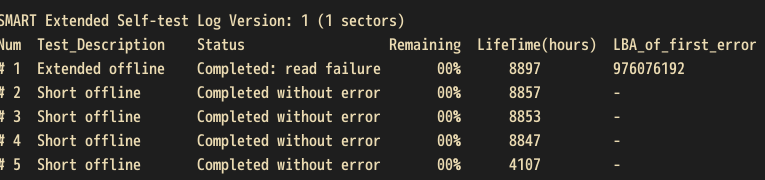
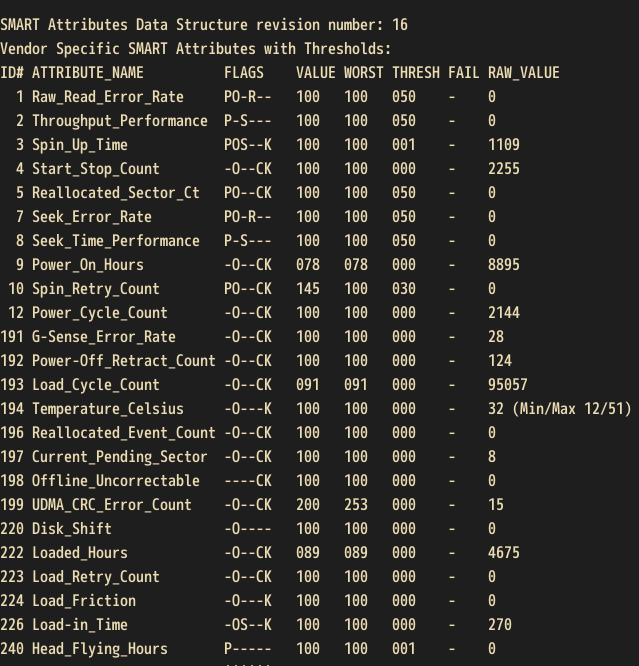
I’ve this drive I pulled out of my server a few months ago because I was getting constant file system errors. Smart stats would report multiple “uncorrectable” sectors. Last time I checked (a couple months ago) said sectors were around 5000. Weirdly enough the drive still works, I’ve an operating system installed to it and it seemingly works without issues. I haven’t tried any destructive methods of rewriting the sectors though. I wonder if that’s what it needs in order for it to be safely usable again (and ideally put it back into service since storage isn’t cheap).

My solution has been to let badblocks rip through drives showing errors. Usually by the third pass, the drive has reallocated the faulty sectors and a long smart self test will also pass. Going sector by sector might be a little faster though, it can take over a week to run three full passes of writes and reads across large SATA disks.

@Dank_Vader It’s worth trying, but 5000 is an awful lot of bad sectors. Usually there’s just a couple, when this kind of repair works.

3 Likes

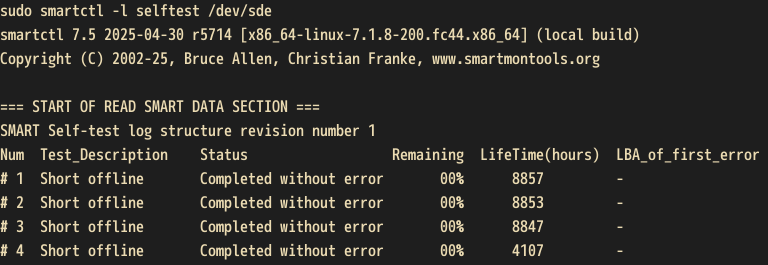
The results are certainly conflicting with what I found on hddsentinel a few months ago. The drive looks healthy(-ish) according to its self-tests. I’ve fired up a long smartctl test so I’ll see how that turns out in a couple hours.

Very interesting as I got a lot of 2TB/4TB drives in my lab that were pulled out of servers due to SMART or ZFS errors that might be good to reuse in the future as prices of them are getting ridiculous lately

I don’t want to be needlessly optimistic but it does line up with Wendell’s example.

and current-pending-sector 197 suggests the drive really wants you to sequester it and fio overwrite the whole drive to bring it back then run a smart long test. in the case of a 22tb drive that’s about 3.5 days of continuous operation.

#194 – 51c is a bit toasty for a drive!

I dont see 5000 bad sectors in this output. It may be you’ve tried to read the same 12 bad sectors 5000 times which is less worrying.

1 Like

Yeah it almost never reaches that temp. The highest I’ve seen it reach is 45. Maybe that 51 was while I had it in an external usb enclosure with no active airflow (I run it on an external usb enclosure ever since I pulled it out of the system it was running in).

But yeah, I don’t see anything resembling what hddsentinel was reporting; the drive looks like it’s in a better shape than I thought. I’m just scrambling for parts to build a testbed so I can plug the drive in via sata (I was told usb is a bad interface for such tasks) and run openseachest on it.

It’s worth looking at some of the data recovery tools for dealing with bad sectors. I have used WDMarvel with some success. The ARCO feature can take a week to run, but has fixed a few drives that had click of death with 0 capacity reported. It’s also interesting to see the “p-list”, most new drives are shipped with 5000-15000 bad sectors already present.

You can also compare the p-list and g-list to see some new bad sectors are just continuations of bad sectors set at the factory.

Be careful too, if you damage the service area/firmware then you might take a drive with 1 bad sector and make it unusable (backup service area/firmware before doing anything!)

I’ve been using this disk-burnin-and-testing script by Spearfot on Github for a long time in my homelab when deploying both new and used HDDs. Made the whole dance with smart tests and badblocks easier. Is using that fio command equal to badblocks?
Haven’t used writing to drives to give new life to drives throwing errors, but in this rampocalypse and it’s HDD prices it’s definitely worth it! Just yesterday I found out that one of my old 10 TB drives in one of the unRAID servers is being flagged as bad. Going shopping for drives now su*ks.. :slight_smile:

i swear wendell is secretly stalking my discord or something :smiley:

just yesterday i had a 2TB HDD ending itself. Not my rig so i got it in my hands probably way too late…

First the system would seem to be able to read files from it, so i just put a spare 1TB drive to give her a backup storage to copy any important files to, when she had still some time (as i thought). At that time the drive would show smart as “passed” while any smart test was throwing “failed: read error” at 10% of the test. Whats the point of smart if it shows errors, cant pass tests, but still shows “passed”… anyway, i hoped she would be able to copy what she needed to the other HDD.

Next day the drive would show up in the system, but reading anything from it would instalock windows and eventually disconnect the drive.

In the end it got to a point, where even smartctl (in livebooted Ubuntu) couldnt read any info from the drive. Dmesg was full of I/O errors and anything i tried basically said “read fail”, even basic smart info. So i declared it dead.

Later opened the drive up and noticed tiny holes in the platters and even like 2-3mm scratch on one…

I ran smart data through LLM and it pointed the issue at head being parked way too many times, compared to the lifespan of the drive and one bloke on discord confirmed this as possible cause of death as he had one of his drives going this way too - head parking too often resulting in drive/head wear… it could be solved, but it was already too late for this drive…

Smart data from before the drive died for anyone:

Vendor Specific SMART Attributes with Thresholds:
ID# ATTRIBUTE_NAME          FLAG     VALUE WORST THRESH TYPE      UPDATED  WHEN_FAILED RAW_VALUE
  1 Raw_Read_Error_Rate     0x000f   057   056   006    Pre-fail  Always       -       178448268
  3 Spin_Up_Time            0x0003   096   095   000    Pre-fail  Always       -       0
  4 Start_Stop_Count        0x0032   097   097   020    Old_age   Always       -       3731
  5 Reallocated_Sector_Ct   0x0033   099   099   010    Pre-fail  Always       -       992
  7 Seek_Error_Rate         0x000f   082   060   045    Pre-fail  Always       -       156954686
  9 Power_On_Hours          0x0032   092   092   000    Old_age   Always       -       7475h+42m+51.751s
 10 Spin_Retry_Count        0x0013   100   100   097    Pre-fail  Always       -       0
 12 Power_Cycle_Count       0x0032   099   099   020    Old_age   Always       -       1983
183 Runtime_Bad_Block       0x0032   100   100   000    Old_age   Always       -       0
184 End-to-End_Error        0x0032   100   100   099    Old_age   Always       -       0
187 Reported_Uncorrect      0x0032   094   094   000    Old_age   Always       -       6
188 Command_Timeout         0x0032   100   099   000    Old_age   Always       -       6 6 11
189 High_Fly_Writes         0x003a   100   100   000    Old_age   Always       -       0
190 Airflow_Temperature_Cel 0x0022   059   053   040    Old_age   Always       -       41 (Min/Max 36/41)
191 G-Sense_Error_Rate      0x0032   100   100   000    Old_age   Always       -       0
192 Power-Off_Retract_Count 0x0032   100   100   000    Old_age   Always       -       30
193 Load_Cycle_Count        0x0032   061   061   000    Old_age   Always       -       78690
194 Temperature_Celsius     0x0022   041   047   000    Old_age   Always       -       41 (0 21 0 0 0)
195 Hardware_ECC_Recovered  0x001a   083   064   000    Old_age   Always       -       178448268
197 Current_Pending_Sector  0x0012   094   094   000    Old_age   Always       -       2192
198 Offline_Uncorrectable   0x0010   094   094   000    Old_age   Offline      -       2192
199 UDMA_CRC_Error_Count    0x003e   200   200   000    Old_age   Always       -       0
240 Head_Flying_Hours       0x0000   100   253   000    Old_age   Offline      -       2839h+11m+21.077s
241 Total_LBAs_Written      0x0000   100   253   000    Old_age   Offline      -       34695381846
242 Total_LBAs_Read         0x0000   100   253   000    Old_age   Offline      -       47934282153

sorry thats a lot of text, probably with a lot of typos :smiley:

Any reason to switch from badblocks to fio?

My workflow:

  1. Document the drive based on ID: smartctl -a
  2. badblocks with 0x00
  3. badblocks with 0xFF
  4. Document the drive based on ID: smartctl -a
  5. back to dm-integrity pool

I have had drives work well after their expected live spans as long as the data can be re-written and you can verify the integrity.

As advice: Do replace SATA cables on the regular - most of them are trash and cause more problems than the drives.

2 Likes

Replicated JBOD storage on Exchange 2010 did something similar (I think they called it “Page Patching”?) where they dealt with read errors through re-writing the disk block with data from a healthy replica. Was quite impressed with the Exchange 2010 architecture team on this. The hardest part was convincing our hardware techs not to immediately replace drives when they saw errors and write reallocations occur.

1 Like

Nobody here mentioned selective smart tests…
I wrote this script that runs smartctl until it fails, overwrites the reported LBA’s secotr with hdparm and then runs a selective test starting from 1000 LBA’s before that (to re-check that area) via smartctl -t select,<LBA>-max /dev/sdX, it does that in a loop until the whole disk is checked. This way it needs to just read the disk once while also fixing all read errors on it.
Oh btw when running it on live zfs pools a following scrub may then report checksum errors because of those overwritten sectors, just clear those.

2 Likes

I like badblocks historically but it was taking 2x as long as fio for some reason.

1 Like

Try set -b 1048576 . The default block size is 1024, which is way too small with direct IO.

Since you already opened the drive, I guess this message is too late. But for a failing drive on its last breath, please try ddrescue. It will try various strategies to read any remaining data from the drive, until the drive really dies.

What’s important here is that ddrescue reads the data in multiple passes. And will skip the slower sectors initially. The slower sectors are usually corrupted, and the drive will make every effort to read from the sector. That’s gonna wear out the read head, and you will miss the undamaged and perfectly readable sectors after it.

So ddresue will get all low-hanging fruits done. Then it will try the difficult ones. For the difficult ones, you can tell it to retry again and again, until the drive is really dead. If the drive drops out / lost connection / your computer lost power, no worries, ddrescure has a log file, it can resume after you reconnect the drive.

Anyway, the point is, the simple cp command is not the best tool to recover data from a failing drive.

ddrescue was in my plan once i got the PC next day, but when i booted into linux, the drive already refused to cooperate at any level

Im still surpriced how fast it went, but if the head was damaged and started nuking rest of the surface in the process, i dont think ddrescue would help anyway

edit: On a plus side, maybe i finally teached another person to start backing up their data :smiley:

That’s very interesting; I have a few drives failing the SMART test.
I was actually planning to replace them, but if I can put that off—since the data on them is backed up anyway

Then let me just make sure I’ve understood this correctly.
Basically, when a SMART test reports a failure—specifically a read failure—the idea is to try reading from the disk, and if it fails, write to that specific LBA?

I’m trying this right now, but it seems like there’s always a new LBA failing the check.
So, in a situation like this, should I just overwrite the entire disk using fio with the command from the post?