Background
TODO – check out our awesome FalconNorthwest Threadripper Pro 96 core build – with Dual RTX Pro 6000!

Paths to GPU Virtualization
It isn’t super relevant to this guide per se but confusion on this can lead to misunderstanding. There are 4-ish ways to get real GPU compute inside a full virtual machine*
- GPU pass-through: This is a pcie device that shows up as a pcie device and one passes through the entire device to a virtual machine. This is how gamers and enthusiasts have done it, and a lot of our 5+ year old content on this topic is based on this approach. There are gotchas, especially around how the GPU devices themselves handle PCIe reset events.
- SR-IOV: Single Root I/O virtualization. This functions like #1 except the device itself can be configured to show up on the PCIe bus multiple times. Intel iGPUs also permit this functionality (but are so anemic as to be borderline useless, even though they support it.) There is new home with Battlemage/BattleMatrix and a small set of SR-IOV unlockable Arc-based A770s from the initial production run.
- MIG: Multi-instance GPU. This is a new-ish thing from Nvidia, and what we’re discussing here. It’s similar to SR-IOV and, contrary to some reports, does work with QEMU/KVM. It’s a true hardware partition. ← This one is us, and what we’re going to do in this how-to.
- vGPU: Another nvidia technology, but this one also requires a license or subscription from nvidia to use. Unlike the other technologies. This is effectively co-operative multi-tasking on a gpu, and mostly doesn’t support vRam oversubscription but can support oversubscription of other GPU resources.
*Note that containerization services have more options and tend to be more flexible. Docker and Kubernetes can co-operatively share GPU resources in some additional ways than what is discussed here. A licenseless vGPU type
Getting Started
It helps if you are starting with Linux, have the nvidia drivers installed, ideally version 575 or newer, and that nvidia-smi returns meaningful information.
The first step is to put your GPU in compute mode. This disables the displayport outputs.
Our setup here has an RTX A4000 for host/console output, and two RTX PRO 6000 Blackwell edition cards.
nvidia-smi

+-----------------------------------------------------------------------------------------+
| NVIDIA-SMI 570.181                Driver Version: 570.181        CUDA Version: 12.8     |
|-----------------------------------------+------------------------+----------------------+
| GPU  Name                 Persistence-M | Bus-Id          Disp.A | Volatile Uncorr. ECC |
| Fan  Temp   Perf          Pwr:Usage/Cap |           Memory-Usage | GPU-Util  Compute M. |
|                                         |                        |               MIG M. |
|=========================================+========================+======================|
|   0  NVIDIA RTX A4000               Off |   00000000:21:00.0 Off |                  Off |
| 38%   57C    P0             41W /  140W |       0MiB /  16376MiB |      2%      Default |
|                                         |                        |                  N/A |
+-----------------------------------------+------------------------+----------------------+
|   1  NVIDIA RTX PRO 6000 Blac...    Off |   00000000:F1:00.0 Off |                   On |
| 38%   37C    P1            162W /  600W |     256MiB /  97887MiB |     N/A      Default |
|                                         |                        |              Enabled |
+-----------------------------------------+------------------------+----------------------+
|   2  NVIDIA RTX PRO 6000 Blac...    Off |   00000000:F6:00.0 Off |                   On |
| 33%   34C    P1            160W /  600W |     256MiB /  97887MiB |     N/A      Default |
|                                         |                        |              Enabled |
+-----------------------------------------+------------------------+----------------------+
Enabling multi-instance GPU persists across reboots. The documentation suggests that
sudo nvidia-smi -i 1 -mig 1
would work to enable MIG / compute mode on the first RTX Pro 6000. However it errors out. displaymodeselector from July 25, 2025 or newer does correctly set the MIG mode, however. You will have to run that utility to set mig, not nvidia-smi, and then reboot.
From here we can verify that mig profiles are available. The available profiles vary from card to card:
nvidia-smi mig -lgip
+-------------------------------------------------------------------------------+
| GPU instance profiles:                                                        |
| GPU   Name               ID    Instances   Memory     P2P    SM    DEC   ENC  |
|                                Free/Total   GiB              CE    JPEG  OFA  |
|===============================================================================|
|   1  MIG 1g.24gb         14     0/4        23.62      No     46     1     1   |
|                                                               1     1     0   |
+-------------------------------------------------------------------------------+
|   1  MIG 1g.24gb+me      21     0/1        23.62      No     46     1     1   |
|                                                               1     1     1   |
+-------------------------------------------------------------------------------+
|   1  MIG 1g.24gb+gfx     47     0/4        23.62      No     46     1     1   |
|                                                               1     1     0   |
+-------------------------------------------------------------------------------+
|   1  MIG 1g.24gb+me.all  65     0/1        23.62      No     46     4     4   |
|                                                               1     4     1   |
+-------------------------------------------------------------------------------+
|   1  MIG 1g.24gb-me      67     0/4        23.62      No     46     0     0   |
|                                                               1     0     0   |
+-------------------------------------------------------------------------------+
|   1  MIG 2g.48gb          5     0/2        47.38      No     94     2     2   |
|                                                               2     2     0   |
+-------------------------------------------------------------------------------+
|   1  MIG 2g.48gb+gfx     35     0/2        47.38      No     94     2     2   |
|                                                               2     2     0   |
+-------------------------------------------------------------------------------+
|   1  MIG 2g.48gb+me.all  64     0/1        47.38      No     94     4     4   |
|                                                               2     4     1   |
+-------------------------------------------------------------------------------+
|   1  MIG 2g.48gb-me      66     0/2        47.38      No     94     0     0   |
|                                                               2     0     0   |
+-------------------------------------------------------------------------------+
|   1  MIG 4g.96gb          0     0/1        95.00      No     188    4     4   |
|                                                               4     4     1   |
+-------------------------------------------------------------------------------+
|   1  MIG 4g.96gb+gfx     32     0/1        95.00      No     188    4     4   |
|                                                               4     4     1   |
+-------------------------------------------------------------------------------+
I selected profile 47, the third entry, above. This is 24b+gfx and the card supports up to 4 instance. Each instance has 24g vram and performs really well for gaming and other workloads.
It’s also possible to split the card in half for two 48g vram instances and some other configurations.
To create the instances:
sudo nvidia-smi mig -cgi 47,47,47,47 -C
This does not survive reboot. Nvidia does provide a daemon stub that is usable to automate this on boot:
Overall nvidia’s documentation is reasonably good and should also be used as a reference.
QEMU Configuration
One thing missing from Nvidia’s docs is how easy it is to go from here to a working QEMU swam. With two RTX Pro 6000s we now have 8x 24g virtualizable gpu instances.
 nvidia-smi -L
GPU 0: NVIDIA RTX A4000 (UUID: GPU-d92f7379-5e22-4dd6-70cc-7d41bf5ad9fb)
GPU 1: NVIDIA RTX PRO 6000 Blackwell Workstation Edition (UUID: GPU-5*****)
  MIG 1g.24gb     Device  0: (UUID: MIG-f46****)
  MIG 1g.24gb     Device  1: (UUID: MIG-d17****)
  MIG 1g.24gb     Device  2: (UUID: MIG-d16****)
  MIG 1g.24gb     Device  3: (UUID: MIG-d1c****)
GPU 2: NVIDIA RTX PRO 6000 Blackwell Workstation Edition (UUID: GPU-4****)
  MIG 1g.24gb     Device  0: (UUID: MIG-7be****)
  MIG 1g.24gb     Device  1: (UUID: MIG-a4d****)
  MIG 1g.24gb     Device  2: (UUID: MIG-e65****)
  MIG 1g.24gb     Device  3: (UUID: MIG-9cf****)
The UUIDs from the output of nvidia-smi are necessary – the MIG 1.24gb type Device entry’s UUID is what will be assigned in QEMU’s configuration
XML.
Make sure not to use the MIG UUID prefix. Also the display=off or on depends on the card you’re using. Off in RTX Pro 6000’s case.
Be sure to update the device’s bus and slot for what makes sense in your passthrough secnario.
<hostdev mode='subsystem' type='mdev' managed='no' model='vfio-pci' display='off'>
 <source>
 <address uuid='f46****'/>
 </source>
 <address type='pci' domain='0x0000' bus='0xxx' slot='0xyy function='0x0'/>
</hostdev>
What about windows as a host?
It should be okay since it is okay on the A100 with hyper-v, but it isn’t.
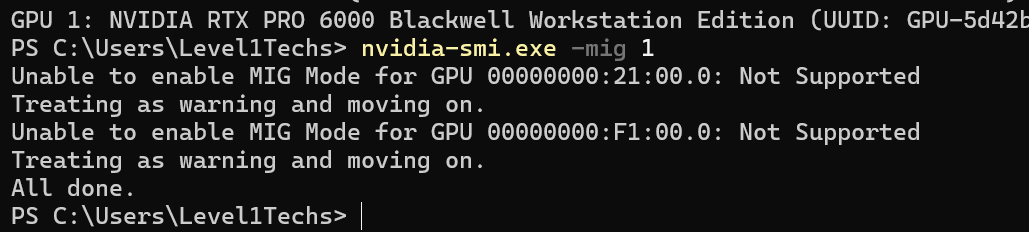
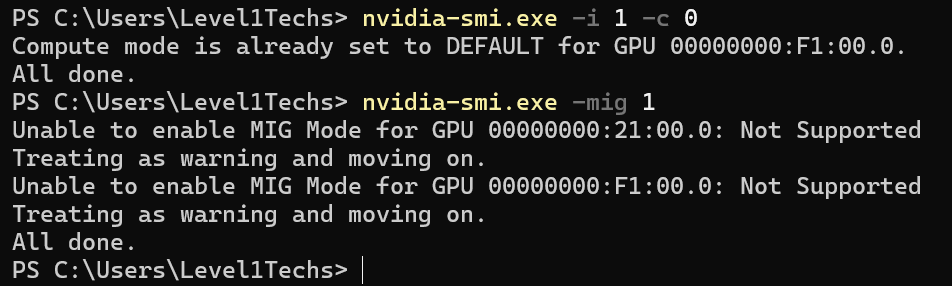
Not supported!? Lies. It is supported elsewhere, but not with this platform. This is yet another instance where there just isn’t feature parity from Nvidia on Windows vs Linux.
And it’s extra baffling given older enterprise GPUs also work here. MIG isn’t that new. Given hyper-v does actually work okay with sr-iov, I thought it might be possible to put the card into the right mode then soft-reset the machine back to windows from linux. However as I said in the video, It doesn’t work for some reason.
Can you create a windows VM and nest virtualization with the virtual devices created by the utilities on linux? While not recommended that does seem to work, too.
vGPU as a licensed solution is, of course, is still possible directly with bare metal Linux. But who wants that if they don’t have to?
This was also driver 580 – newer than on linux FWIW.
